> ## Documentation Index
> Fetch the complete documentation index at: https://docs.tented.ai/llms.txt
> Use this file to discover all available pages before exploring further.
# Creating Emails
> Generate beautiful, personalized marketing emails by chatting with AI
## Emails, the Tented way
If you've built a tent, you already know how to build an email: describe what you want, iterate in chat, and watch the preview update live. Every email Tented generates uses battle-tested HTML — bulletproof tables, MSO conditionals for Outlook, dark-mode hooks — so it renders cleanly across Gmail, Outlook, Apple Mail, Yahoo, and friends.
## Create your first email
1. Go to **Email** in the sidebar.
2. Click **Add > Create Email**.
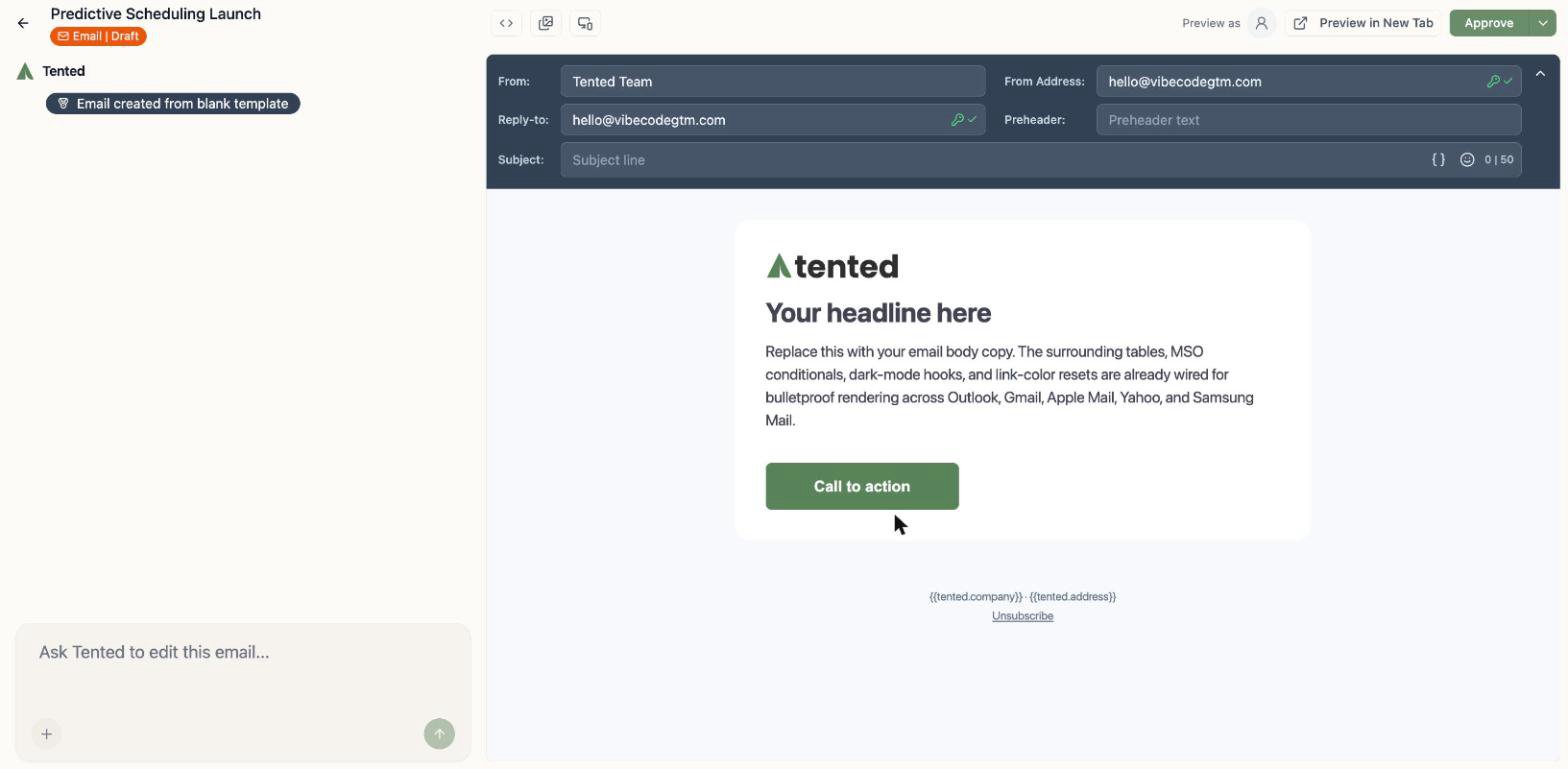
3. The **Choose Email Template** gallery opens. Pick a starting point: a design from the [Tented example template collection](#tented-example-templates) (every one already rendered in your branding), one of [your own approved templates](/email/email-templates), or **Blank Email** for a clean branded scaffold.
4. Name your email and click **Create Email**.
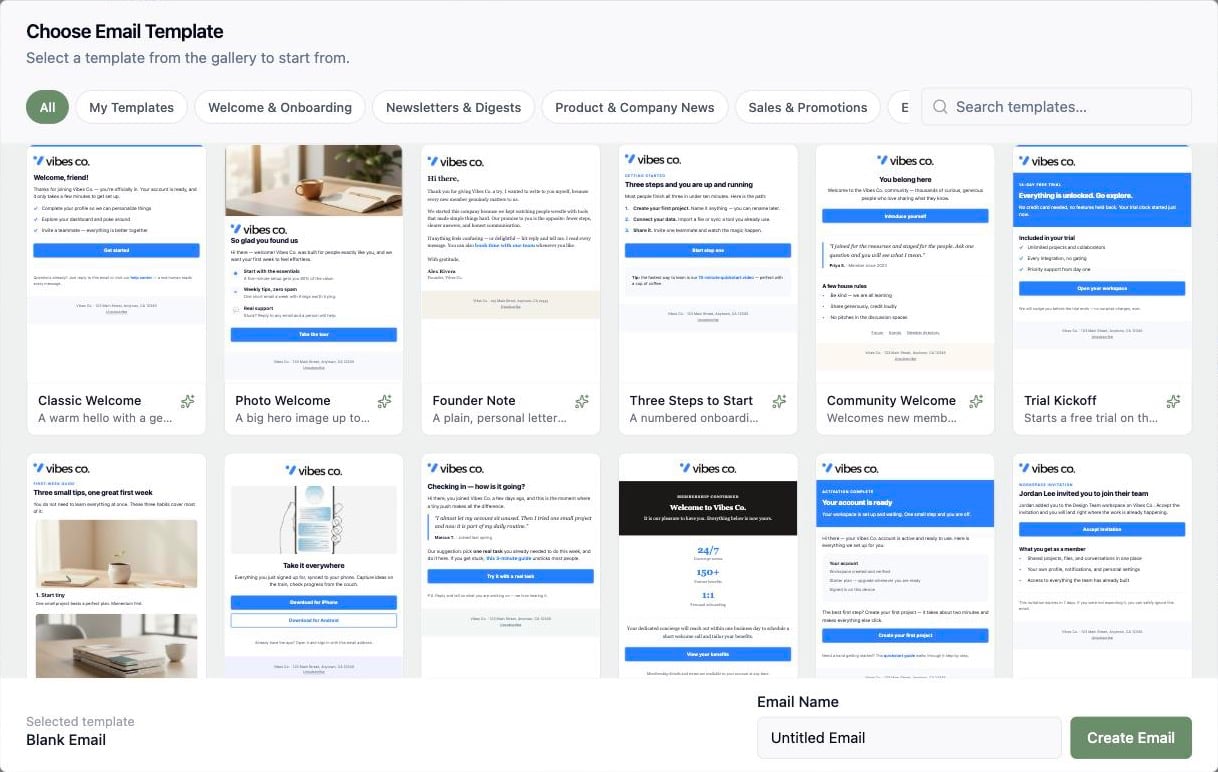 You'll land in the email editor: chat on the left, live preview on the right, with your default from name and address already filled in from [email settings](/email/email-setup).
 ## Tented Example Templates
The gallery's headline act is the **Tented example template collection**: dozens of professionally designed emails covering welcomes, newsletters, product news, promotions, receipts, events, and win-backs. The collection **automatically enables your branding**. Before you touch a prompt, every design in the gallery renders with the logo, brand color, and company details from your [workspace settings](/configuring-tented/workspace-settings), so nothing in it looks like a placeholder.
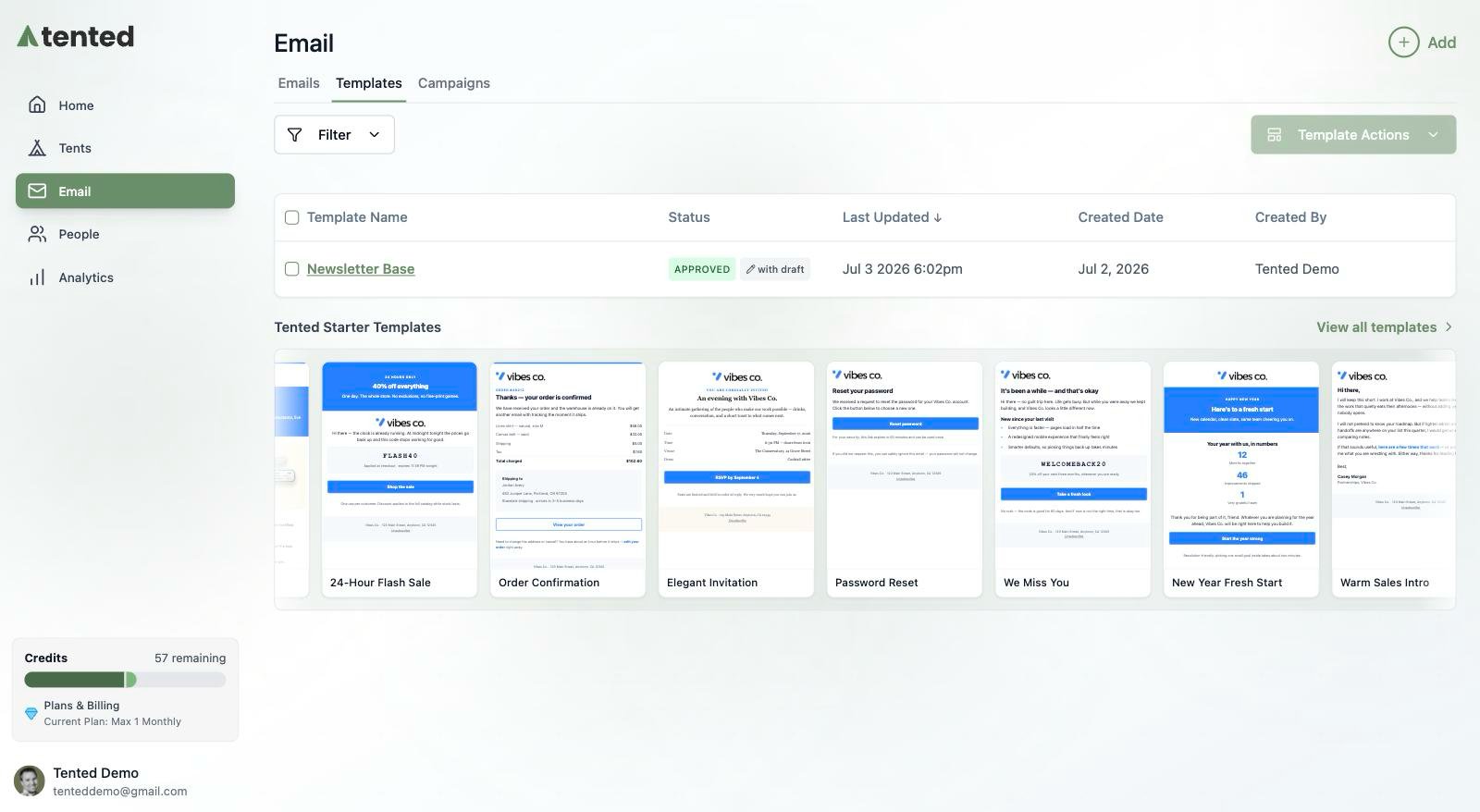
Browse by category (Welcome & Onboarding, Newsletters & Digests, Sales & Promotions, and more), search by name, or click **Preview** on any card to see it full size. You can also reach the collection any time under **Email > Templates**, in the **Tented Starter Templates** row: hover a card and click **Use** to start a new email from it on the spot.
## Tented Example Templates
The gallery's headline act is the **Tented example template collection**: dozens of professionally designed emails covering welcomes, newsletters, product news, promotions, receipts, events, and win-backs. The collection **automatically enables your branding**. Before you touch a prompt, every design in the gallery renders with the logo, brand color, and company details from your [workspace settings](/configuring-tented/workspace-settings), so nothing in it looks like a placeholder.
Browse by category (Welcome & Onboarding, Newsletters & Digests, Sales & Promotions, and more), search by name, or click **Preview** on any card to see it full size. You can also reach the collection any time under **Email > Templates**, in the **Tented Starter Templates** row: hover a card and click **Use** to start a new email from it on the spot.
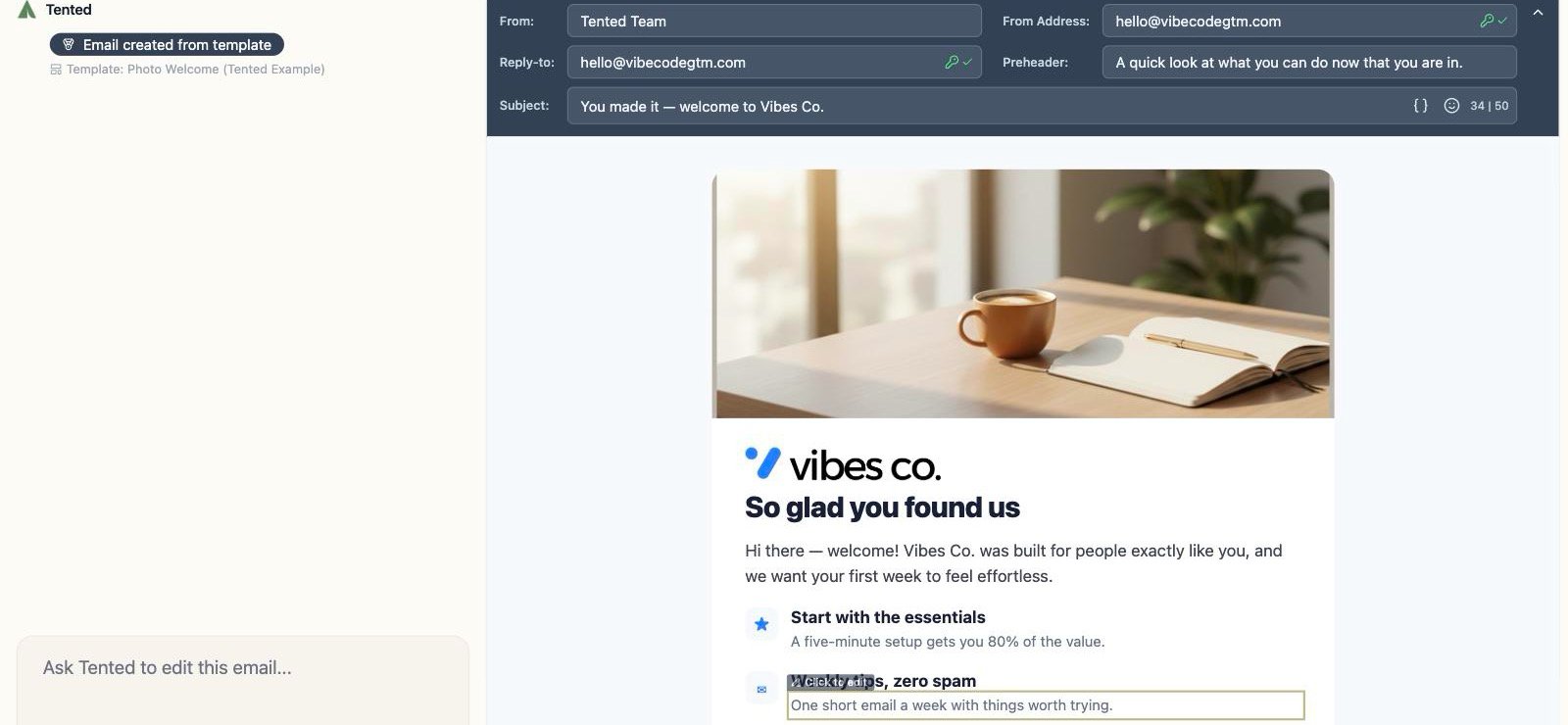
 An email created from an example template opens ready to customize:
* The template's full design, rendered with your logo, brand color, and company footer already in place
* Your default from name, from address, and reply-to prefilled from [email settings](/email/email-setup)
* A chat pill recording which template the email started from
An email created from an example template opens ready to customize:
* The template's full design, rendered with your logo, brand color, and company footer already in place
* Your default from name, from address, and reply-to prefilled from [email settings](/email/email-setup)
* A chat pill recording which template the email started from
 Creating an email from an example template spends no generation credits. Credits are only used when you ask the AI to generate or edit content.
The same gallery has a **My Templates** section listing the [email templates](/email/email-templates) your team has uploaded and approved, right next to Tented's examples. From here on, a template-created email behaves like any other: refine it in chat, personalize it, and approve it, exactly as described below.
## Ask for what you want
Describe the email in the chat box, the same way you'd brief a colleague:
> "Write a friendly launch announcement for our new feature 'Predictive Scheduling'. Include a hero headline, 3 short benefit bullets, and a call-to-action button linking to our site. Personalize the greeting with the recipient's first name."
Creating an email from an example template spends no generation credits. Credits are only used when you ask the AI to generate or edit content.
The same gallery has a **My Templates** section listing the [email templates](/email/email-templates) your team has uploaded and approved, right next to Tented's examples. From here on, a template-created email behaves like any other: refine it in chat, personalize it, and approve it, exactly as described below.
## Ask for what you want
Describe the email in the chat box, the same way you'd brief a colleague:
> "Write a friendly launch announcement for our new feature 'Predictive Scheduling'. Include a hero headline, 3 short benefit bullets, and a call-to-action button linking to our site. Personalize the greeting with the recipient's first name."
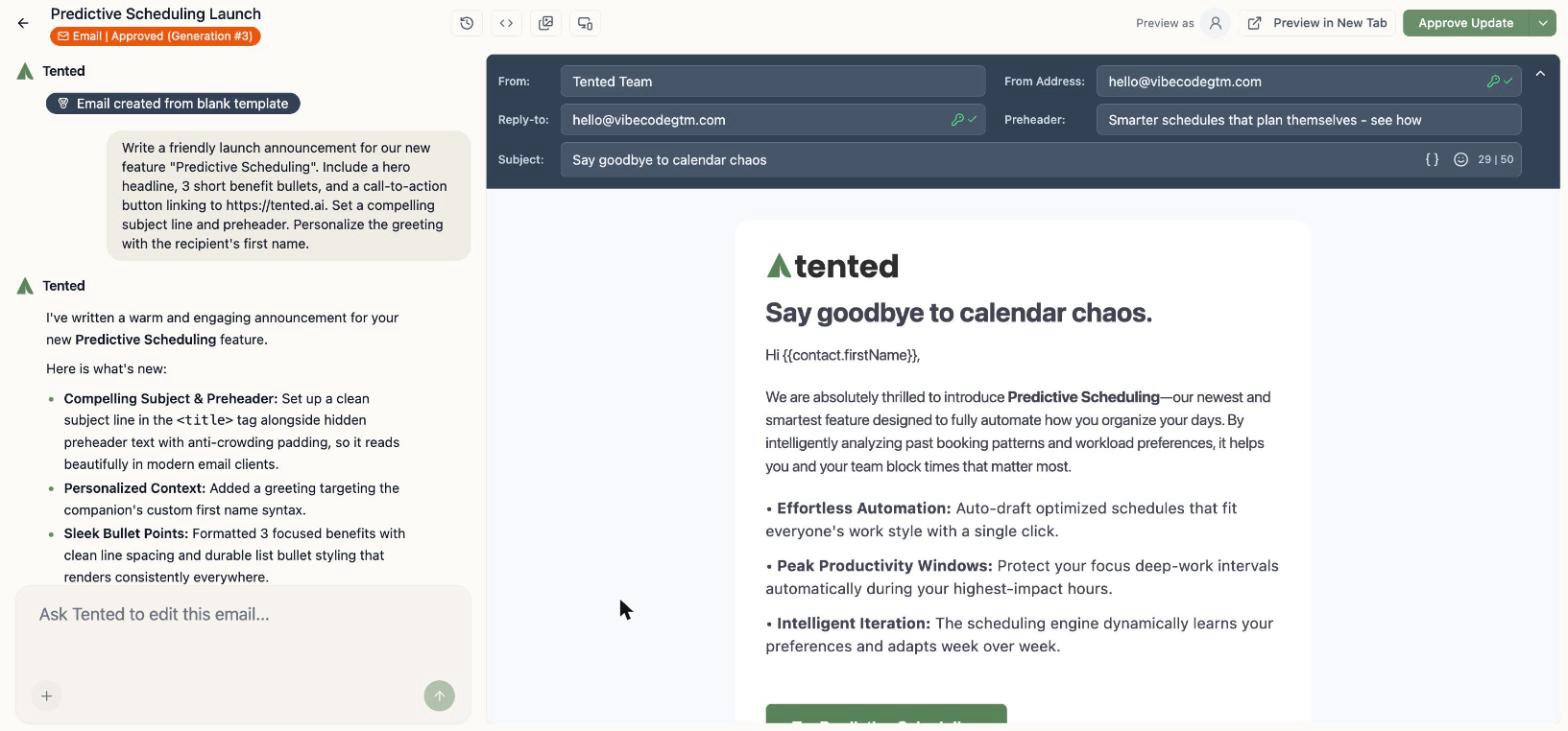 Keep chatting to refine it — "make the tone more playful," "swap the bullets for a comparison table," "add a P.S. line." Each request creates a new generation you can review or roll back.
Need visuals? Ask for those too — "add a hero photo of fresh pastries on a marble counter" — and Tented **generates the image** and codes it in. See [Generating Images with AI](/working-with-tents/generating-images).
### Edit sections directly
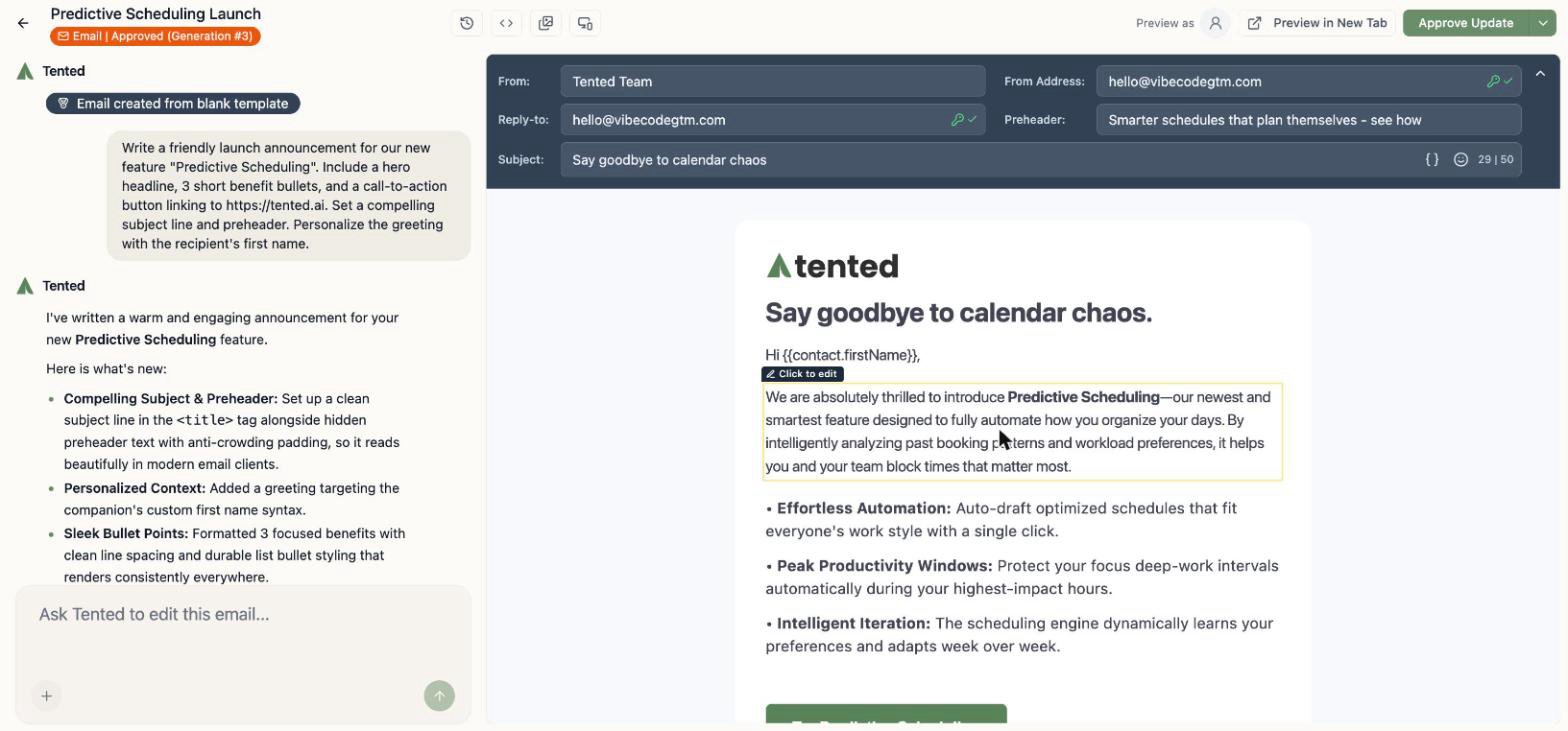
Hover over any part of the email and you'll see **Click to edit** — handy for quick text tweaks without a round-trip through the AI.
Keep chatting to refine it — "make the tone more playful," "swap the bullets for a comparison table," "add a P.S. line." Each request creates a new generation you can review or roll back.
Need visuals? Ask for those too — "add a hero photo of fresh pastries on a marble counter" — and Tented **generates the image** and codes it in. See [Generating Images with AI](/working-with-tents/generating-images).
### Edit sections directly
Hover over any part of the email and you'll see **Click to edit** — handy for quick text tweaks without a round-trip through the AI.
 ## Subject lines, preheaders, and personalization
Fill in the **Subject** and **Preheader** fields in the header bar. A few niceties built in:
* The subject field has a **50-character guide** — stay under it and your subject won't get clipped on mobile.
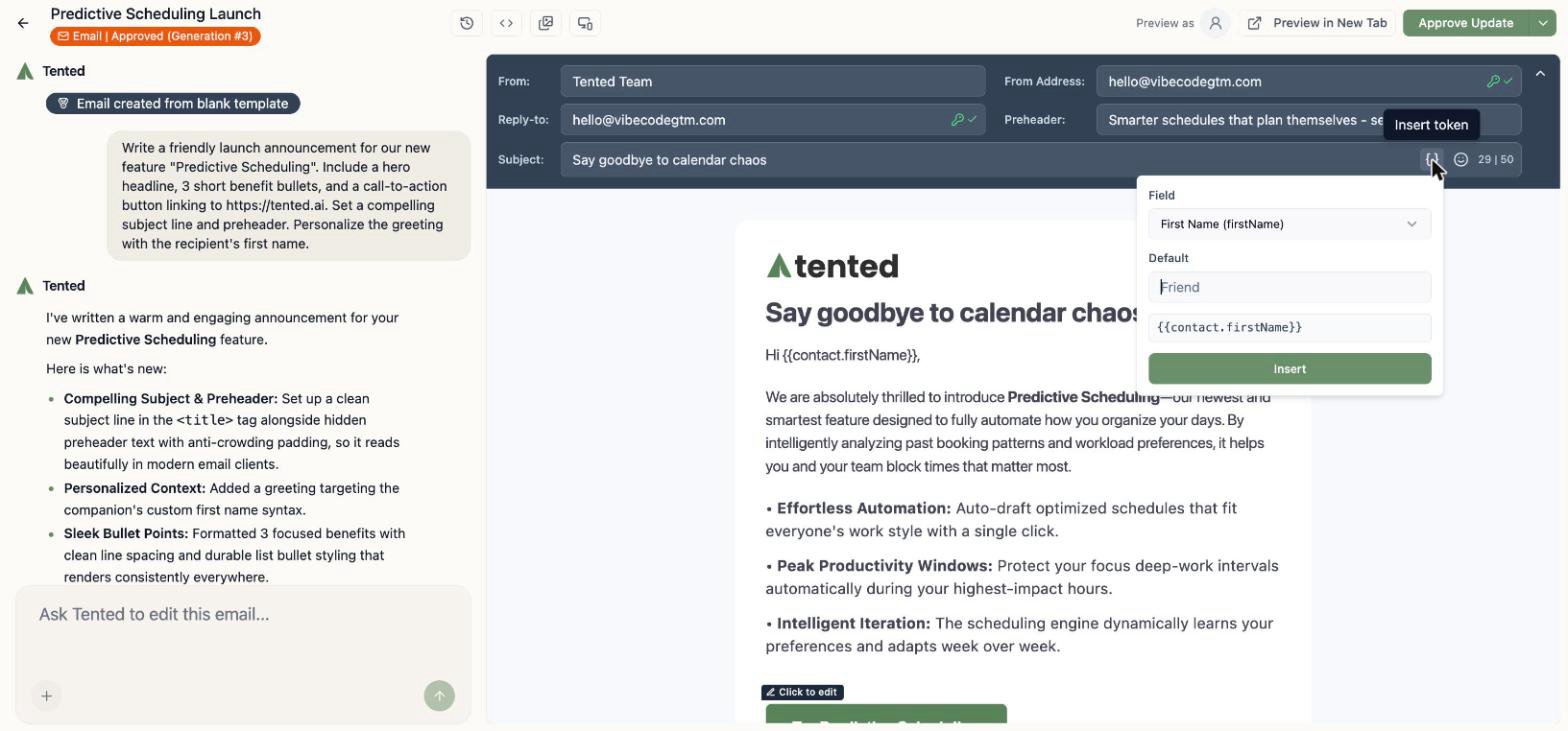
* The `{}` **Personalize** button inserts **personalization tokens** — any standard or [custom contact field](/people/contact-fields), in the form `{{contact.firstName}}`. They work in the subject, preheader, and anywhere in the body. (Full token reference: [Personalization Tokens](/email/personalization).)
* Tokens resolve to an empty string when a contact is missing the value, so add a fallback for anything visible: `{{contact.firstName:default=there}}` renders as "there" when there's no first name.
* Tokens can also reformat the value's casing on the way out — `{{contact.firstName:titlecase}}` renders "ada" as "Ada". Four options are available (`:lowercase`, `:uppercase`, `:sentencecase`, `:titlecase`), and they combine with a fallback in either order. (Details: [Formatting values](/email/personalization#formatting-values).)
* A **"View in browser" link** is one token away: point any link at `{{tented.viewAsWebpageLink}}` and each recipient gets a personal link to a hosted copy of their exact email, live for 12 months after the send. (Details: [The view-as-webpage link](/email/personalization#the-view-as-webpage-link).)
* Per-email **From/Reply-to overrides**: any email can use its own sender details instead of the workspace defaults.
Click **Personalize** and you'll get a small builder — pick the field, choose optional formatting, set an optional default, and it inserts the token for you:
## Subject lines, preheaders, and personalization
Fill in the **Subject** and **Preheader** fields in the header bar. A few niceties built in:
* The subject field has a **50-character guide** — stay under it and your subject won't get clipped on mobile.
* The `{}` **Personalize** button inserts **personalization tokens** — any standard or [custom contact field](/people/contact-fields), in the form `{{contact.firstName}}`. They work in the subject, preheader, and anywhere in the body. (Full token reference: [Personalization Tokens](/email/personalization).)
* Tokens resolve to an empty string when a contact is missing the value, so add a fallback for anything visible: `{{contact.firstName:default=there}}` renders as "there" when there's no first name.
* Tokens can also reformat the value's casing on the way out — `{{contact.firstName:titlecase}}` renders "ada" as "Ada". Four options are available (`:lowercase`, `:uppercase`, `:sentencecase`, `:titlecase`), and they combine with a fallback in either order. (Details: [Formatting values](/email/personalization#formatting-values).)
* A **"View in browser" link** is one token away: point any link at `{{tented.viewAsWebpageLink}}` and each recipient gets a personal link to a hosted copy of their exact email, live for 12 months after the send. (Details: [The view-as-webpage link](/email/personalization#the-view-as-webpage-link).)
* Per-email **From/Reply-to overrides**: any email can use its own sender details instead of the workspace defaults.
Click **Personalize** and you'll get a small builder — pick the field, choose optional formatting, set an optional default, and it inserts the token for you:
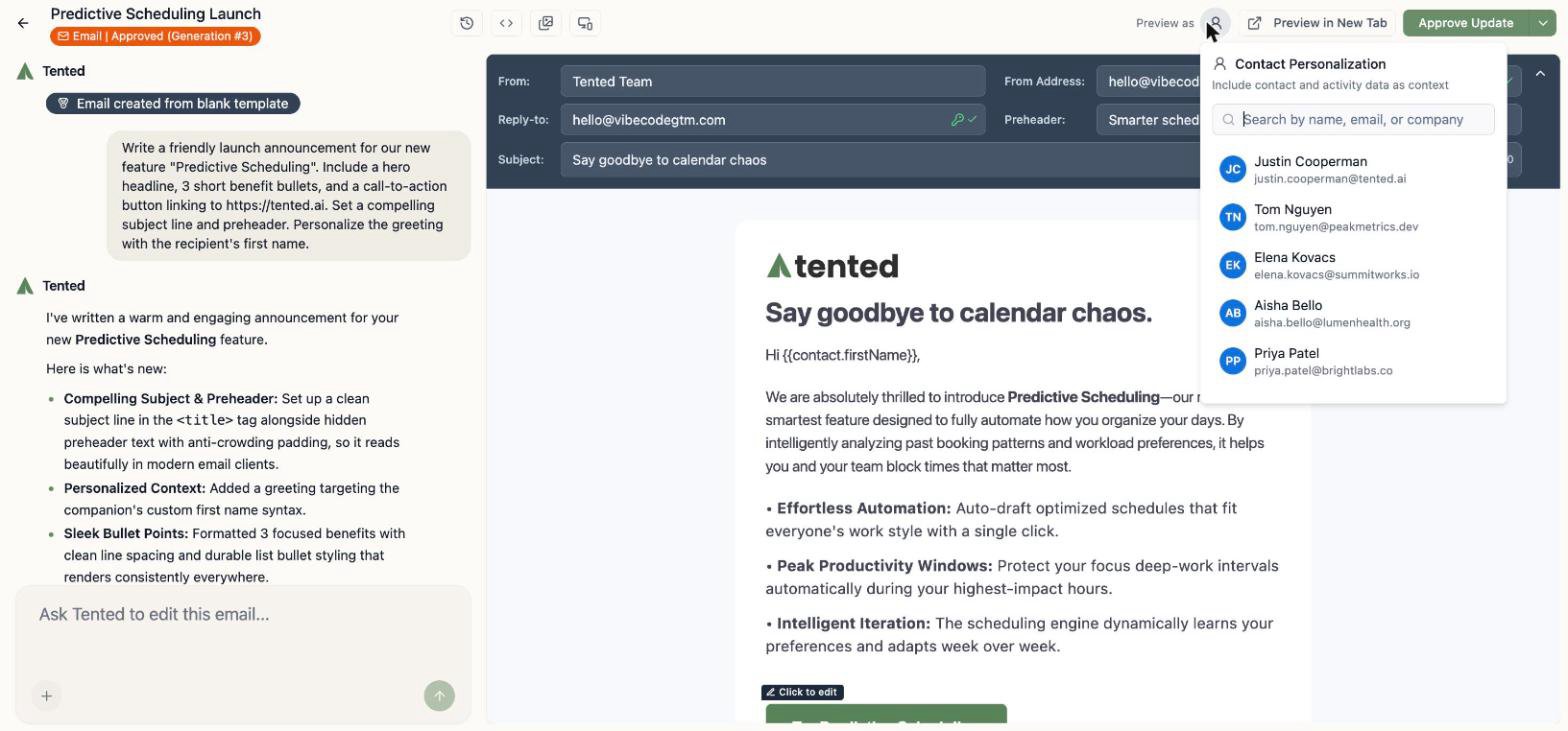
 To see personalization with real data, click **Preview as** and pick a contact — Tented uses their contact and activity data as context.
 ## Check it on mobile (and in code)
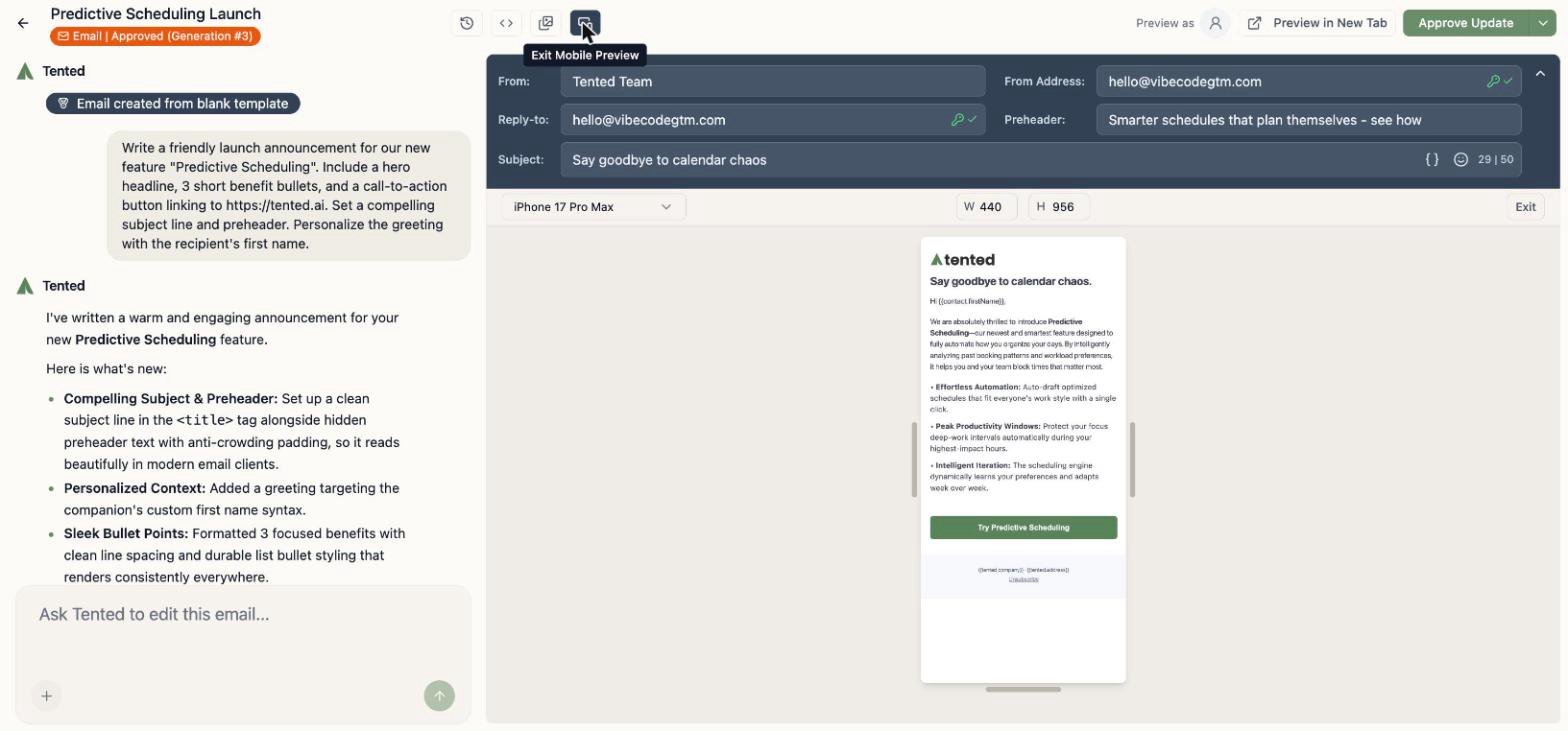
* The **mobile preview** button renders your email at real device dimensions, with a device picker.
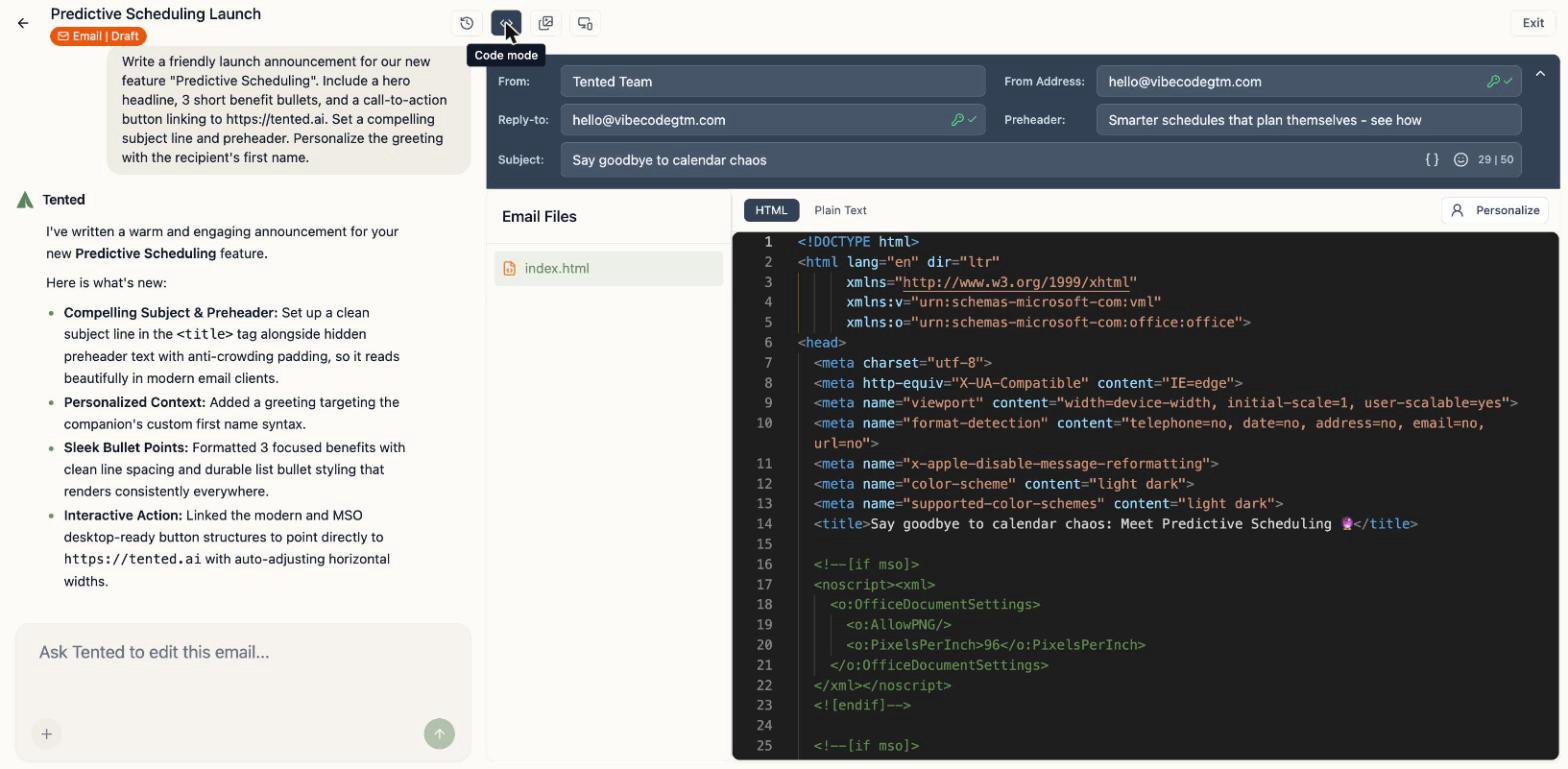
* **Code mode** (`<>`) shows the full HTML and a plain-text view. Advanced users can edit the code directly.
## Check it on mobile (and in code)
* The **mobile preview** button renders your email at real device dimensions, with a device picker.
* **Code mode** (`<>`) shows the full HTML and a plain-text view. Advanced users can edit the code directly.
 The truest test is a real inbox: click **Send Sample** in the top bar to send yourself a one-off copy — see [Sending Sample Emails](/email/sample-emails).
## Generation history
The clock icon opens **Generation History** — every AI generation of this email, with **Preview** and **Revert** so you can compare and restore past versions, just like tents.
The truest test is a real inbox: click **Send Sample** in the top bar to send yourself a one-off copy — see [Sending Sample Emails](/email/sample-emails).
## Generation history
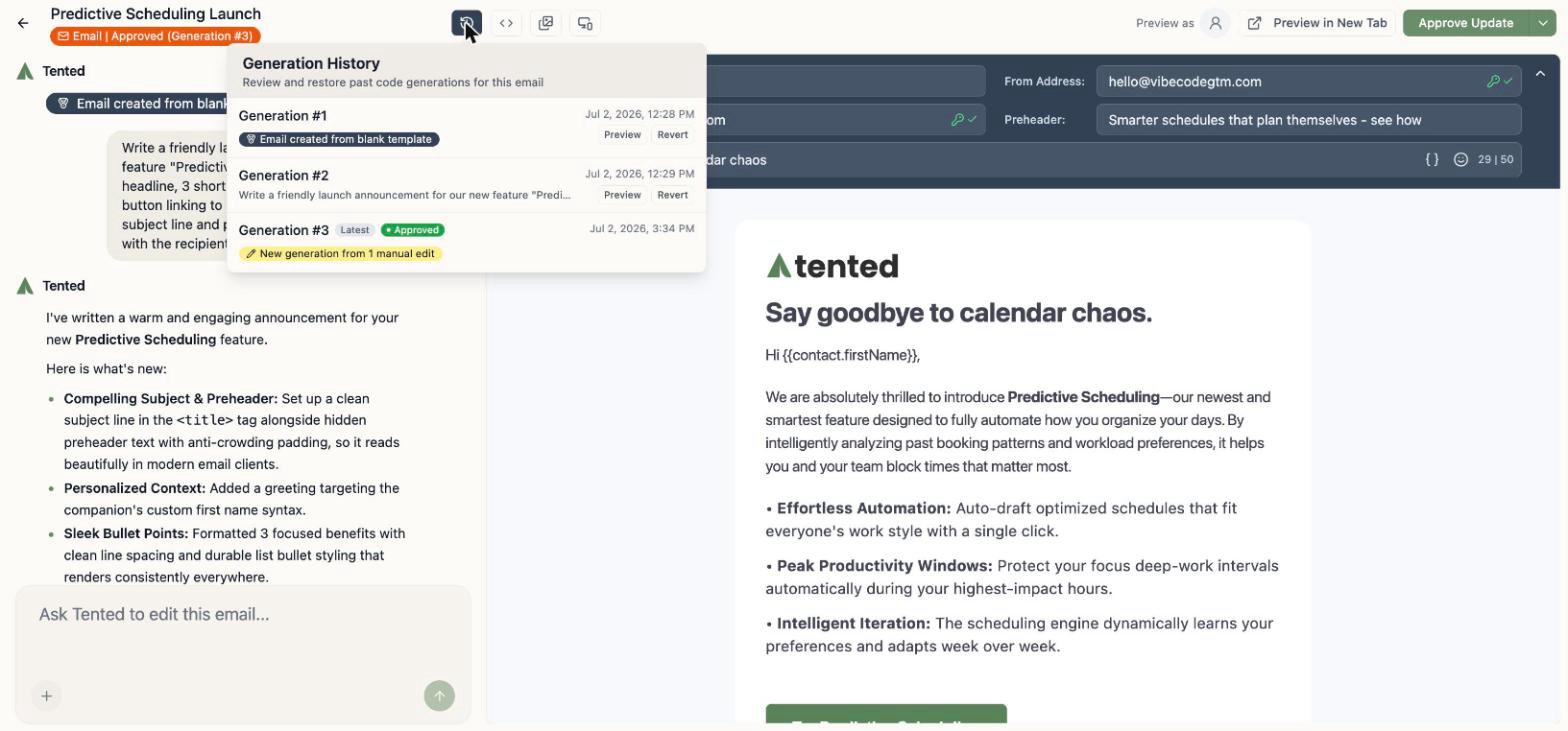
The clock icon opens **Generation History** — every AI generation of this email, with **Preview** and **Revert** so you can compare and restore past versions, just like tents.
 ## Approve it
Here's the one concept that's different from tents: **emails must be approved before they can send**. Approval freezes a known-good version — the one your blasts and flows will actually deliver.
Click **Approve** in the top-right corner and confirm.
## Approve it
Here's the one concept that's different from tents: **emails must be approved before they can send**. Approval freezes a known-good version — the one your blasts and flows will actually deliver.
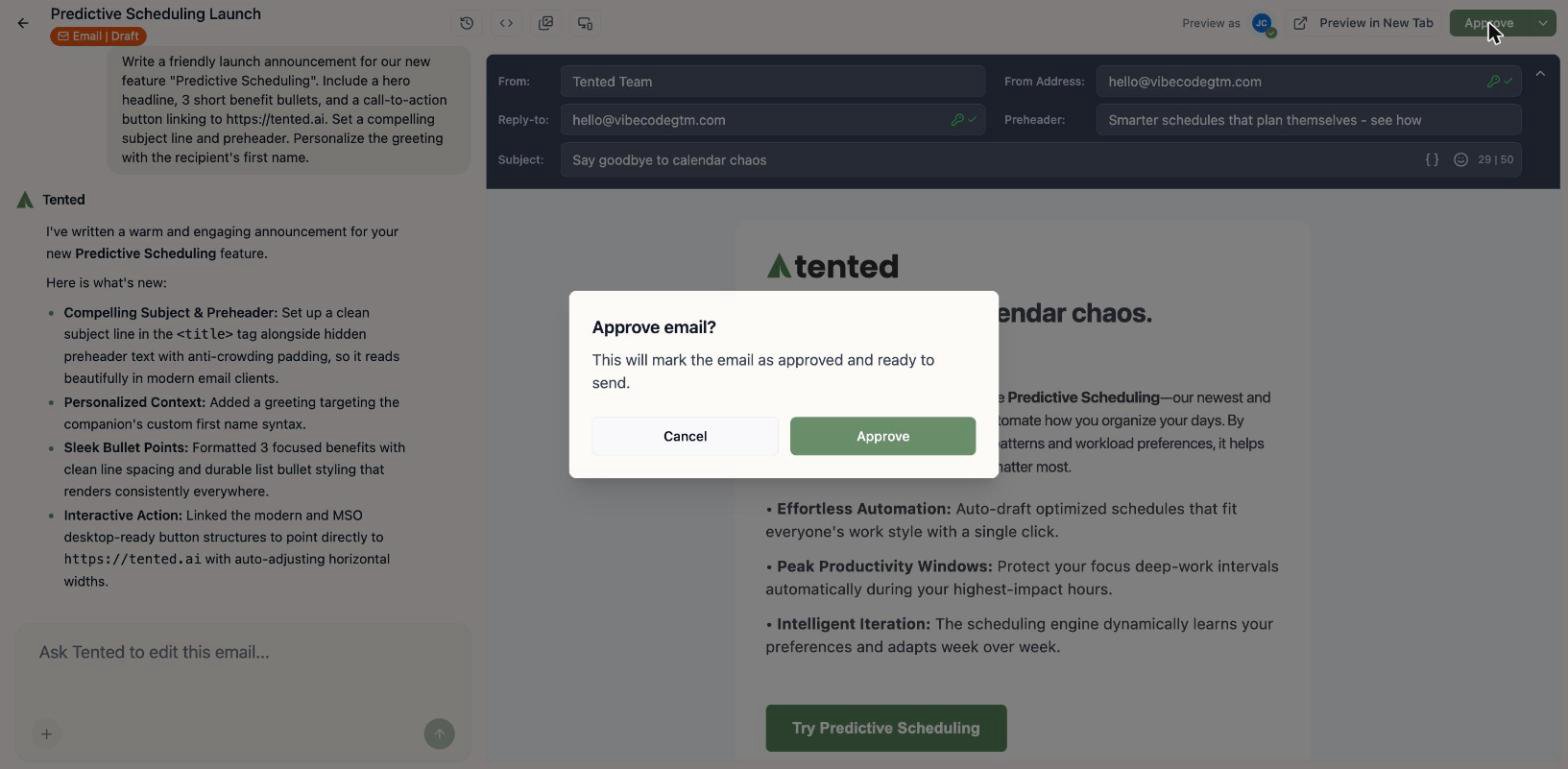
Click **Approve** in the top-right corner and confirm.
 A few things to know about approval:
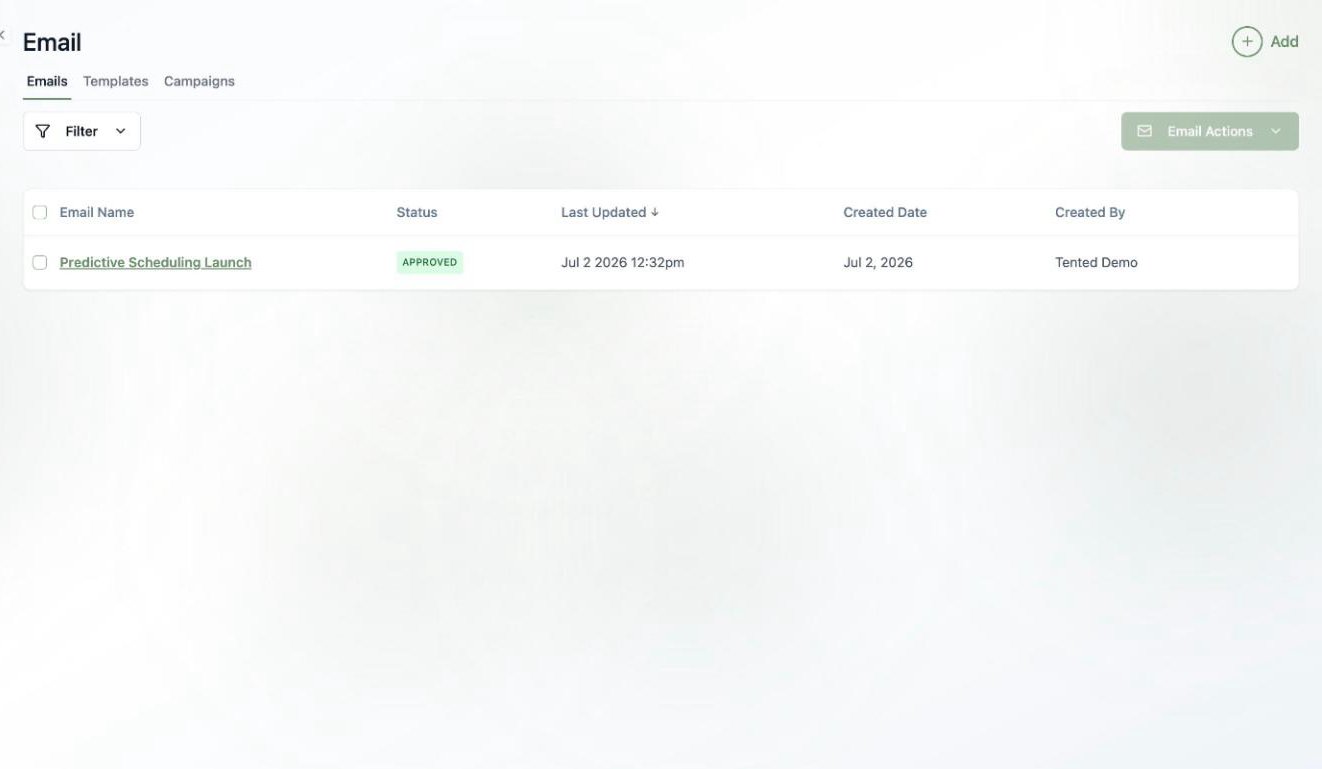
* Your Emails list shows each email's status — **Draft** or **Approved**.
* After approving, you can keep editing safely: draft changes **aren't included in sends** until you click **Approve Update**.
* Blasts and flows only offer approved emails (or brand-new ones you compose inline).
A few things to know about approval:
* Your Emails list shows each email's status — **Draft** or **Approved**.
* After approving, you can keep editing safely: draft changes **aren't included in sends** until you click **Approve Update**.
* Blasts and flows only offer approved emails (or brand-new ones you compose inline).
 ## What's next?
Pick a list, pick a time, and launch your first email blast.
Send it automatically when contacts hit a trigger, as part of a multi-step flow.
## What's next?
Pick a list, pick a time, and launch your first email blast.
Send it automatically when contacts hit a trigger, as part of a multi-step flow.