> ## Documentation Index
> Fetch the complete documentation index at: https://docs.tented.ai/llms.txt
> Use this file to discover all available pages before exploring further.
# Connecting Clay
> Create a personalized page for every Clay row with two columns: Tented Start and Tented Result
Two HTTP API columns in your Clay table give every prospect a personalized landing page:
| Column | What it does |
| ----------------- | ---------------------------------------------------------------------------------- |
| **Tented Start** | Sends the row to Tented. Tented starts building the page. |
| **Tented Result** | Three minutes later, fetches the page URL, your outreach sentences, and a summary. |
Your campaign reads the **Tented Result** column. No Clay API key is needed.
 ## Before you start
You need admin access to Tented, an approved [tent template](/working-with-tents/tent-templates), AI credits, and a Clay plan with **HTTP API** columns and **Delay Runs**. Each new page uses half a Tented AI credit. Your Clay table needs an email column; first name, last name, company name, job title, and website columns make the page more personal.
## 1. Connect Clay in Tented
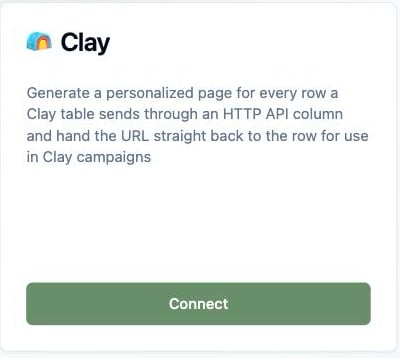
1. Open **Settings → Integrations** and select **Connect** on the Clay tile.
## Before you start
You need admin access to Tented, an approved [tent template](/working-with-tents/tent-templates), AI credits, and a Clay plan with **HTTP API** columns and **Delay Runs**. Each new page uses half a Tented AI credit. Your Clay table needs an email column; first name, last name, company name, job title, and website columns make the page more personal.
## 1. Connect Clay in Tented
1. Open **Settings → Integrations** and select **Connect** on the Clay tile.
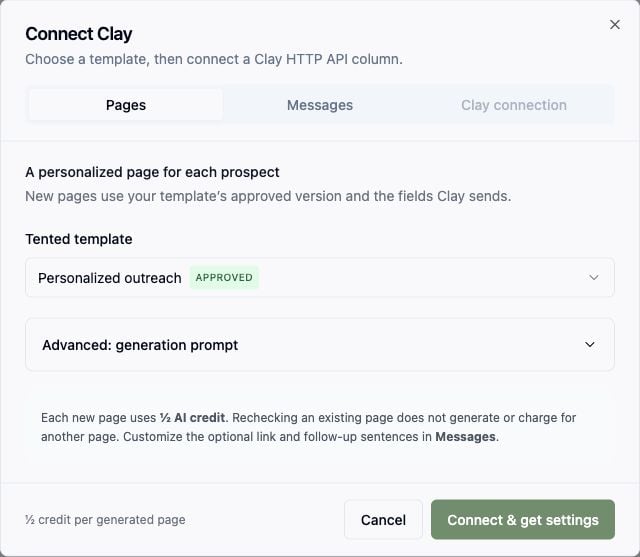
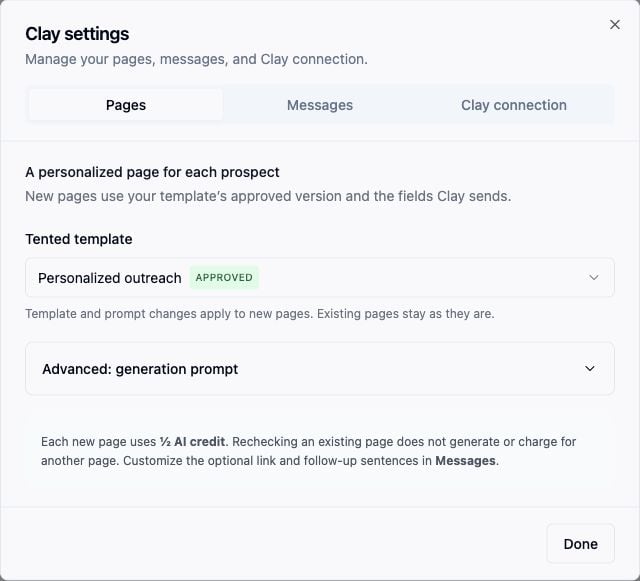
 2. In **Pages**, choose the approved template each page starts from.
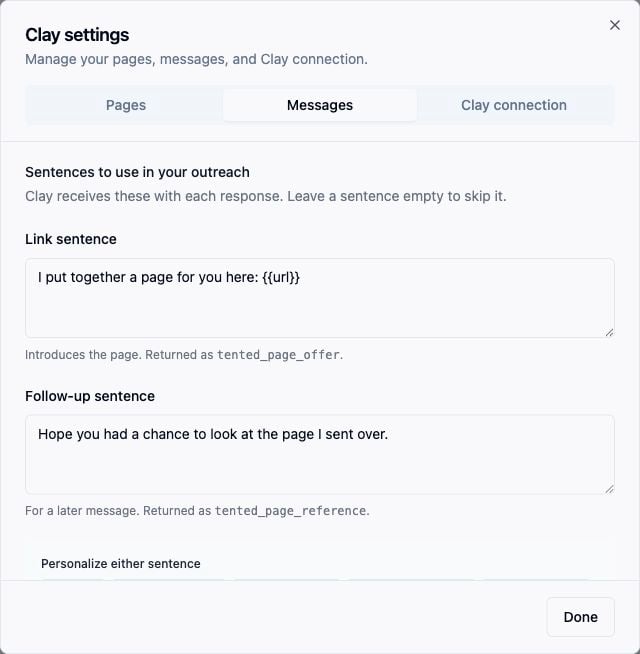
 3. Optionally, in **Messages**, edit the link sentence and follow-up sentence that Tented returns for your emails.
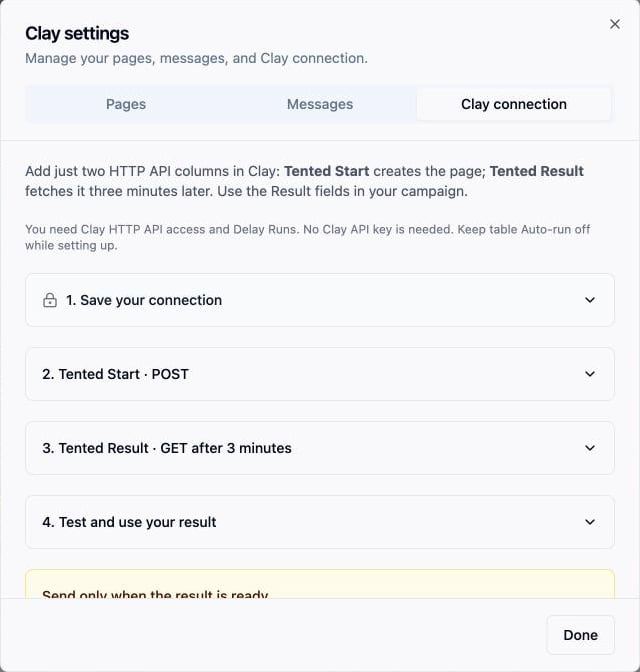
 4. Select **Connect & get settings**. The **Clay connection** tab repeats the steps below with copy buttons for every value you need.
 ## 2. Save your connection in Clay
In Clay, open **Settings → Connections → Create → HTTP API (Headers)**. Name the account **Tented page generation** and add one header:
| Key | Value |
| ------------------------- | ------------------------------------ |
| `x-tented-webhook-secret` | The header secret copied from Tented |
You will select this account in both columns. Keep the secret private.
## 3. Add Tented Start
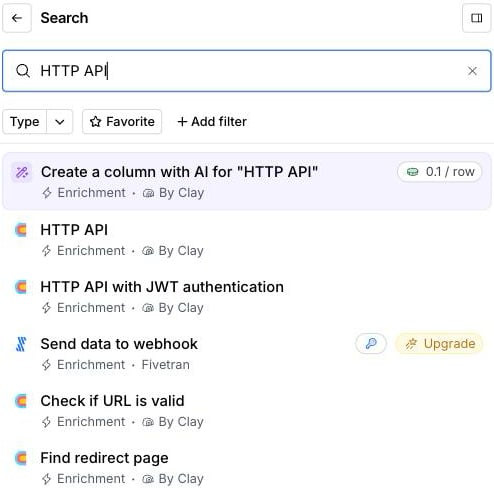
In your Clay table, select **Add column → Add enrichment**, search for **HTTP API**, and open the **Configure** tab. Name the column **Tented Start**.
## 2. Save your connection in Clay
In Clay, open **Settings → Connections → Create → HTTP API (Headers)**. Name the account **Tented page generation** and add one header:
| Key | Value |
| ------------------------- | ------------------------------------ |
| `x-tented-webhook-secret` | The header secret copied from Tented |
You will select this account in both columns. Keep the secret private.
## 3. Add Tented Start
In your Clay table, select **Add column → Add enrichment**, search for **HTTP API**, and open the **Configure** tab. Name the column **Tented Start**.
 | Setting | Value |
| ------------------------- | ----------------------------------- |
| Account | **Tented page generation** |
| Method | **POST** |
| Endpoint | The endpoint URL copied from Tented |
| Body | The JSON below |
| Response values to return | The six tags below |
```json theme={null}
{
"email": "",
"first_name": "",
"last_name": "",
"company_name": "",
"job_title": "",
"website": ""
}
```
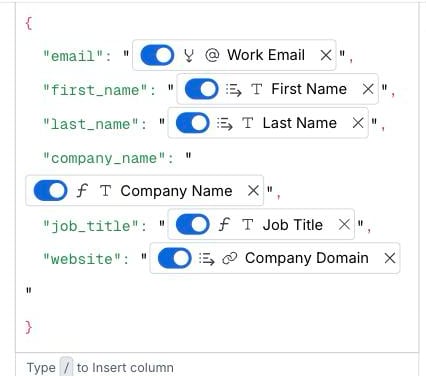
Paste the body, then click between each pair of quotes, type `/`, and pick the matching Clay column. Email is required; the other fields personalize the page and can be left out.
| Setting | Value |
| ------------------------- | ----------------------------------- |
| Account | **Tented page generation** |
| Method | **POST** |
| Endpoint | The endpoint URL copied from Tented |
| Body | The JSON below |
| Response values to return | The six tags below |
```json theme={null}
{
"email": "",
"first_name": "",
"last_name": "",
"company_name": "",
"job_title": "",
"website": ""
}
```
Paste the body, then click between each pair of quotes, type `/`, and pick the matching Clay column. Email is required; the other fields personalize the page and can be left out.
 Under **Response values to return**, type each of these names and press **Enter** after each one:
`status` `tented_url` `tented_page_offer` `tented_page_reference` `tented_page_summary` `status_url`
Under **Response values to return**, type each of these names and press **Enter** after each one:
`status` `tented_url` `tented_page_offer` `tented_page_reference` `tented_page_summary` `status_url`
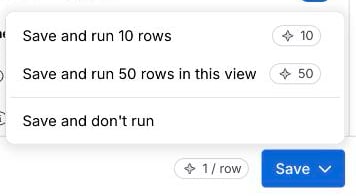
 Leave **Run settings** on Auto-run and Run immediately. Open the arrow next to **Save** and choose **Save and don't run**.
 ## 4. Add Tented Result
Add a second **HTTP API** column named **Tented Result**.
| Setting | Value |
| ------------------------- | --------------------------------------------------------- |
| Account | **Tented page generation** |
| Method | **GET** |
| Endpoint | Type `/`, open **Tented Start**, and pick **status\_url** |
| Response values to return | The same six tags as Start |
| Delay run | **Run after delay**, **180** seconds |
## 4. Add Tented Result
Add a second **HTTP API** column named **Tented Result**.
| Setting | Value |
| ------------------------- | --------------------------------------------------------- |
| Account | **Tented page generation** |
| Method | **GET** |
| Endpoint | Type `/`, open **Tented Start**, and pick **status\_url** |
| Response values to return | The same six tags as Start |
| Delay run | **Run after delay**, **180** seconds |
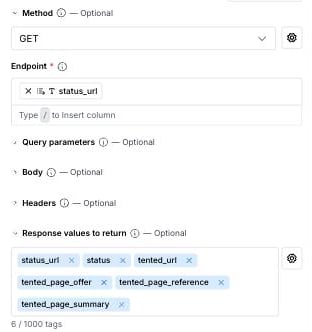
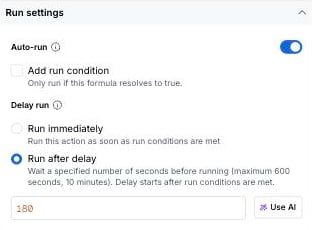 Result waits for Start, then runs once after the delay. Choose **Save and don't run**.
## 5. Test it
1. Turn on table **Auto-run** from the button at the top left of the table, keeping existing results.
2. Add a test row. Fill in the name and company first and the email last. Start runs as soon as the email is in, and Result starts its three-minute countdown.
Result waits for Start, then runs once after the delay. Choose **Save and don't run**.
## 5. Test it
1. Turn on table **Auto-run** from the button at the top left of the table, keeping existing results.
2. Add a test row. Fill in the name and company first and the email last. Start runs as soon as the email is in, and Result starts its three-minute countdown.
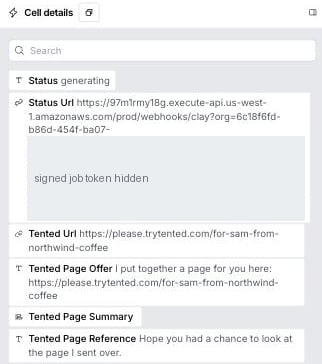
 3. After three minutes, open the **Tented Result** cell. `status` is `ready` and `tented_url` opens the finished page.
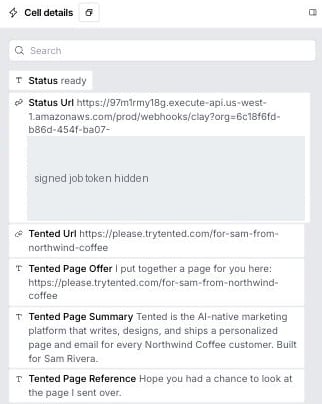 New and changed rows now run on their own.
## Using the result in a campaign
Map the URL, the link sentence, the follow-up sentence, and the summary from **Tented Result**:
| Field | What it holds |
| ----------------------- | ----------------------------------------- |
| `tented_url` | The page URL |
| `tented_page_offer` | Your link sentence with the URL filled in |
| `tented_page_reference` | Your follow-up sentence |
| `tented_page_summary` | A one-line summary of the page |
| `status` | `ready`, `generating`, or `failed` |
Only send when the page is ready. In the campaign action's **Only run if** formula editor, paste:
```javascript theme={null}
{{Tented Result}}?.status === "ready"
```
## If a page is not ready
| Result status | What it means | What to do |
| ------------- | ----------------------------------------------------- | ------------------------------------------------------------------------------------------------------------ |
| `generating` | The page was still building at the three-minute mark. | Run that Result cell again later. Check **View activity** on the Clay tile in Tented if it stays generating. |
| `failed` | Tented could not build the page. | Check **View activity** for the reason, fix it, then run Start again for the row. |
| `unavailable` | The page was unpublished or deleted in Tented. | Republish it, then run Result again. |
Running Result never uses credits or rebuilds a page. Running Start again for a prospect who already has a page returns the existing page without charging for a new one.
## After connecting
The Clay tile shows the template, the last sync, and a **View activity** link.
New and changed rows now run on their own.
## Using the result in a campaign
Map the URL, the link sentence, the follow-up sentence, and the summary from **Tented Result**:
| Field | What it holds |
| ----------------------- | ----------------------------------------- |
| `tented_url` | The page URL |
| `tented_page_offer` | Your link sentence with the URL filled in |
| `tented_page_reference` | Your follow-up sentence |
| `tented_page_summary` | A one-line summary of the page |
| `status` | `ready`, `generating`, or `failed` |
Only send when the page is ready. In the campaign action's **Only run if** formula editor, paste:
```javascript theme={null}
{{Tented Result}}?.status === "ready"
```
## If a page is not ready
| Result status | What it means | What to do |
| ------------- | ----------------------------------------------------- | ------------------------------------------------------------------------------------------------------------ |
| `generating` | The page was still building at the three-minute mark. | Run that Result cell again later. Check **View activity** on the Clay tile in Tented if it stays generating. |
| `failed` | Tented could not build the page. | Check **View activity** for the reason, fix it, then run Start again for the row. |
| `unavailable` | The page was unpublished or deleted in Tented. | Republish it, then run Result again. |
Running Result never uses credits or rebuilds a page. Running Start again for a prospect who already has a page returns the existing page without charging for a new one.
## After connecting
The Clay tile shows the template, the last sync, and a **View activity** link.
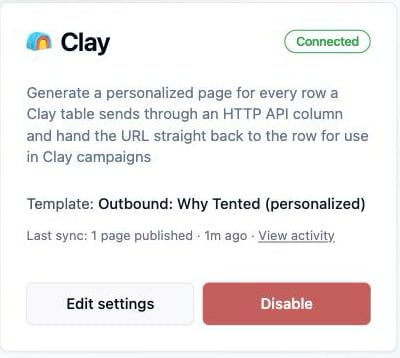 **Activity** lists each run with the pages published and credits used.
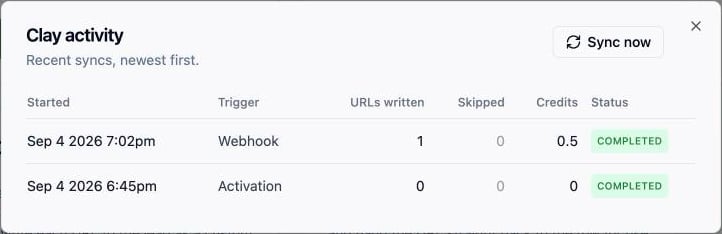 Generated pages appear in your Tents list with **Clay Integration** as the creator. Use **Filter → Hide integration-created** to keep them out of the way.
 Each page is built from your template and the row's fields:
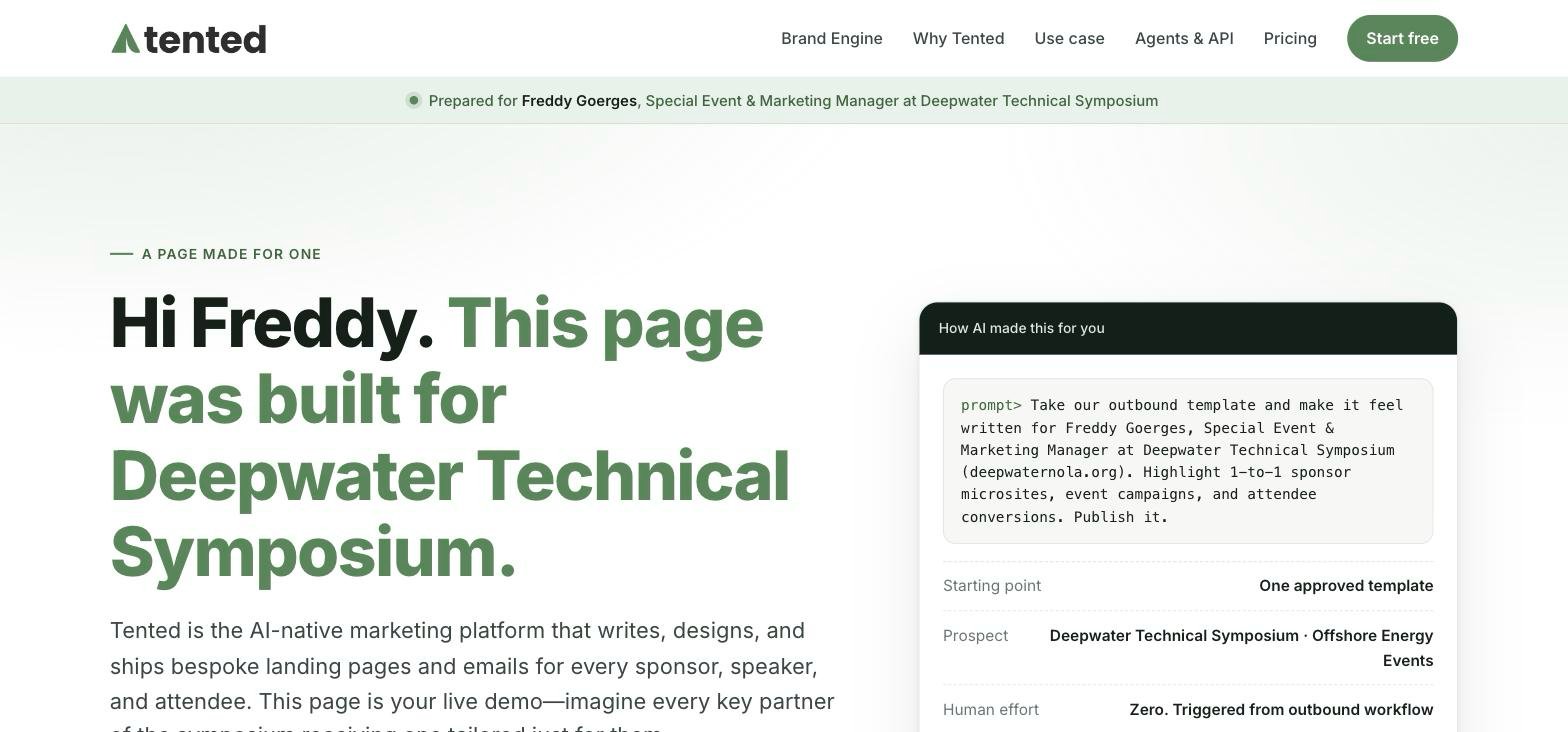 Page URLs are readable, for example `https://your-domain/for-bryan-from-acme-co`. Email identifies the prospect: the same email always gets the same page, even from another Clay table.
## Changing settings
Select **Edit settings** on the Clay tile. **Pages** changes the template for new pages, **Messages** changes the sentences returned on future rows, and **Clay connection** shows the setup steps, endpoint, and header secret again.
Page URLs are readable, for example `https://your-domain/for-bryan-from-acme-co`. Email identifies the prospect: the same email always gets the same page, even from another Clay table.
## Changing settings
Select **Edit settings** on the Clay tile. **Pages** changes the template for new pages, **Messages** changes the sentences returned on future rows, and **Clay connection** shows the setup steps, endpoint, and header secret again.
 ## Disconnecting
Select **Disable** on the Clay tile. Published pages stay live. To reconnect later, connect again in Tented, then update the Start column's endpoint and the saved account's header secret in Clay with the new values.
## Troubleshooting
| What you see | What to do |
| ----------------------------------------- | -------------------------------------------------------------------------------------------------------------------------- |
| Start: **The row needs an email address** | Put the cursor inside the quotes after `"email":`, type `/`, and pick the email column. Make sure the row has an email. |
| Start or Result: **401** | Select the **Tented page generation** account in the column and check its header name and secret against Tented. |
| Start: **410** | The connection was disabled in Tented. Connect again and update the endpoint and secret in Clay. |
| Start: **Body must be a JSON object** | Paste the body from the setup tab again. |
| Response values show as one long text | Clear the field, open its gear icon, choose **Text with tokens**, and enter the tags again. |
| Result never runs | Check that table Auto-run is on, the column's Auto-run is on, and the endpoint is the **Tented Start → status\_url** chip. |
## Disconnecting
Select **Disable** on the Clay tile. Published pages stay live. To reconnect later, connect again in Tented, then update the Start column's endpoint and the saved account's header secret in Clay with the new values.
## Troubleshooting
| What you see | What to do |
| ----------------------------------------- | -------------------------------------------------------------------------------------------------------------------------- |
| Start: **The row needs an email address** | Put the cursor inside the quotes after `"email":`, type `/`, and pick the email column. Make sure the row has an email. |
| Start or Result: **401** | Select the **Tented page generation** account in the column and check its header name and secret against Tented. |
| Start: **410** | The connection was disabled in Tented. Connect again and update the endpoint and secret in Clay. |
| Start: **Body must be a JSON object** | Paste the body from the setup tab again. |
| Response values show as one long text | Clear the field, open its gear icon, choose **Text with tokens**, and enter the tags again. |
| Result never runs | Check that table Auto-run is on, the column's Auto-run is on, and the endpoint is the **Tented Start → status\_url** chip. |