Inviting New Users Overview

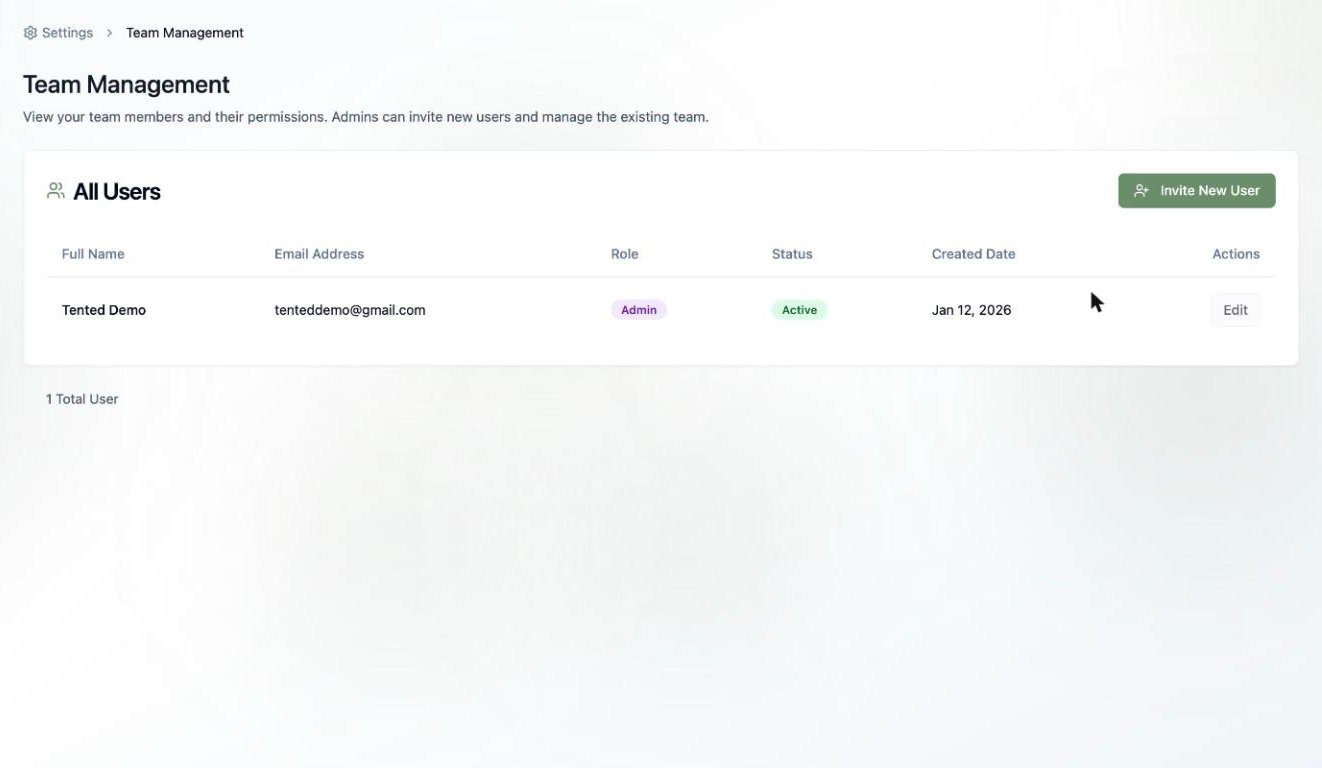
Inviting new users to your Tented workspace allows you to collaborate on tent creation, share responsibilities, and scale your team. This guide covers the complete process of inviting users and managing invitations.

Invitation Process

Step-by-Step Invitation

1. Access User Management:
  • Navigate to your workspace settings
  • Click on “Team Management” or “Users”
  • Click “Invite New User” button
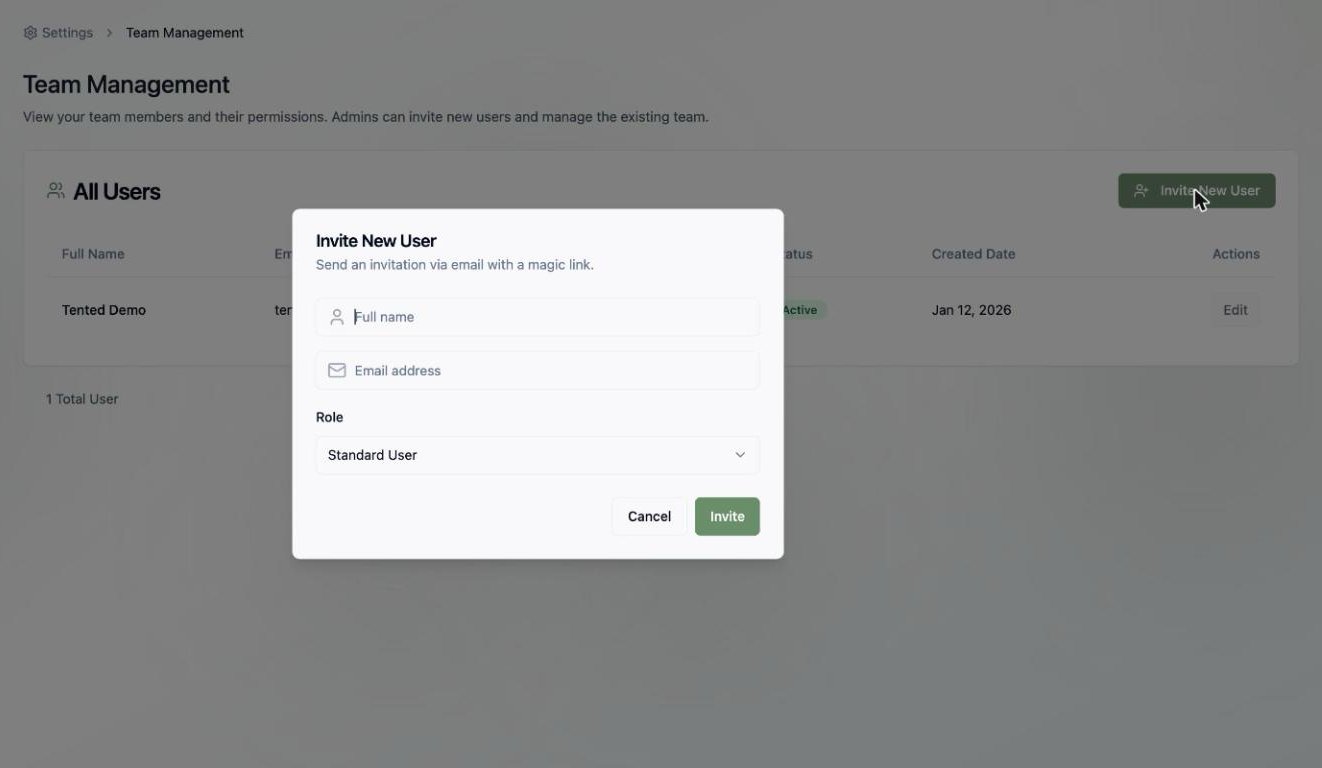
2. Enter User Information:
  • Email Address: User’s email address
  • Full Name: User’s display name
  • Role: Select appropriate role (Admin, Editor, Viewer)
  • Message: Optional personal message
3. Send Invitation:
  • Review invitation details
  • Click “Send Invitation”
  • User receives email invitation
  • Track invitation status

Invitation Details

Required Information:
  • Email Address: Must be valid and active
  • Role Assignment: Determines user permissions
  • Workspace Access: Which workspace to invite to
Optional Information:
  • Personal Message: Custom welcome message
  • Department/Team: Organizational information
  • Start Date: When user should begin
  • Manager: Who will supervise the user

User Roles

Available Roles

Admin:
  • Full access to all features
  • Can invite and manage users
  • Access to billing and settings
  • Can delete workspace
Editor:
  • Can create and edit tents
  • Can publish tents
  • Access to form submissions
  • Cannot manage users or billing
Viewer:
  • Can view tents and data
  • Read-only access
  • Can export data
  • Cannot make changes

Role Selection Guidelines

Choose Admin When:
  • User needs full workspace control
  • User manages billing and subscriptions
  • User oversees team operations
  • User needs to invite other users
Choose Editor When:
  • User creates and manages tents
  • User handles day-to-day operations
  • User needs publishing access
  • User works on content creation
Choose Viewer When:
  • User needs to review content
  • User requires data access only
  • User is external stakeholder
  • User needs reporting access

Invitation Management

Tracking Invitations

Invitation Status:
  • Pending: Invitation sent, awaiting response
  • Accepted: User accepted and joined
  • Expired: Invitation expired (typically 7 days)
  • Declined: User declined invitation
Invitation Actions:
  • Resend: Send invitation again
  • Cancel: Cancel pending invitation
  • Modify: Change role or details
  • View Details: See invitation information

Managing Pending Invitations

Resending Invitations:
  • Click “Resend” for expired invitations
  • Modify invitation details if needed
  • Send reminder messages
  • Update role assignments
Canceling Invitations:
  • Cancel invitations for users who won’t join
  • Free up invitation slots
  • Clean up invitation list
  • Prevent unauthorized access

Invitation Templates

Pre-Built Templates

Welcome Template: “Welcome to our Tented workspace! We’re excited to have you join our team. You’ll be able to create amazing landing pages and collaborate with our team.” Editor Template: “You’ve been invited as an Editor to our Tented workspace. You’ll have access to create and edit tents, publish content, and manage form submissions.” Viewer Template: “You’ve been invited as a Viewer to our Tented workspace. You’ll have read-only access to view tents, analytics, and export data for reporting.”

Custom Messages

Personalized Invitations:
  • Include specific project information
  • Mention team member names
  • Reference company goals
  • Add personal touches
Department-Specific Messages:
  • Marketing team invitations
  • Sales team invitations
  • Executive invitations
  • Client invitations

Invitation Best Practices

Effective Invitations

Clear Communication:
  • Explain why the user is being invited
  • Specify their role and responsibilities
  • Include relevant context
  • Set clear expectations
Timing Considerations:
  • Send invitations during business hours
  • Allow time for user to respond
  • Follow up on pending invitations
  • Coordinate with onboarding process
Security Practices:
  • Verify email addresses before sending
  • Use appropriate role assignments
  • Monitor invitation acceptance
  • Revoke unused invitations

Onboarding Support

Welcome Process:
  • Send welcome email with next steps
  • Provide access to documentation
  • Schedule orientation meeting
  • Assign mentor or buddy
Training Resources:
  • Link to getting started guide
  • Provide video tutorials
  • Share best practices
  • Offer hands-on training

Troubleshooting Invitations

Common Issues

Invitation Not Received:
  • Check spam/junk folders
  • Verify email address spelling
  • Resend invitation
  • Contact user directly
Invitation Expired:
  • Send new invitation
  • Check invitation settings
  • Verify user email
  • Update invitation duration
User Cannot Accept:
  • Check user’s email client
  • Verify invitation link
  • Clear browser cache
  • Try different browser

Getting Help

Support Resources:
  • Check invitation status in dashboard
  • Contact support for technical issues
  • Review invitation logs
  • Escalate persistent problems
User Assistance:
  • Provide direct support to new users
  • Share troubleshooting guides
  • Offer alternative invitation methods
  • Coordinate with IT department

Security Considerations

Access Control

Invitation Security:
  • Only invite trusted users
  • Verify user identities
  • Use appropriate role assignments
  • Monitor user activity
Workspace Security:
  • Regular access reviews
  • Remove inactive users
  • Update permissions as needed
  • Monitor for unauthorized access

Compliance

Data Protection:
  • Ensure user consent
  • Follow privacy regulations
  • Document user access
  • Maintain audit trails
Access Management:
  • Regular permission reviews
  • Document access changes
  • Maintain user records
  • Follow company policies

Next: Managing Users

Learn how to manage existing users in your workspace.