Understanding Generation History
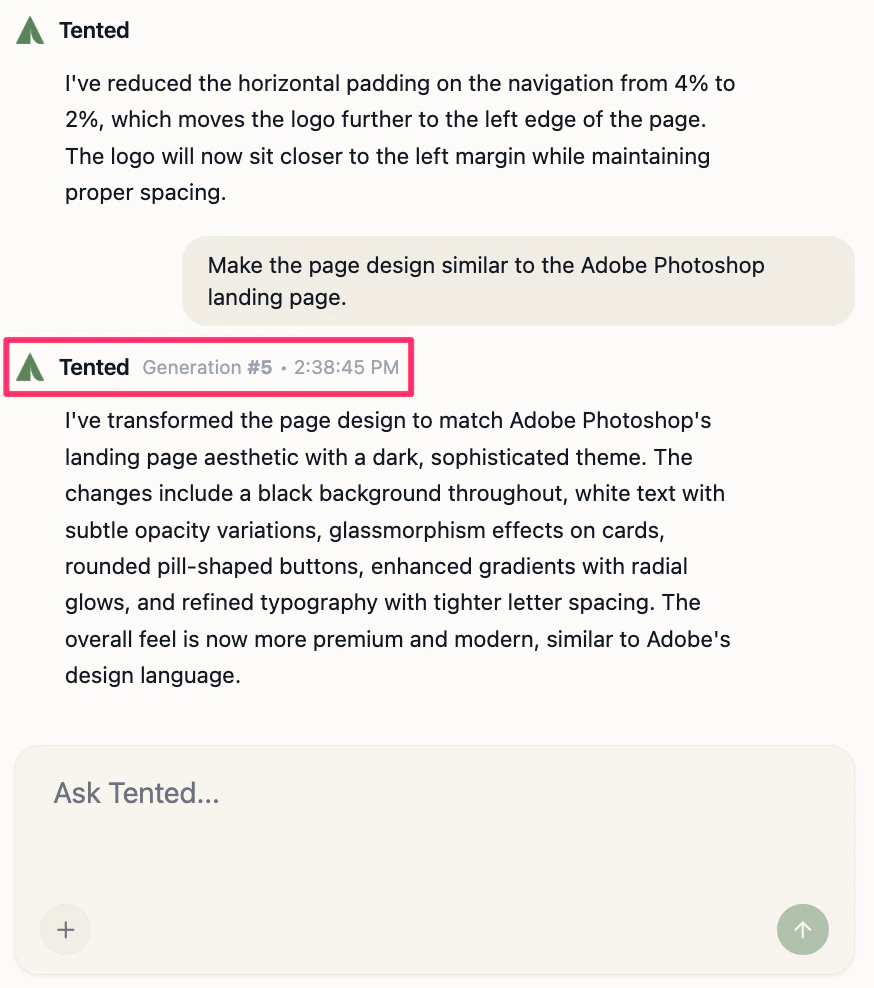
Every tent maintains a complete history of all generations - each time you create a tent or make significant changes, a new generation is created. This allows you to explore different directions and always return to a previous version if needed.What is a Generation?
A generation is a complete snapshot of your tent at a specific point in time:- Initial Generation: The first version created from your original prompt
- Iteration Generation: Updates made through chat-based editing
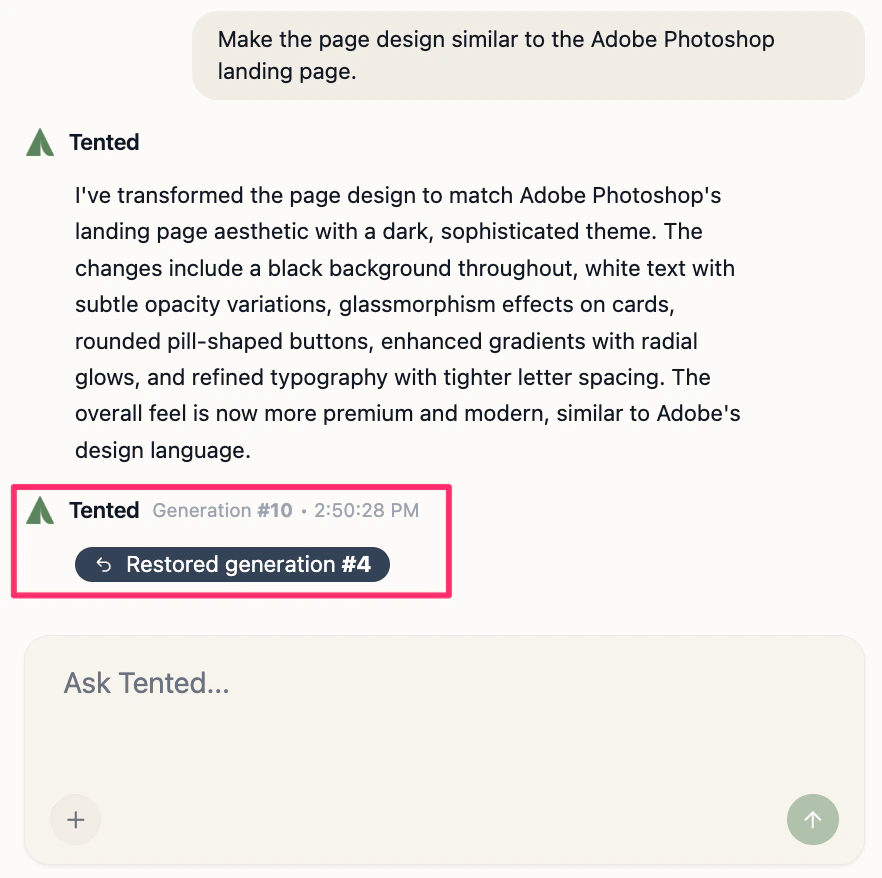
- Reverted Generation: When you go back to a previous version
- Complete HTML, CSS, and JavaScript code
- All brand settings and uploaded assets
- Timestamp and creator information
- Generation type and notes
Viewing Generation History
Accessing History
From Tent Details:- Navigate to your tent’s details page
- Click on the “Generations” tab
- View the complete list of all generations
- Open the tent editor
- Look for the generation history panel
- Click on any previous generation to preview it
Generation Information
Each generation shows: Basic Details:- Generation number (sequential)
- Creation date and time
- User who created it
- Generation type (Initial, Iteration, Reverted)
- Thumbnail of the tent at that point
- Brief description of changes made
- Status (Completed, Failed, In Progress)
- Preview the generation
- Revert to this generation
- Compare with current version
- Download the code
Reverting to a Previous Generation
Step-by-Step Process
1. Select the Target Generation:- Browse through your generation history
- Click on the generation you want to revert to
- Review the preview to confirm it’s what you want
- Click “Revert to This Generation”
- Review the confirmation dialog
- Understand that this will create a new generation
- The system creates a new generation with the reverted content
- You’re taken to the tent editor with the reverted version
- All changes since that generation are lost
What Happens During Revert
Code Restoration:- All HTML, CSS, and JavaScript is restored to that point
- Brand settings are preserved from the target generation
- Uploaded assets remain available
- A new “Reverted” generation is created
- This becomes your current active generation
- Previous generations remain in history
- Form submission data is preserved
- Analytics data remains intact
- Published URLs continue to work
When to Revert
Good Reasons to Revert
Experimentation Gone Wrong:- You tried a new design direction that didn’t work
- Multiple changes created conflicts
- The tent no longer matches your vision
- Unintended modifications were made
- Important content was accidentally removed
- Brand guidelines were violated
- Recent changes caused layout problems
- Mobile responsiveness was broken
- Form functionality was compromised
Alternatives to Reverting
Before Reverting, Consider:- Can you fix the issue with targeted edits?
- Would a few specific changes solve the problem?
- Is there a middle ground between versions?
- “Revert just the hero section styling”
- “Keep the new content but fix the layout”
- “Restore the original colors but keep the new sections”
Best Practices
Before Making Major Changes
Create Checkpoints:- Make a mental note of good stopping points
- Consider the current generation as a “save point”
- Plan your changes in logical groups
- Make one major change at a time
- Test thoroughly before proceeding
- Keep track of what works and what doesn’t
Managing Generation History
Regular Cleanup:- Archive or delete old generations you won’t need
- Keep only meaningful versions in active history
- Document significant changes in generation notes
- Use descriptive names for important generations
- Tag experimental versions clearly
- Mark stable, production-ready versions
Advanced Revert Options
Partial Reverts
Selective Restoration:- Revert only specific sections or elements
- Keep some changes while undoing others
- Mix and match from different generations
- Revert specific CSS rules or HTML elements
- Restore individual JavaScript functions
- Fix isolated issues without full revert
Comparison Tools
Generation Comparison:- Side-by-side view of different generations
- Highlight differences between versions
- Identify specific changes made
- See exactly what changed between generations
- Understand the impact of each modification
- Make informed decisions about reverts
Troubleshooting Reverts
Common Issues
Revert Not Working:- Check if you have permission to revert
- Verify the target generation is complete
- Ensure no conflicts with current settings
- Review what the target generation actually contained
- Check if brand settings were different
- Verify uploaded assets are still available
- Form submissions are always preserved
- Analytics data remains intact
- Only the tent code is reverted
Recovery Options
If Revert Goes Wrong:- You can always revert again to a different generation
- Previous generations remain available
- No permanent data loss occurs
- Browse through generation history
- Look for specific content in previous versions
- Use comparison tools to identify differences
Next: Best Practices for AI Prompting
Learn how to write effective prompts for better AI-generated results.