

Welcome to Tented 🏕️
Tented is an AI marketing automation platform: instant landing pages, AI-written marketing email, a built-in contact database, and automated campaigns — all driven by natural language. This guide gets you from a fresh account to a live page and your first email campaign.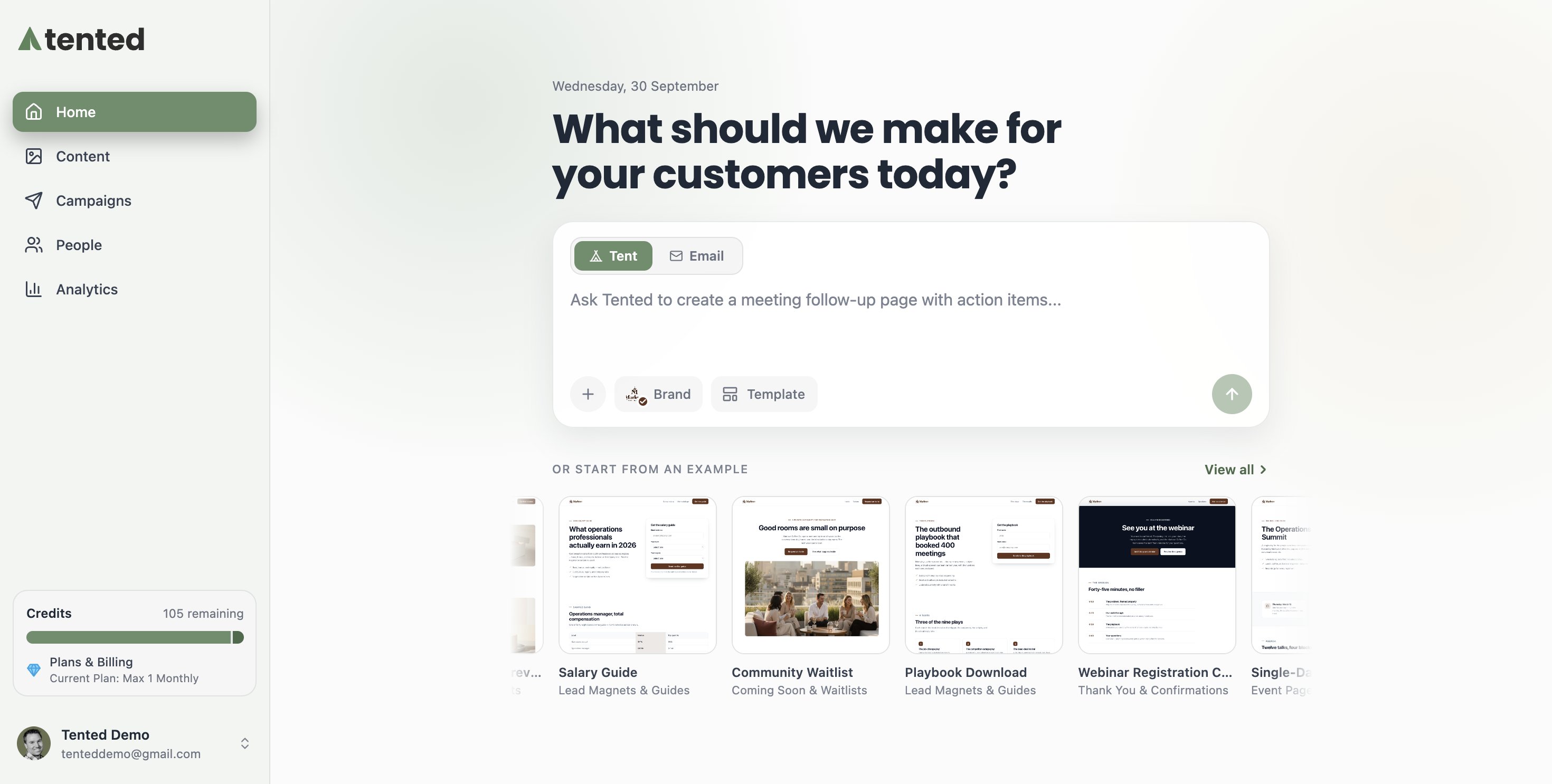
The lay of the land
Your sidebar has everything:- Home — the prompt box. Describe something and Tented builds it.
- Content — your AI-generated landing pages (tents), emails, templates, and forms. (A tent is a complete, standalone page you can publish instantly.)
- Campaigns — your email blasts and triggered flows.
- People — your contact database and lists.
- Analytics — how it’s all performing.
Step 1: Add your branding
Upload your logo, icon, and brand color when prompted at signup (or anytime in Settings > Brand). Tented uses them everywhere — tents and emails — so everything comes out on-brand automatically.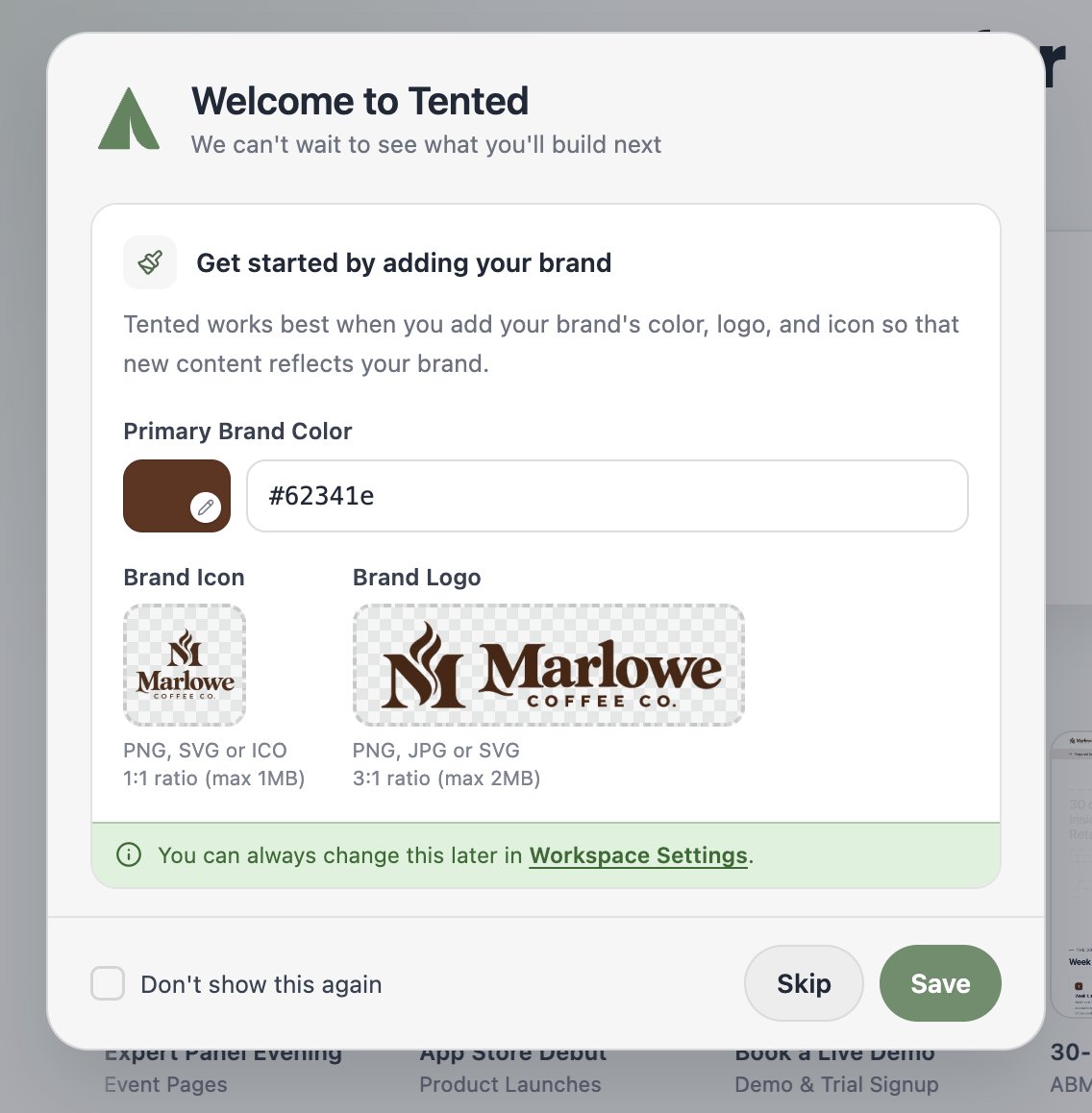
Step 2: Create your first tent
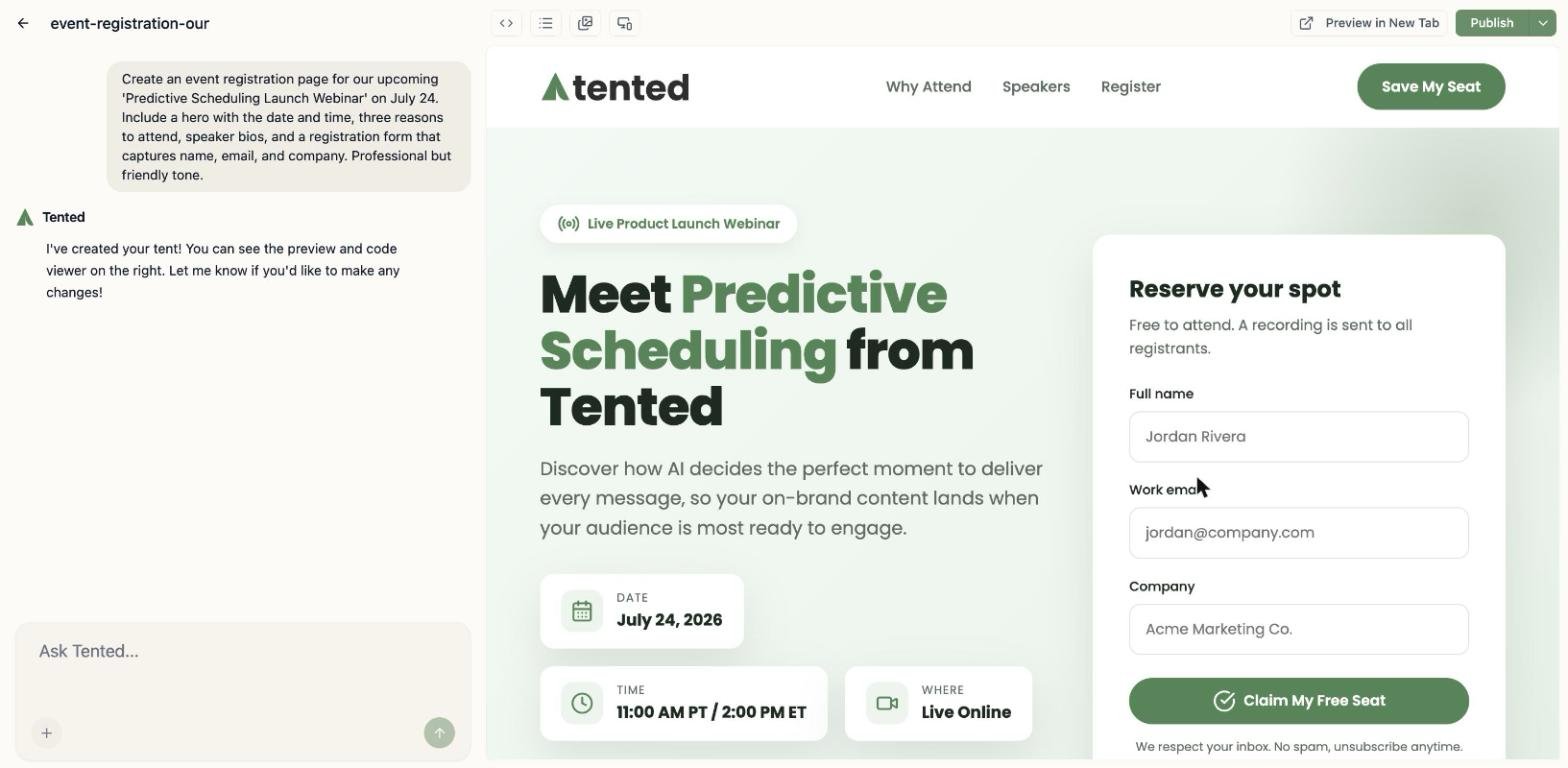
On the Home page, make sure Tent is selected above the prompt box and describe the landing page you want:“Generate a landing page for our new feature, ‘Predictive Scheduling’. The page must be high-converting and focused solely on capturing early access signups. Include a hero section, features, and pricing.”Tented generates a complete, responsive page in about a minute. Refine it by chatting (“make the CTA bigger”, “add testimonials”), then click Publish to put it live on the web.
Step 3: Set up email
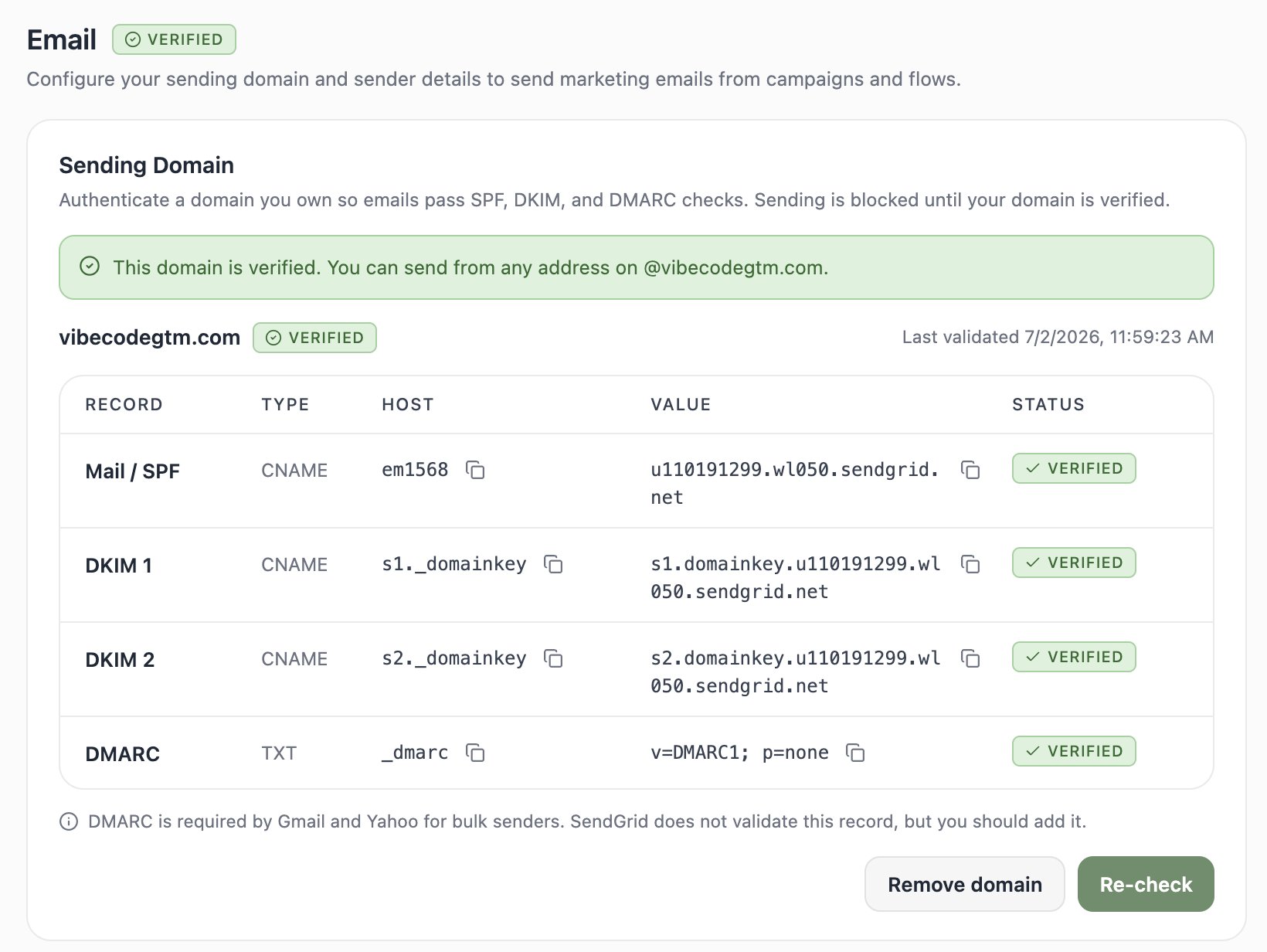
One-time setup, about ten minutes, and most of that is waiting for DNS:- Go to Settings > Email and add your sending domain. Copy the generated DNS records into your DNS provider and verify.
- Fill out your sender profile (company name and mailing address — required by anti-spam law).
- Set your default from name and address.
Step 4: Add your people
Head to People and bring in your contacts — one at a time with Quick Add, or in bulk with Import from CSV (Tented auto-maps your columns). Then organize them into lists: hand-picked static lists, or rule-based dynamic lists that keep themselves current.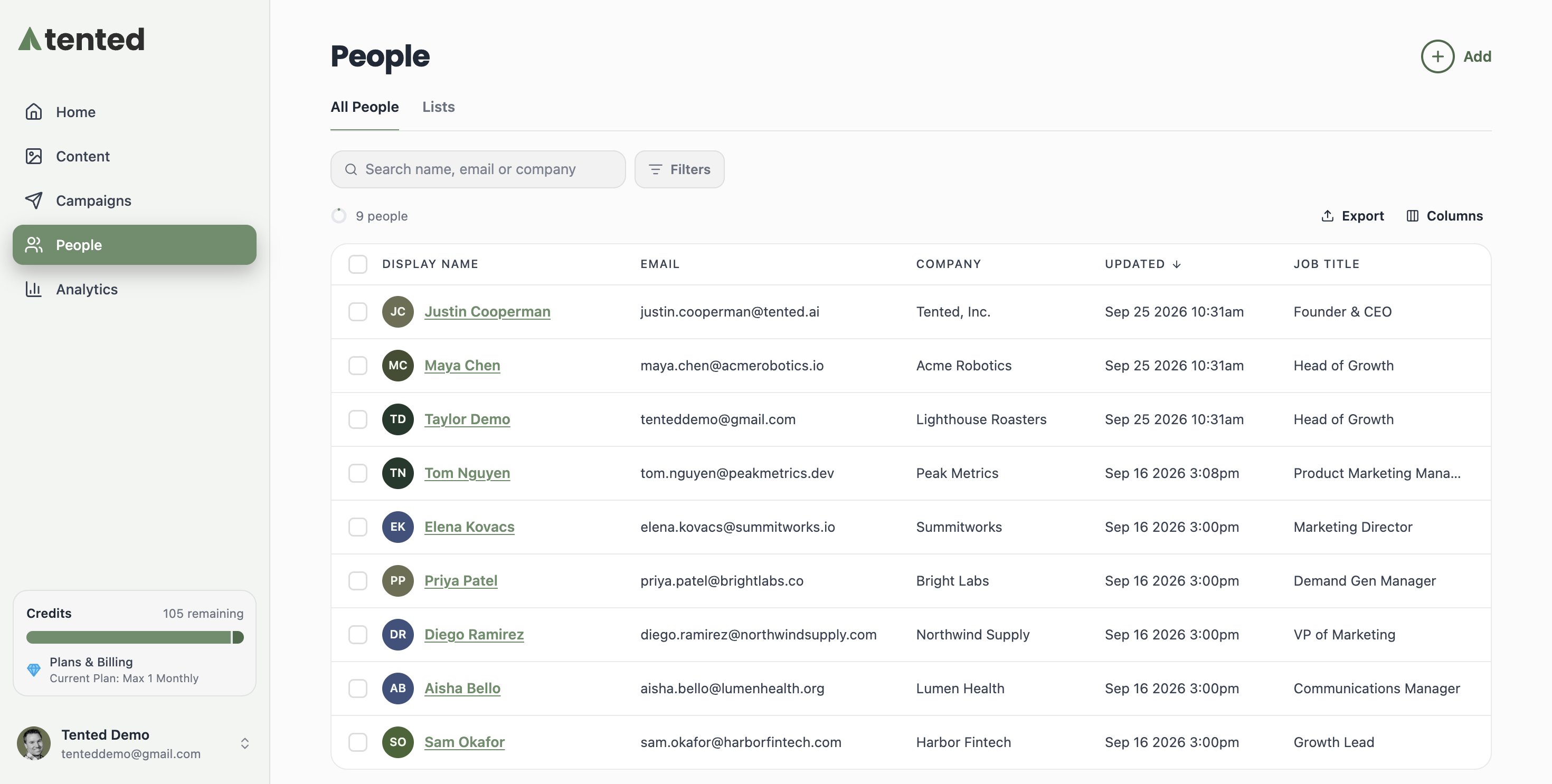
Step 5: Send your first campaign
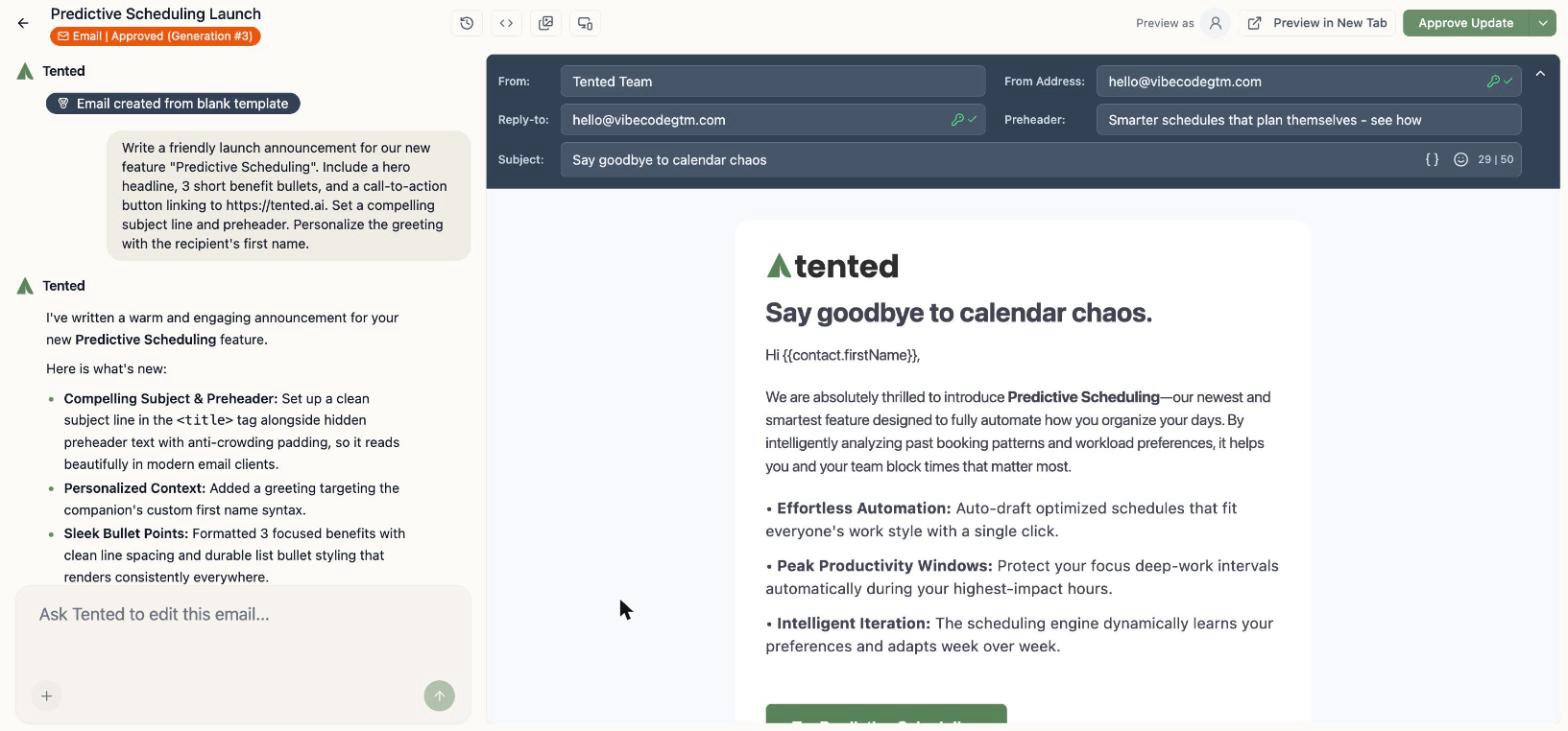
- Go to Content > Add > Create Email (or switch the Home prompt box to Email), and describe the email you want — Tented writes and designs it, personalization tokens and all.
- Click Approve when you’re happy (only approved emails can send).
- Go to Campaigns and click Create blast on the Email Blast card: pick your list, pick your email, and Send now (or schedule it).
Step 6: Put it on autopilot
Once the manual version feels good, automate it: triggered flows enroll contacts automatically — when they’re added to a list, submit a tent form, or hit a date — and walk them through multi-step journeys with emails, waits, and branches.Where to next?
Working with Tents
Master the tent editor, publishing, and form submissions.
Managing Contacts
Everything about the People area, imports, and profiles.
Creating Emails
The AI email editor, personalization, and approval.
Triggered Flows
Build automated journeys on the visual canvas.
Need help? Contact support at support@tented.ai.