Tent Details Overview
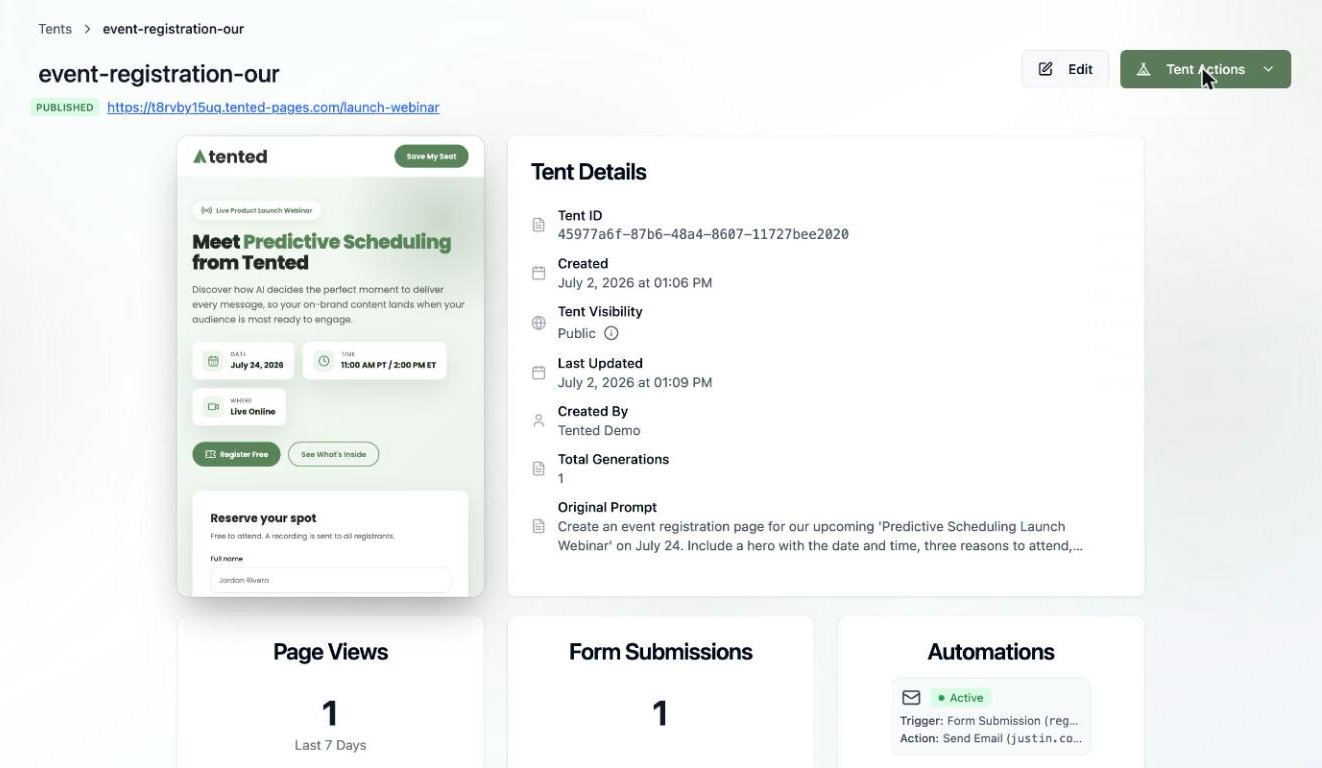
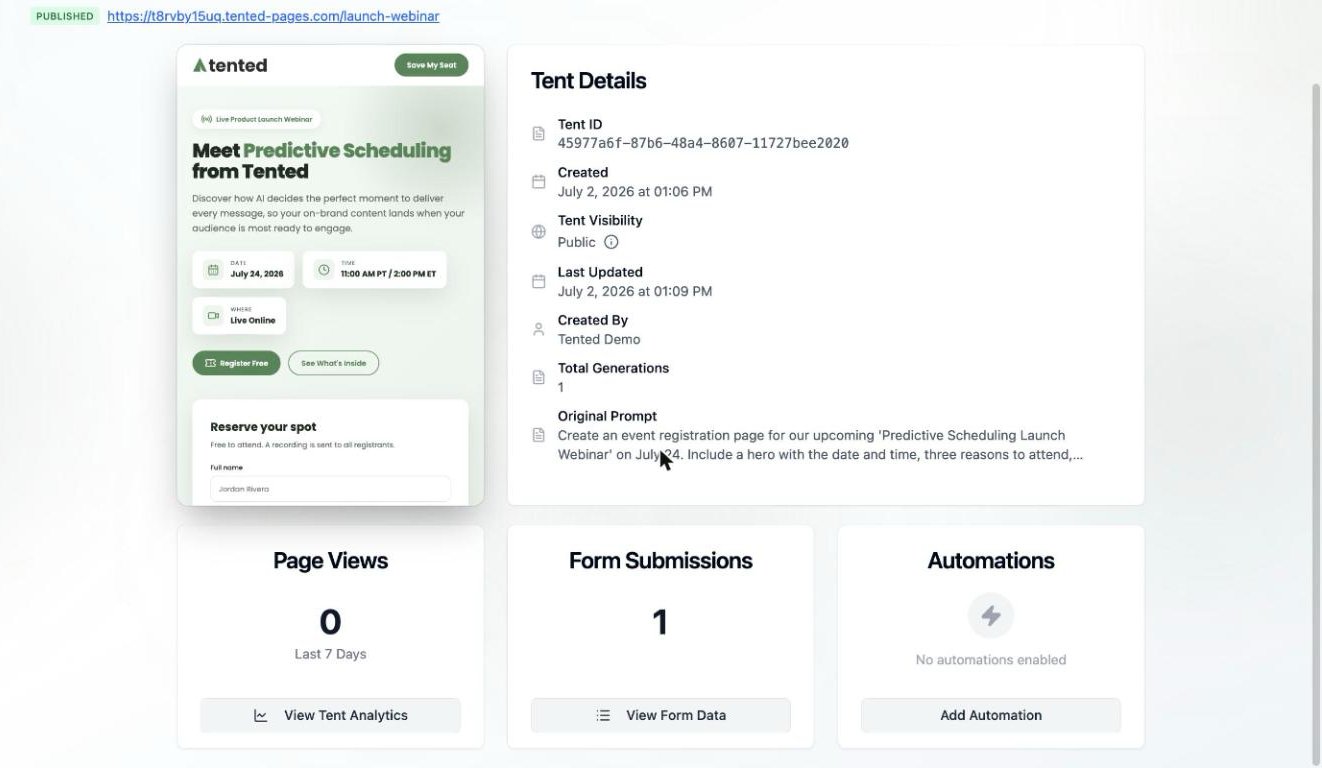
The tent details page provides a comprehensive view of your tent’s information, status, and management options. This is your central hub for understanding and controlling your tent.Page Layout
Header Section
The header displays essential tent information:- Tent Name: Click to edit/rename your tent
- Status Badge: Shows current status (Draft, Published, Generating, etc.)
- Last Updated: Timestamp of the most recent changes
- Created By: User who originally created the tent
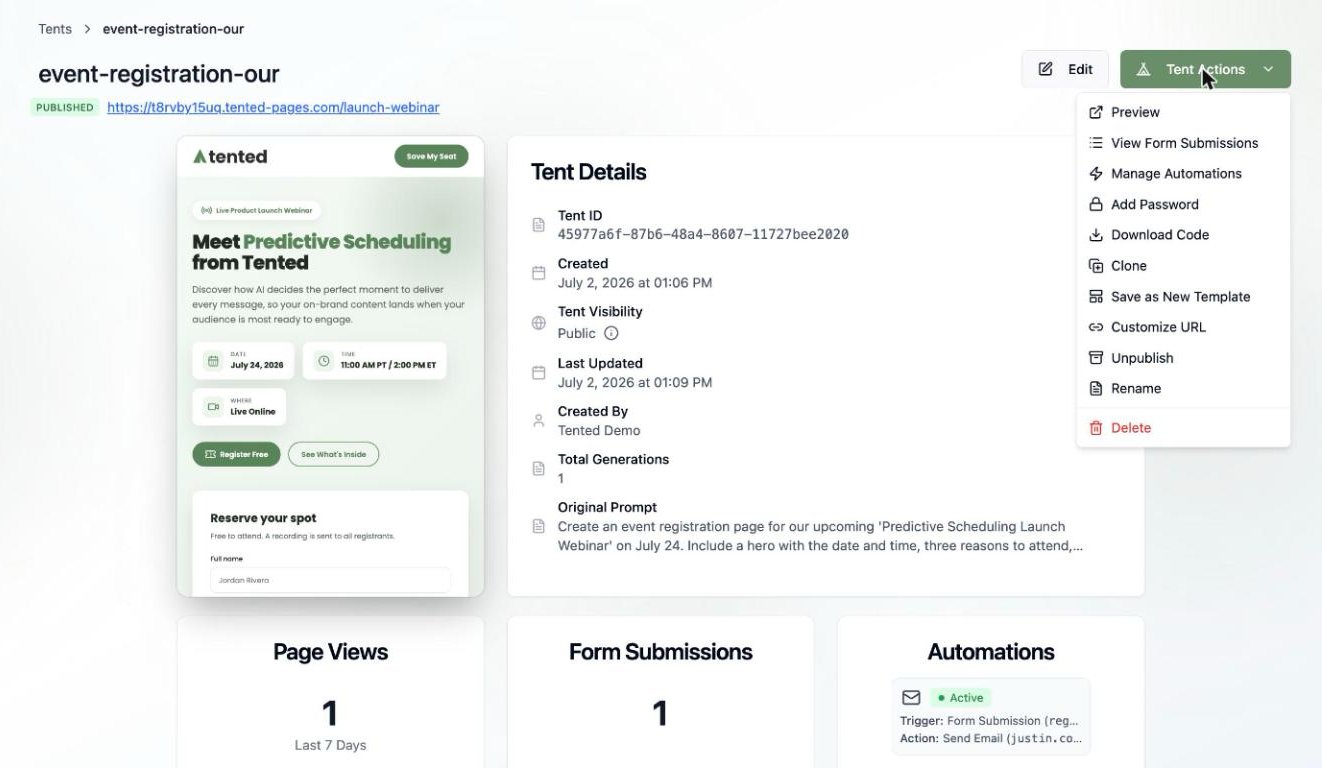
Action Buttons
Edit Tent
Edit Tent
Opens the tent editor where you can make changes through chat or direct code editing.
Preview
Preview
Opens a preview window to see how your tent looks on different devices.
Publish
Publish
Makes your tent live on the web with a unique URL.
Clone
Clone
Creates a copy of your tent for variations or A/B testing.
Information Tabs
Overview Tab
Generation History:- List of all generations with timestamps
- Current active generation highlighted
- Ability to revert to previous generations
- Generation notes and changes
- Total views and visits
- Form submissions count
- Last published date
- Creation date and creator
- Edit tent name
- Change status
- Download code
- Share preview link
Settings Tab
General Settings:- Tent name and description
- Status (Draft/Published/Archived)
- Visibility settings
- Access permissions
- Color scheme
- Typography settings
- Logo and brand assets
- Custom CSS (advanced)
- Form submission handling
- Email notifications
- Data export settings
- Integration options
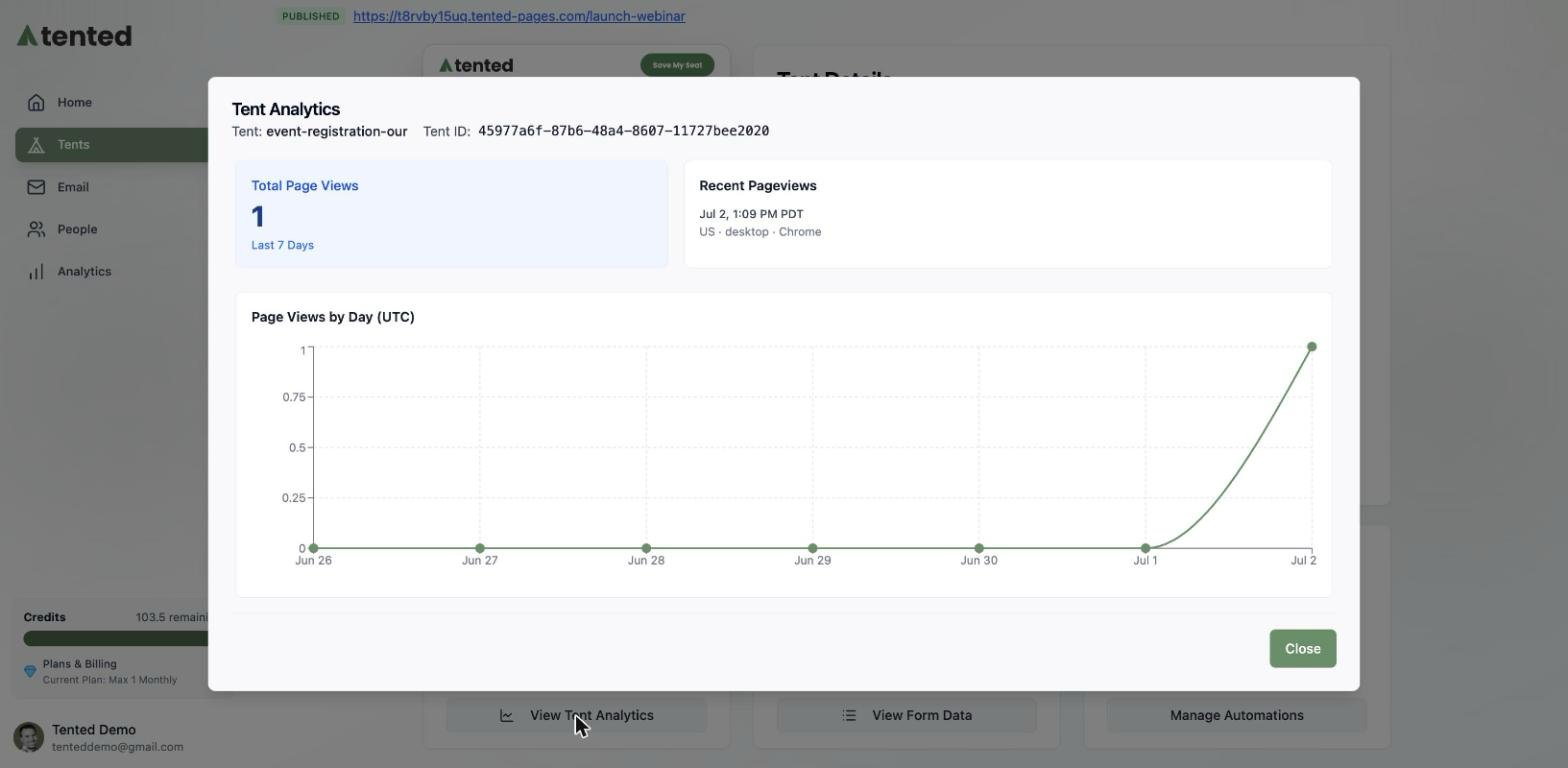
Analytics Tab
Performance Metrics:- Page views and unique visitors
- Conversion rates
- Form submission rates
- Traffic sources
- List of all form submissions
- Export capabilities
- Submission details and timestamps
- Contact information
Status Indicators
Understanding tent statuses:Draft
Tent is being created or edited. Not yet published to the web.
Published
Tent is live and accessible via its unique URL.
Generating
AI is currently creating or updating the tent content.
Archived
Tent is no longer active but preserved for reference.
Generation Management
Viewing Generations
Each tent maintains a history of all generations:- Generation Number: Sequential version number
- Created Date: When this generation was made
- Created By: User who triggered the generation
- Type: Initial, Iteration, or Reverted
- Status: Completed, Failed, or In Progress
Reverting Generations
To revert to a previous generation:- Click on a previous generation in the history
- Review the changes that will be made
- Confirm the revert action
- New generation created with the reverted content
Quick Actions Menu
Access common actions from the three-dot menu:- Rename Tent: Change the tent name
- Duplicate: Create a copy of the tent
- Archive: Move tent to archived status
- Delete: Permanently remove the tent
- Export Code: Download the HTML/CSS/JS files
- Share Preview: Get a shareable preview link
Mobile Responsiveness
The tent details page is fully responsive:- Mobile View: Optimized layout for phones and tablets
- Touch Actions: Swipe and tap gestures supported
- Quick Access: Essential actions easily accessible on mobile
- Preview: Mobile preview of your tent included
Next: Understanding the Tent Editor
Learn how to navigate and use the tent editor interface.