

Prerequisites
Before you begin, make sure you have:- Admin access to your Tented workspace. Connecting, changing settings, and disconnecting are admin-only.
- An approved tent template in Tented, to create pages. Pages are generated from a template’s approved version. You can connect your store and sync customers before you have one; see Templates when you’re ready.
- Permission to install apps in your Shopify store. Store owners have it; staff need permission to install apps.
- AI credits. Each generated page uses half a credit.
Step 1: Connect Shopify
You install Tented from the Shopify App Store, and Shopify brings you back to Tented to finish setup.- In Tented, open Settings → Integrations.
- On the Shopify tile, select Connect, then Install from the Shopify App Store.
- In Shopify, select Install, review the access Tented asks for, and approve it.
- Shopify sends you back to Tented. Sign in (or create your Tented account) if you aren’t already, and the Shopify setup opens with your store connected.
One Shopify store can feed one Tented workspace. To connect a different store, disconnect the current one first.
Step 2: Choose a segment
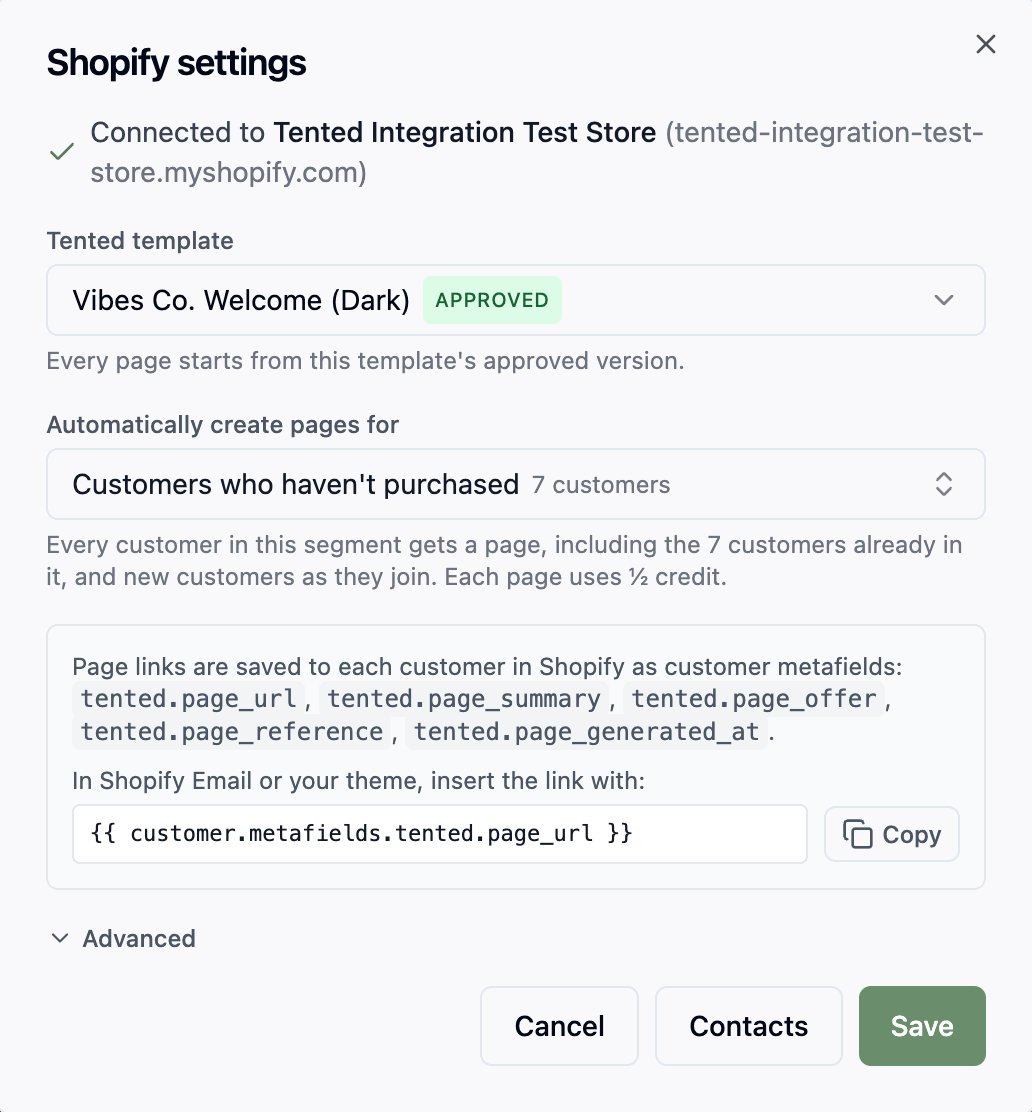
The Pages step sets what Tented generates.- Tented template: the approved template each page starts from. Tented picks your most recently approved template; change it if you like. No approved template yet? Connect anyway to sync customers, and choose a template and a segment in Edit settings later.
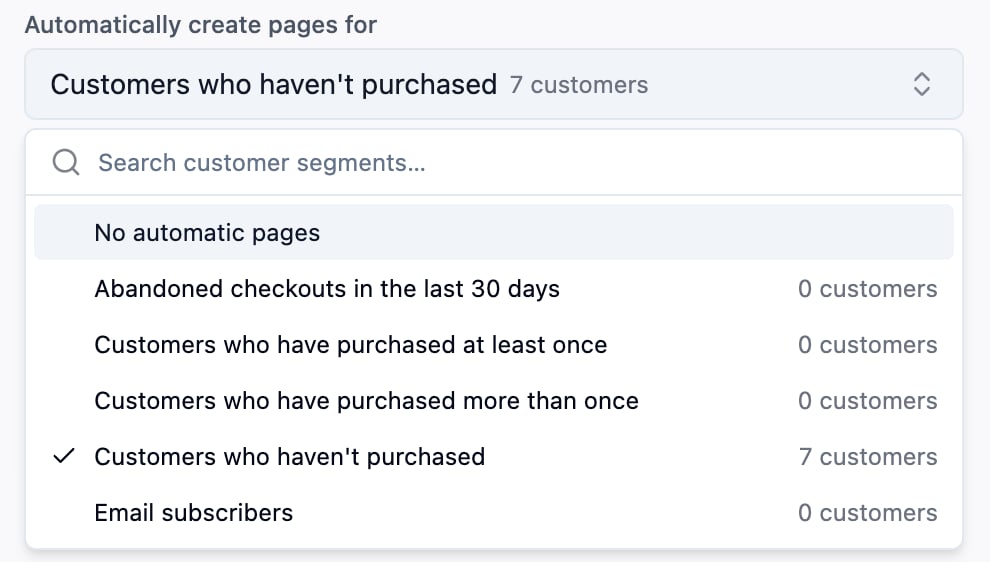
- Automatically create pages for: pick a Shopify customer segment, or leave it on No automatic pages to only connect for now. Each segment shows how many customers are in it.
Advanced
Expand Advanced to change the copy Tented works from: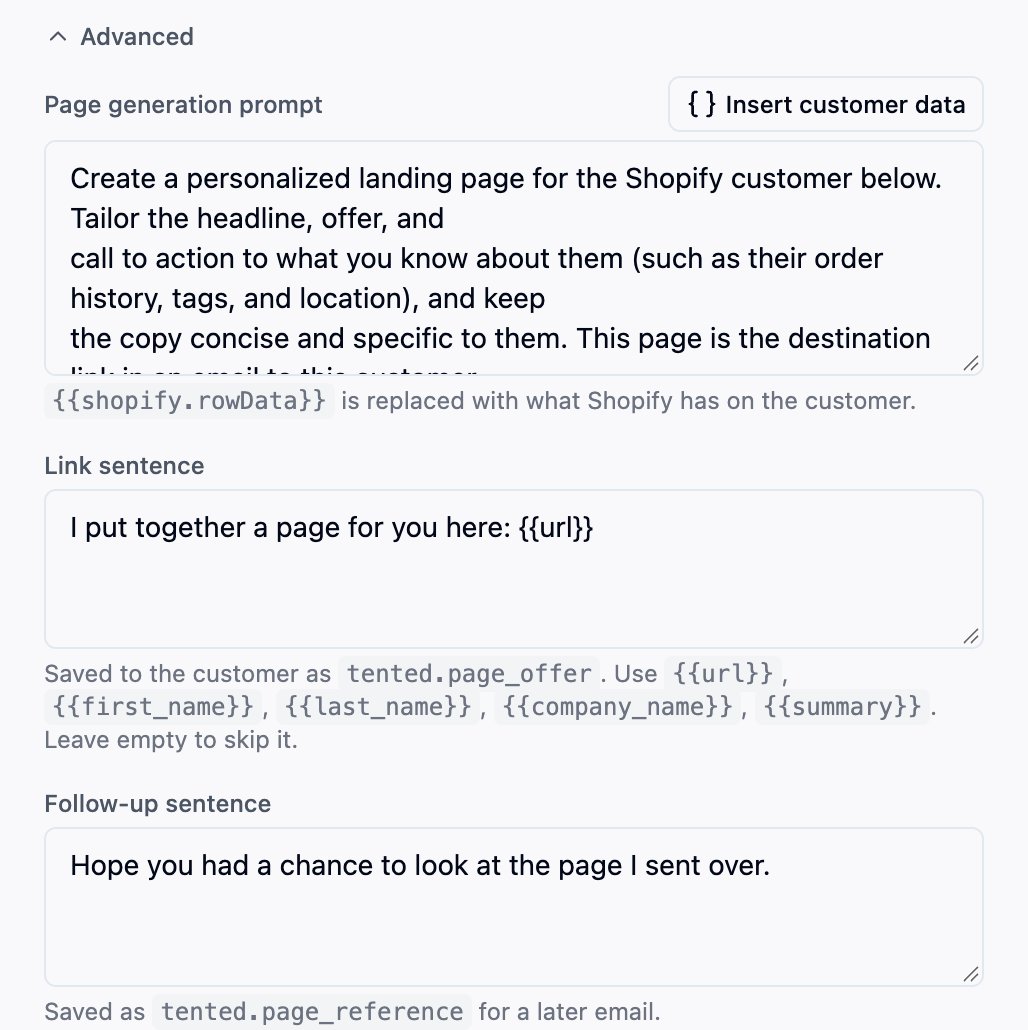
- Page generation prompt: the instructions each page is generated with.
{{shopify.rowData}}is replaced with what Shopify has on the customer (see above). - Link sentence: saved to the customer as
tented.page_offer. Use{{url}},{{first_name}},{{last_name}},{{company_name}}, and{{summary}}. Leave it empty to skip it. - Follow-up sentence: saved as
tented.page_referencefor a later email.
Syncing customers (optional)
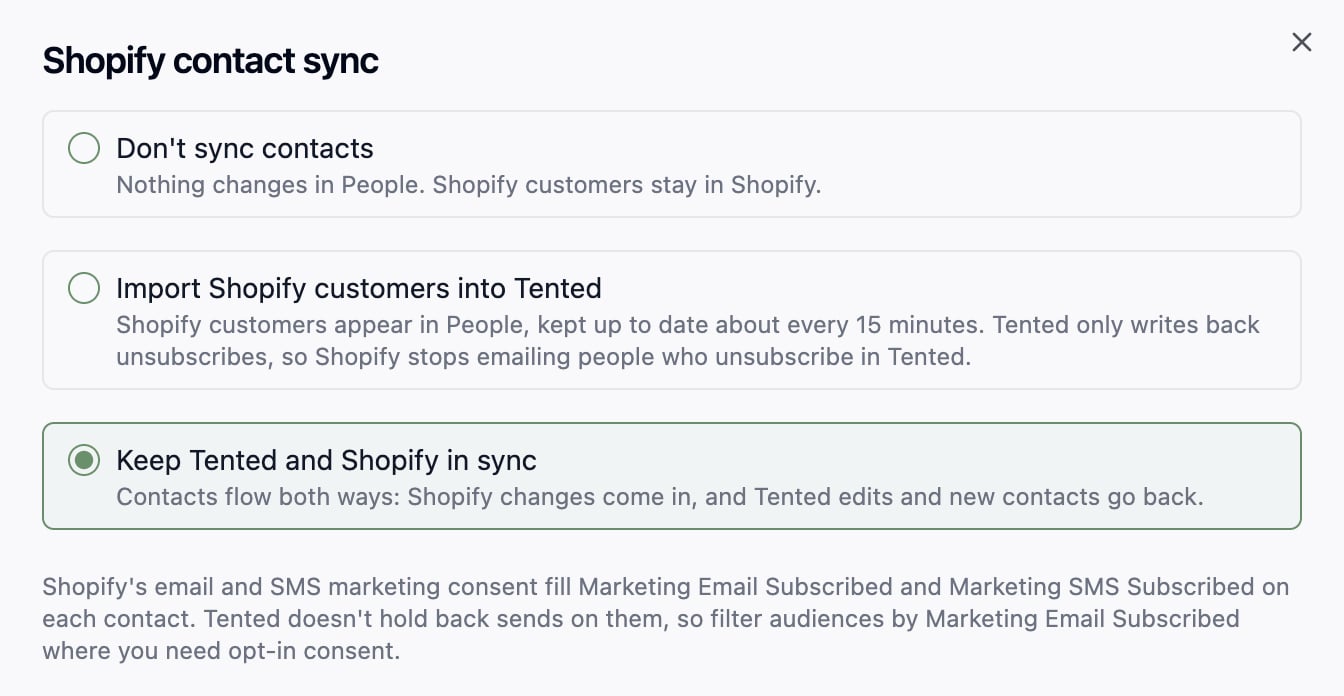
Tented can also keep your Shopify customers in People, so lists, flows, and emails in Tented work off the same people as your store. You choose this during setup on the Contacts step, and can change it later with Edit next to Contacts on the Shopify tile. Pick one of three options:- Don’t sync contacts. Customers stay in Shopify. Pages still work.
- Import Shopify customers into Tented. Customers appear in People and are kept up to date about every 15 minutes. Tented only writes back one thing: when someone unsubscribes in Tented, their Shopify email marketing status becomes Unsubscribed, so Shopify stops emailing them too.
- Keep Tented and Shopify in sync. Changes flow both ways: Shopify changes come in, and Tented edits and new Tented contacts go back to Shopify as customers.
Standard fields
Shopify’s standard customer fields (first and last name, email, phone, company, address, and email and SMS consent) are matched to Tented’s fields for you. For each one, choose what happens when a Tented contact already has a value, exactly as in a list import: Overwrite or Do Nothing. With two-way sync the rule works the same way in the other direction: a Do Nothing field is only filled in on Shopify’s side, never replaced. Company and address come from the customer’s default address in Shopify and are read-only: Tented doesn’t change them in Shopify.Email and SMS consent
Shopify keeps a marketing consent status for each customer’s email and phone. Tented maps it both ways:- Unsubscribes from Shopify. A customer whose email marketing status becomes Unsubscribed in Shopify is unsubscribed in Tented. It only ever unsubscribes: a customer who resubscribes in Shopify is not resubscribed in Tented.
- Unsubscribes from Tented. A contact who unsubscribes in Tented (from an email’s unsubscribe link, or by hand) has their Shopify email marketing status set to Unsubscribed. This happens with import and with two-way sync, for contacts linked to a Shopify customer.
- Consent. Shopify’s email and SMS consent fill Marketing Email Subscribed and Marketing SMS Subscribed on each contact: Yes only when the status is Subscribed. Tented doesn’t hold back sends based on these fields. Where you need opt-in consent, filter the audience by Marketing Email Subscribed.
Shopify fields
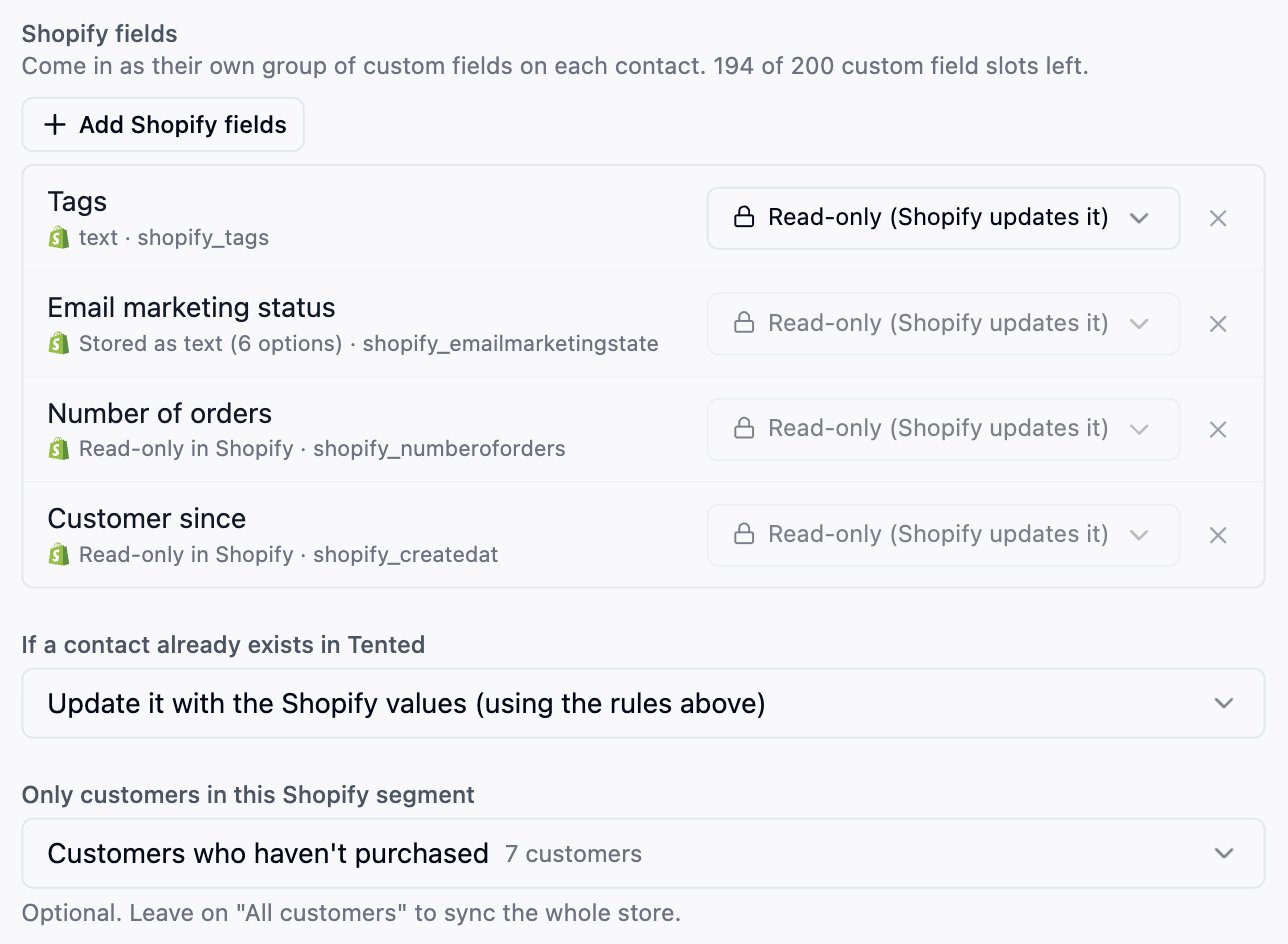
Other customer data can come along too. Select Add Shopify fields and pick what you want: email or SMS marketing status, tags, note, number of orders, amount spent, last order date, customer since, language, account status, and any customer metafields your store has defined. For each field choose:- Read-only. Shopify owns the value; it shows on the contact but can’t be edited in Tented.
- Editable. Available with two-way sync for tags, note, and your own metafields. Edits in Tented are sent back to Shopify.
Matching and duplicates
Contacts are matched on email, then phone. If a contact already exists in Tented, choose whether to update it using the field rules above or skip it. Once a contact is linked to a Shopify customer, that link is what identifies it. An email or phone changed in Shopify updates the same Tented contact rather than creating another.Limiting the sync to a segment
Only customers in this Shopify segment limits the sync to one segment; leave it on All customers to sync the whole store. Customers in the segment come in and, with two-way sync, go back. A customer who leaves the segment stops syncing from their next change onward, and picks up again when they rejoin. Contacts created in Tented are the one exception: once Tented has created them in Shopify they stay in step whether or not they’re in the segment. Contacts that came from a list import or another integration are not sent to Shopify while the sync is limited to a segment.With two-way sync, contacts Tented creates in Shopify are new customers there, and they join any segment whose conditions they match. If you create pages for that segment, they get pages too.
The first sync
The first sync reads every customer in the store (or the chosen segment) and imports them in one run. It shows in People → Past imports as a Shopify initial sync. After that, Tented picks up changes about every 15 minutes. Contacts created by the sync show Shopify as their source. The Contacts line on the Shopify tile shows the sync mode, how many contacts are linked, and when the last sync ran. If Shopify refuses a contact, the tile shows how many weren’t accepted and why; a refused contact is sent again the next time it changes in Tented.Using the page link in Shopify
Tented saves five customer metafields in thetented namespace to every customer it makes a page for. They show under Metafields on the customer in Shopify.
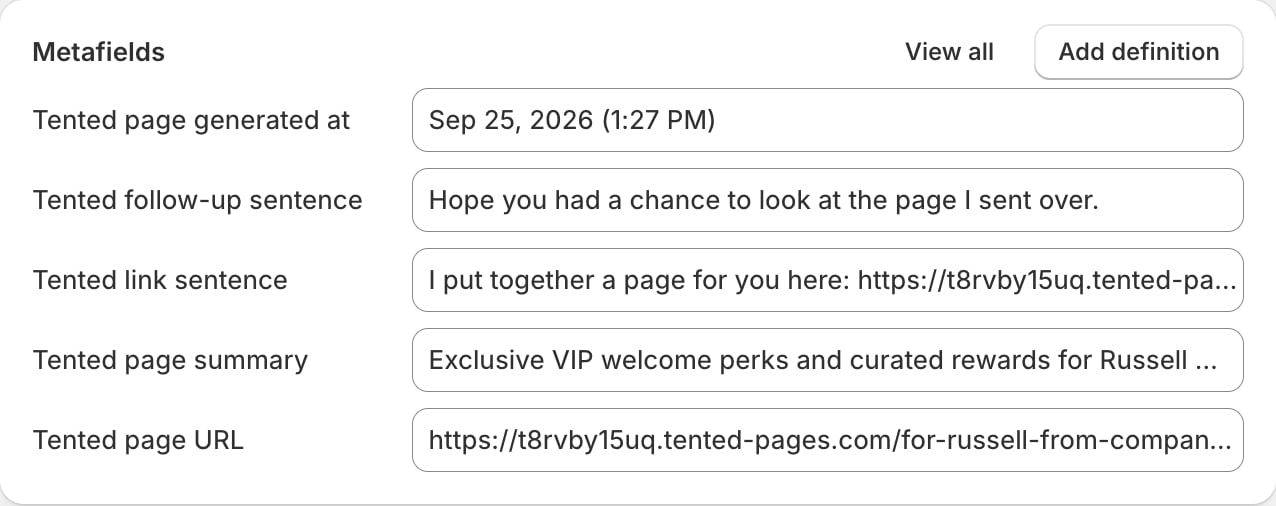
Use them anywhere Shopify supports Liquid for customers, such as Shopify Email, notification templates, or your theme:
What happens after connecting
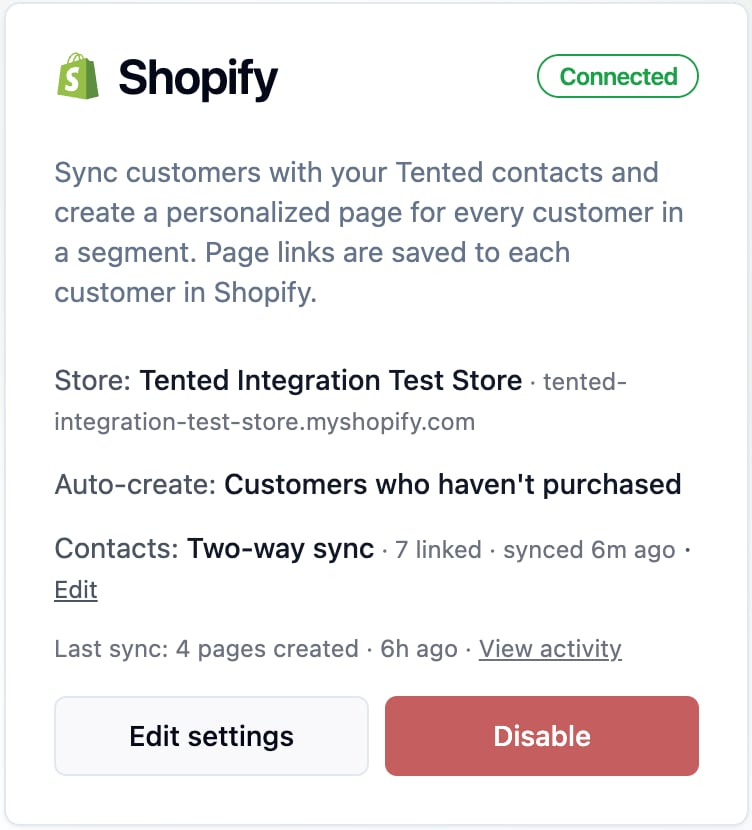
- The Shopify tile shows Connected, the store, and which segment creates pages automatically.
- Pages are published at readable URLs under your Tented domain, such as
https://your-domain/for-ada-from-analytical-engines. - Select View activity on the tile to see each sync, how many pages were created, and any customers Tented skipped and why. Sync now checks your segment straight away instead of waiting for the next pass.
- Generated tents appear in your Tents list with Shopify Integration as the creator. Use Filter → Hide integration-created to keep them out of the way.
Changing settings
Select Edit settings on the Shopify tile to change the template, the segment, the prompt, or the sentences. Customers who already have a page are not given a new one when settings change.Disconnecting
Select Disable on the Shopify tile. Tented stops creating pages for customers who join the segment. Pages already generated, and the metafields already saved to your customers, are not deleted. If contact sync was on, the Shopify fields group and its values are removed from every contact; the contacts themselves, and their standard fields, stay in Tented. The confirmation names any lists or flows whose rules use those fields. Those keep running (a rule on a removed field matches nobody) and show Needs attention until you change the rule.Uninstalling the app in Shopify
If you uninstall Tented in Shopify (Settings → Apps), the Shopify tile shows Paused with Shopify access was revoked or the Tented app was uninstalled from the store within a minute. The metafields on your customers stay in Shopify. To pick up where you left off, select Reconnect Shopify on the tile and approve access again. Your segment, contact sync settings, and contact links are kept.Privacy requests
Tented handles the privacy requests Shopify sends on your customers’ behalf:- Customer erasure. When you erase a customer’s personal data in Shopify, Tented deletes that customer’s page. A contact the sync created in Tented is deleted; a contact that already existed in Tented is kept, but loses its link to Shopify and its Shopify field values, and two-way sync never adds it back to your store.
- Customer data requests are recorded for your records. Tented holds the same customer data you can already see in People.