Prerequisites
Before you begin, make sure you have:- Admin access to your Tented workspace. Connecting, changing settings, and disconnecting are admin-only.
- An approved tent template in Tented. Pages are generated from a template’s approved version. See Templates if you don’t have one yet.
- Permission to install apps in HubSpot. Super admins have it; other users need the App Marketplace access permission.
- AI credits. Each generated page uses half a credit.
Step 1: Connect HubSpot
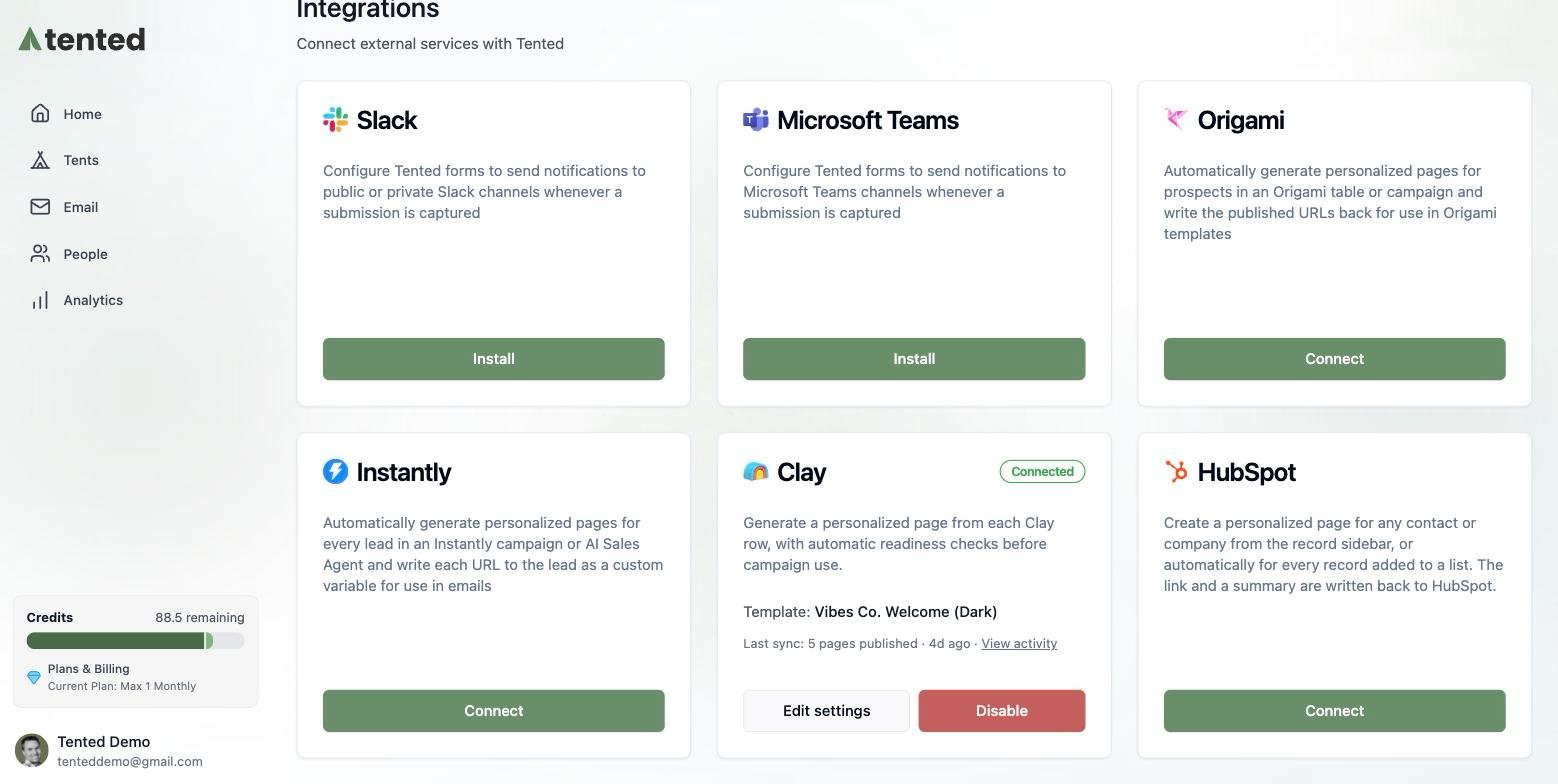
- In Tented, open Settings → Integrations.
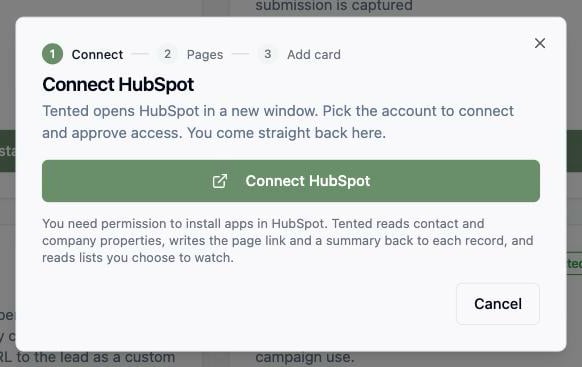
- On the HubSpot tile, select Connect, then Connect HubSpot.
- HubSpot opens in a new window. Pick the account to connect and approve access. The window closes on its own and Tented moves to the next step.
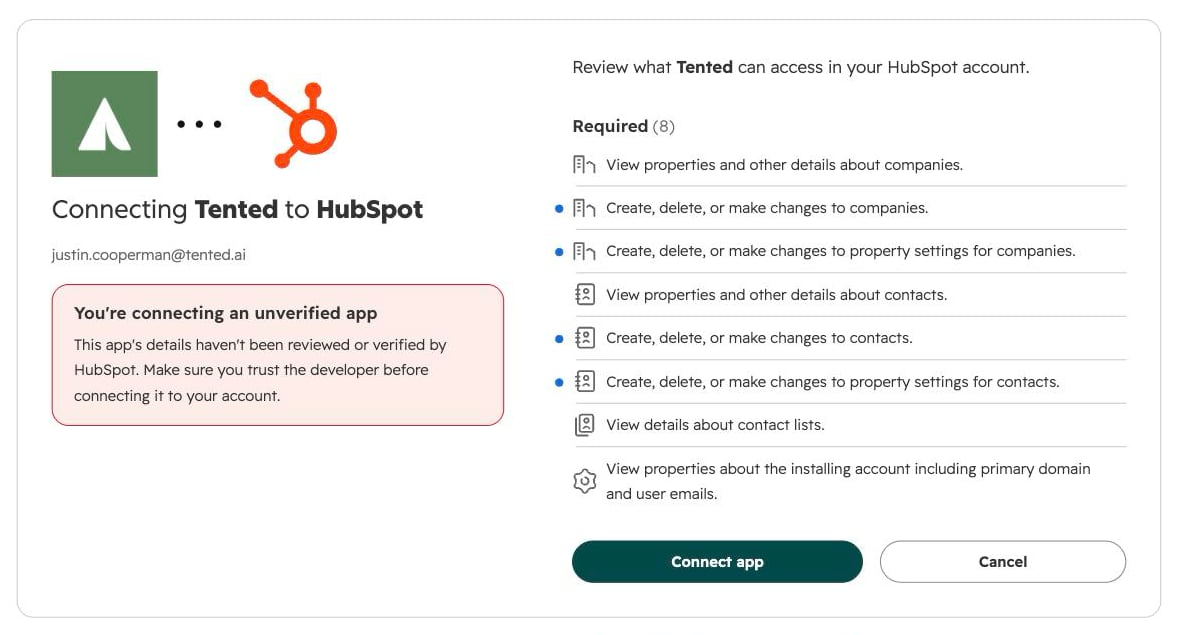
If you installed Tented from the HubSpot App Marketplace instead, HubSpot sends you to this same page in Tented with the connection already made. Sign in as a workspace admin to finish setup.
Step 2: Choose what to generate
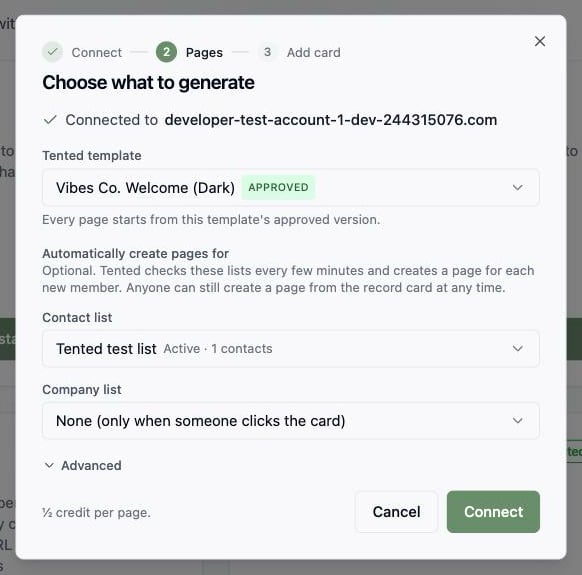
- Tented template: the approved template each page starts from. Tented picks your most recently approved template; change it if you like. Every page is personalized to the record using all of its properties, and for a contact, its company’s properties too.
- Automatically create pages for: optional. Pick a contact list and/or a company list. Tented checks them about every 15 minutes (or straight away when you select Sync now on the tile) and creates a page for every new member. Leave both on None to create pages only when someone clicks the card on a record.
Advanced
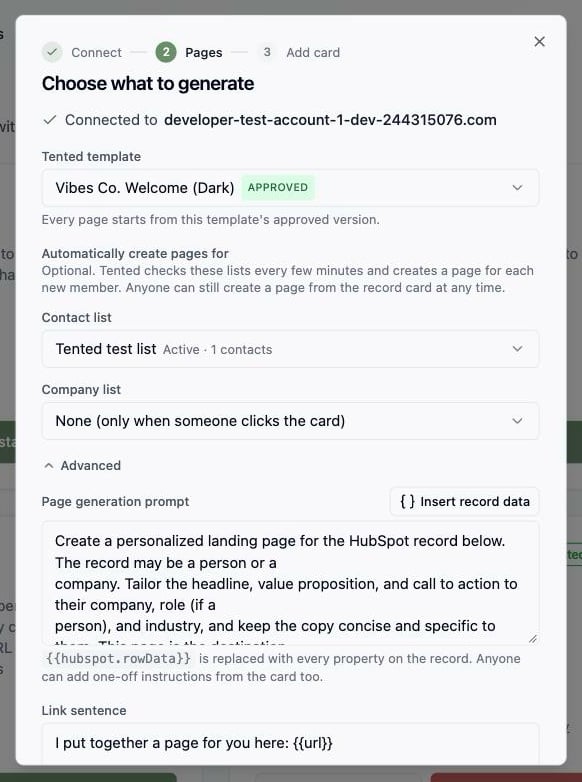
- Page generation prompt: the instructions the page is generated with.
{{hubspot.rowData}}is replaced with every property on the record. Reps can also add one-off instructions from the card for a single page. - Link sentence: written to the record as
tented_page_offer. Use{{url}},{{first_name}},{{company_name}},{{job_title}}, and{{summary}}. Leave it empty to skip it. - Follow-up sentence: written as
tented_page_referencefor a later email or sequence step.
Syncing contact data (optional)
Tented can also keep your HubSpot contacts in People, so lists, flows, and emails in Tented work off the same records your team uses in HubSpot. You choose this during setup on the Contacts step, and can change it later with Edit next to Contacts on the HubSpot tile. Pick one of three options:- Don’t sync contacts. Records stay in HubSpot. Pages still work from the card and lists.
- Import HubSpot contacts into Tented. HubSpot contacts appear in People and are kept up to date about every 15 minutes. Tented never writes back.
- Keep Tented and HubSpot in sync. Changes flow both ways: HubSpot edits come in, and Tented edits and new Tented contacts go back to HubSpot.
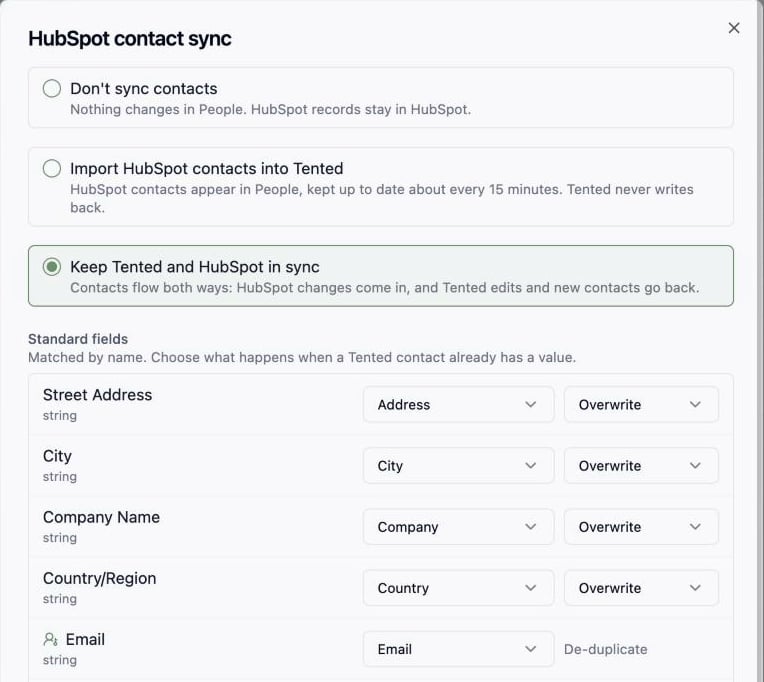
Standard fields
HubSpot’s standard properties (email, first and last name, company, job title, lifecycle stage, lead status, and so on) are matched to Tented’s fields for you. For each one, choose what happens when a Tented contact already has a value, exactly as in a list import: Overwrite or Do Nothing. With two-way sync the rule works the same way in the other direction: a Do Nothing field is only ever filled in on HubSpot’s side, never replaced, so each side keeps its own value. HubSpot’s Opted out of all email flag is mapped to Tented’s Unsubscribed by default. It only ever unsubscribes a contact in Tented; a contact who unsubscribed in Tented is never re-subscribed by HubSpot. With two-way sync on, Tented unsubscribes are written to a Unsubscribed in Tented property in HubSpot so you can build a list or workflow on it.HubSpot fields
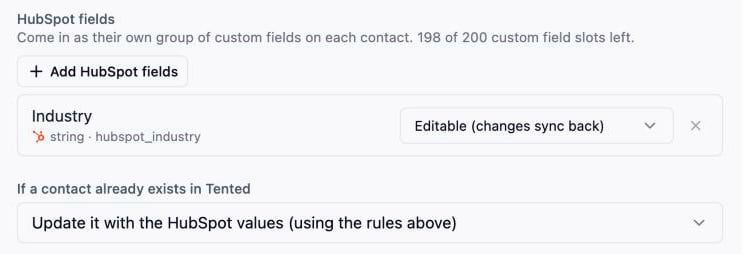
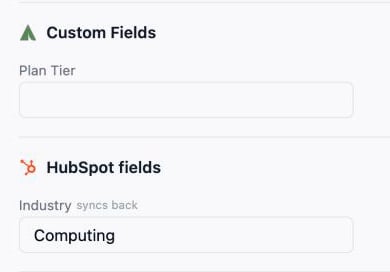
Any other HubSpot property can come along too. Select Add HubSpot fields, pick the properties you want, and for each choose:- Read-only. HubSpot owns the value; it shows on the contact but cannot be edited in Tented.
- Editable. Available with two-way sync. Edits in Tented are sent back to HubSpot.
Matching and duplicates
Contacts are matched on email, then phone. If a contact already exists in Tented, choose whether to update it using the field rules above or skip it entirely. Once a contact is linked to a HubSpot record, that link is what identifies it. An email or phone changed in HubSpot updates the same Tented contact rather than creating another, and an email or phone changed in Tented is kept (and, with two-way sync, sent to HubSpot) unless HubSpot changed it too.Limiting the sync to a list
Only contacts in this HubSpot list limits the sync to one list; leave it on All contacts to sync the whole account. Contacts in the list come in and, with two-way sync, go back. A contact that leaves the list stops syncing in both directions from its next change onward. It picks up again when it rejoins, including any changes made in HubSpot while it was out. Contacts created in Tented are the one exception: once Tented has created them in HubSpot they stay in step whether or not they are in the list. Contacts that came from a list import or another integration are not sent to HubSpot while the sync is limited to a list.How changes are merged
Each sync applies only the properties HubSpot changed since the last one, so an edit made in Tented survives an unrelated HubSpot change. If the same field changed on both sides between two syncs, the HubSpot value wins. A property emptied in HubSpot is emptied in Tented too, unless its rule is Do Nothing; an emptied email or phone never empties Tented’s copy. With two-way sync, Tented sends only the fields that changed in Tented. Phone numbers keep HubSpot’s own formatting until the number itself is changed in Tented. For a HubSpot dropdown, such as lifecycle stage, Tented sends the matching option; a Tented value HubSpot has no option for is left out, and the rest of the contact is still sent. HubSpot’s own default for a new contact (lifecycle stage Lead) then fills that field in Tented only if it is empty. If HubSpot refuses a contact outright, the Contacts line on the tile shows how many contacts were not accepted and the reason for the latest one. A refused contact is sent again the next time it changes in Tented.The first sync
The first sync reads every contact in the account (or the chosen list) and imports them in one run. It shows in People → Past imports as a HubSpot initial sync with counts, and only rows that failed or were skipped are kept for review. There is no size limit: an account with millions of contacts is read over a few hours and imported in the background in batches, so the rest of your workspace stays responsive, and the sync picks up where it left off if anything interrupts it. A very large account can take a day to finish. After that, Tented picks up changes about every 15 minutes. If part of the first sync fails, it is tried again automatically. If it keeps failing, the tile says so, and saving the contact sync settings starts it over. Changing the mapping or the list later re-reads the account with the new settings; contacts already in Tented are updated, not duplicated. Contacts created by the sync show HubSpot as their source. The Contacts line on the HubSpot tile shows the sync mode, how many contacts are linked, when the last sync ran, and how many contacts HubSpot did not accept.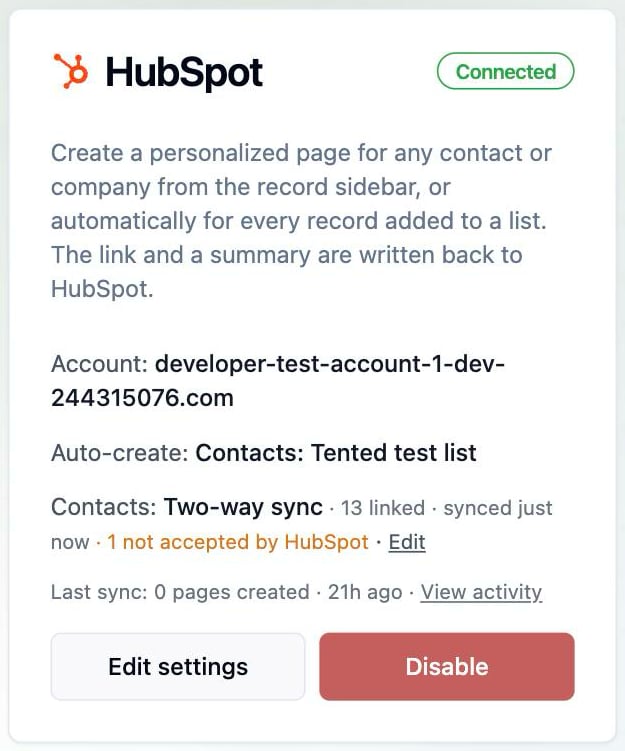
Removing HubSpot fields
Removing a field from the mapping removes it and its values from every contact. Lists and flows whose rules, triggers, or steps used it keep running, with those conditions matching nobody, and show Needs attention (in the lists table, the flows table, and the flow editor) until you change them. Disconnecting HubSpot does the same for all HubSpot fields; see Disconnecting.
Step 3: Add the Tented card to records
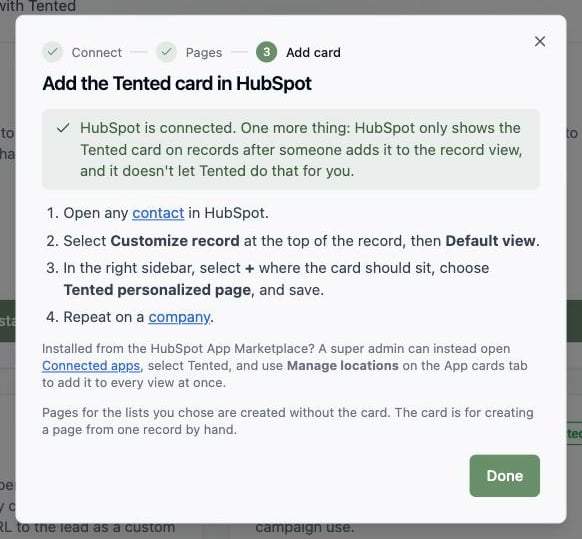
HubSpot only shows an app’s card on records after someone adds it to the record view. Tented can’t do this for you, so the last step of setup in Tented walks you through it:- Open any contact in HubSpot.
- Select Customize record at the top of the record, then Default view.
- In the right sidebar, select + where the card should sit, choose Tented personalized page, and save.
- Repeat on a company.
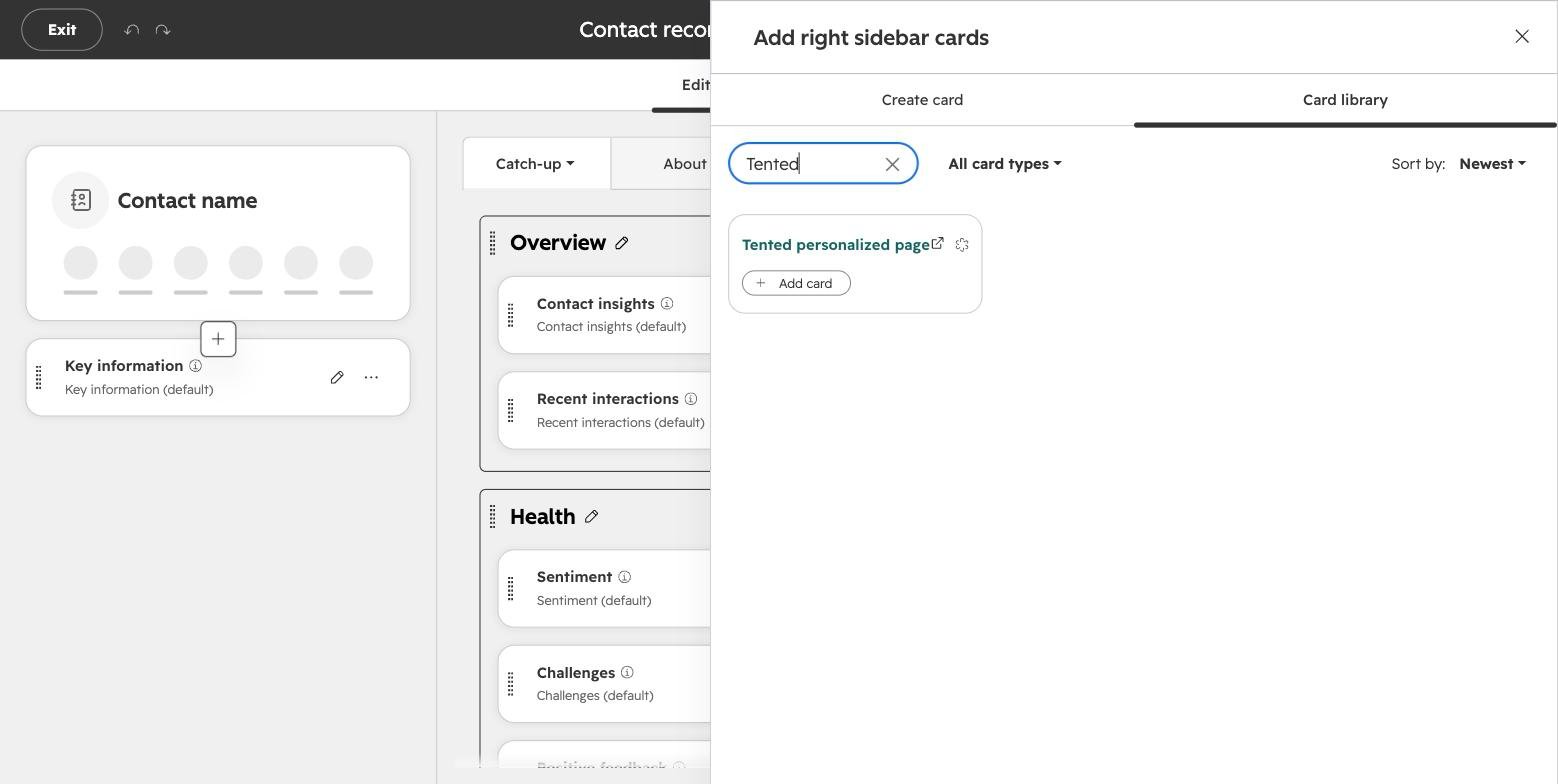
Pages for the lists you chose in Step 2 are created without the card. The card is for creating a page from one record by hand.
Step 4: Create a page from a record
Open any contact or company in HubSpot. The Tented personalized page card sits in the right sidebar.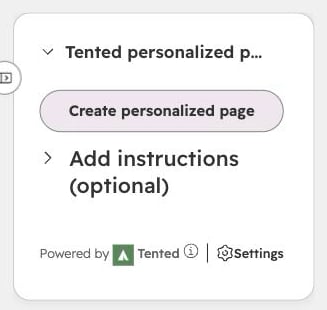
- Select Create personalized page. Expand Add instructions first if this page needs something specific, such as leading with a recent funding round.
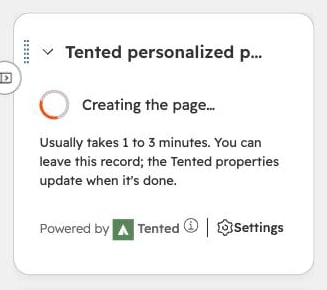
- The card shows Creating the page… while Tented works, usually one to three minutes. You can leave the record; the Tented properties update when it’s done.
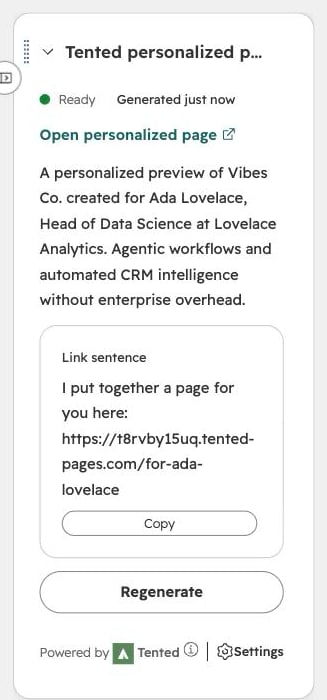
- When the page is ready, the card shows the link, the summary, and the link sentence to paste into an email.
Using the fields in HubSpot
Tented writes these properties to every contact or company it makes a page for:
Insert them as personalization tokens wherever HubSpot offers its Personalize menu, such as a sequence step, a sales email template, or a marketing email: pick the contact (or company) property named Tented page offer. Filter a list or branch a workflow on Tented page URL is known so only records with a live page get the step that links to it. Prefer the URL over Tented page status is Ready: while a page is being regenerated the status reads Generating for a few minutes even though the existing link still works.
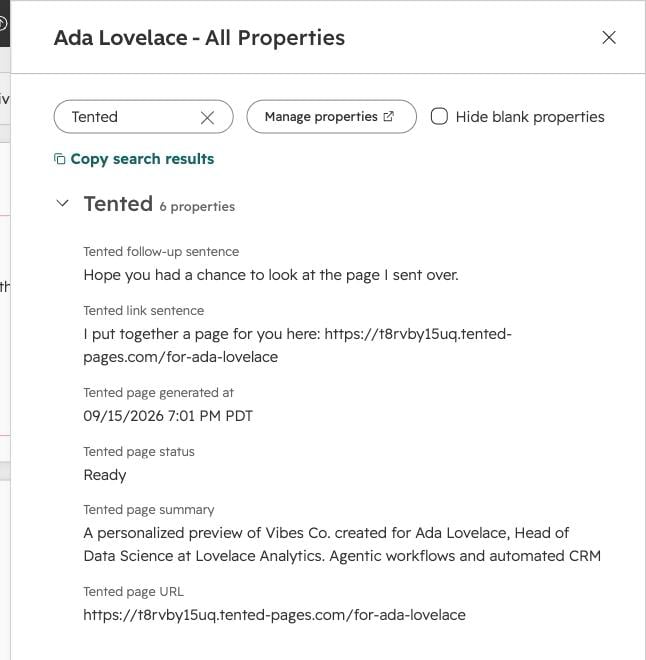
What happens after connecting
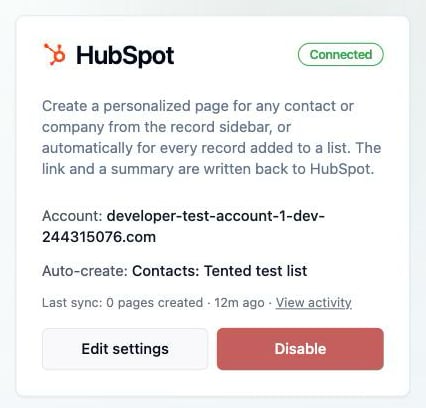
- The HubSpot tile shows Connected, the account, and which lists create pages automatically.
- Pages are published at readable URLs under your Tented domain, such as
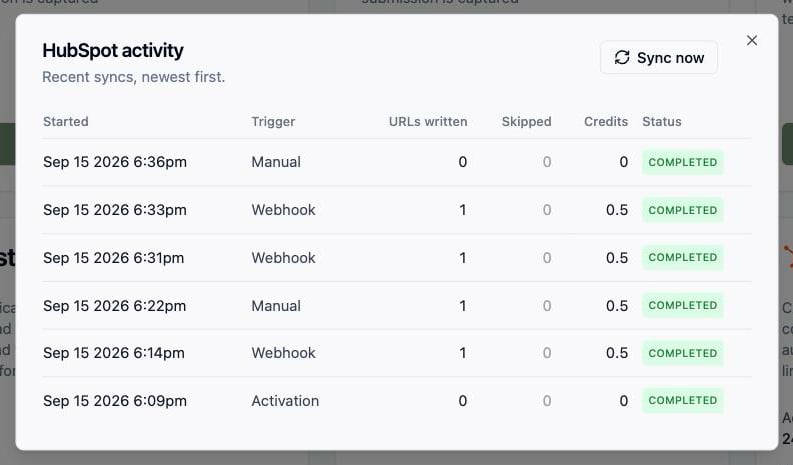
https://your-domain/for-ada-from-analytical-enginesfor a contact orhttps://your-domain/for-acme-cofor a company. - Select View activity on the tile to see each sync, how many pages were created, and any records Tented skipped and why. Sync now checks your lists straight away instead of waiting for the next pass.
- Generated tents appear in your Tents list with HubSpot Integration as the creator. Use Filter → Hide integration-created to keep them out of the way.