User Management Overview

Managing users in your Tented workspace involves overseeing user accounts, updating permissions, monitoring activity, and ensuring proper access control. This guide covers all aspects of user management.

User Dashboard

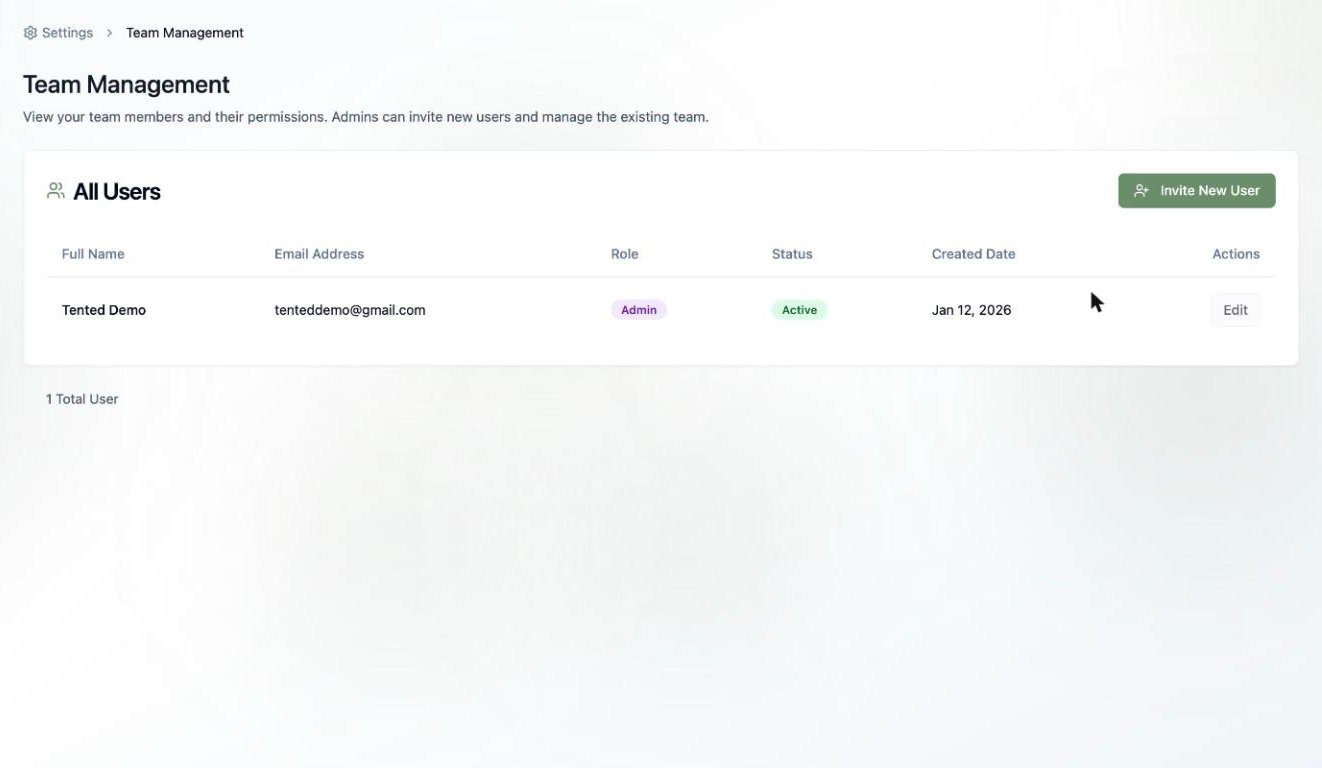
User List Overview

User Information Display:
  • Name: User’s display name
  • Email: User’s email address
  • Role: Current role assignment
  • Status: Active, inactive, or pending
  • Last Active: When user last accessed workspace
  • Join Date: When user joined workspace
Quick Actions:
  • Edit User: Modify user details
  • Change Role: Update user permissions
  • Deactivate: Temporarily disable access
  • Remove: Permanently remove user

User Status Indicators

Active Users:
  • Currently have access to workspace
  • Can perform actions based on role
  • Show recent activity
  • Green status indicator
Inactive Users:
  • Temporarily disabled access
  • Cannot log in or perform actions
  • Can be reactivated
  • Gray status indicator
Pending Users:
  • Invited but haven’t accepted
  • Awaiting invitation response
  • Can resend or cancel invitation
  • Yellow status indicator

User Profile Management

Editing User Information

Basic Information:
  • Display Name: Update user’s name
  • Email Address: Change email (requires verification)
  • Profile Picture: Upload or change avatar
  • Bio: Add user description
Contact Information:
  • Phone Number: Add contact number
  • Department: Assign to department
  • Job Title: Update position
  • Manager: Assign supervisor
Preferences:
  • Language: Set interface language
  • Timezone: Configure timezone
  • Notifications: Set notification preferences
  • Theme: Choose interface theme

User Settings Management

Account Settings:
  • Password: Reset user password
  • Two-Factor Auth: Enable/disable 2FA
  • Session Management: View active sessions
  • Login History: Review login activity
Workspace Settings:
  • Default View: Set default dashboard
  • Page Size: Configure list pagination
  • Sort Preferences: Set default sorting
  • Filter Settings: Configure default filters

Role Management

Changing User Roles

Role Update Process:
  1. Select user from user list
  2. Click “Change Role” or “Edit”
  3. Select new role from dropdown
  4. Confirm role change
  5. User receives notification
Role Change Effects:
  • Immediate: Changes take effect immediately
  • Permissions: User access updates instantly
  • Notifications: User notified of changes
  • Audit Trail: Change logged for compliance

Role Hierarchy

Admin Role:
  • Full workspace access
  • User management capabilities
  • Billing and settings access
  • Can assign all roles
Editor Role:
  • Content creation and editing
  • Publishing capabilities
  • Data access and export
  • Cannot manage users
Viewer Role:
  • Read-only access
  • Data viewing and export
  • Limited functionality
  • Cannot make changes
Custom Roles:
  • Specific permission sets
  • Tailored access levels
  • Custom functionality
  • Flexible permissions

User Activity Monitoring

Activity Tracking

User Activity Logs:
  • Login Activity: When users log in
  • Action Logs: What users do in workspace
  • Tent Activity: Tent creation and editing
  • Form Activity: Form submissions and management
Activity Metrics:
  • Active Time: Time spent in workspace
  • Actions Performed: Number of actions taken
  • Tents Created: Number of tents created
  • Forms Managed: Form submission handling

Performance Monitoring

User Productivity:
  • Tent Creation Rate: Tents created per period
  • Form Management: Form submission handling
  • Collaboration: Team interaction metrics
  • Quality Metrics: Tent quality and performance
Usage Patterns:
  • Peak Usage Times: When users are most active
  • Feature Usage: Which features are used most
  • Workflow Patterns: How users work
  • Efficiency Metrics: Productivity measurements

User Communication

Internal Communication

User Notifications:
  • Role Changes: Notify of permission updates
  • Workspace Updates: Inform of changes
  • Security Alerts: Notify of security events
  • Feature Announcements: Share new features
Team Communication:
  • Announcements: Broadcast messages to team
  • Updates: Share workspace updates
  • Guidelines: Communicate best practices
  • Training: Share educational resources

User Support

Support Channels:
  • Direct Support: One-on-one assistance
  • Group Training: Team training sessions
  • Documentation: Self-service resources
  • Community: Peer support forums
Support Management:
  • Support Tickets: Track user issues
  • Response Times: Monitor support quality
  • Resolution Tracking: Follow issue resolution
  • User Satisfaction: Measure support quality

Bulk User Operations

Bulk Actions

Selecting Multiple Users:
  • Check boxes next to user names
  • Select all users on current page
  • Use filters to select specific groups
  • Bulk selection tools
Bulk Operations Available:
  • Bulk Role Changes: Update multiple user roles
  • Bulk Deactivation: Disable multiple users
  • Bulk Email: Send emails to multiple users
  • Bulk Export: Export user data

Bulk Management Best Practices

Planning Bulk Operations:
  • Review selections before executing
  • Test with small groups first
  • Communicate changes to affected users
  • Document bulk operations
Safety Measures:
  • Backup user data before bulk changes
  • Verify user selections
  • Test in non-production environment
  • Have rollback plan ready

User Deactivation and Removal

Deactivating Users

Temporary Deactivation:
  • Disable user access temporarily
  • Preserve user data and history
  • Can be reactivated later
  • Maintains audit trail
Deactivation Reasons:
  • Temporary Leave: User on leave
  • Security Concerns: Suspicious activity
  • Role Changes: Pending role updates
  • Account Issues: Technical problems

Removing Users

Permanent Removal:
  • Permanently delete user account
  • Remove all user data
  • Cannot be undone
  • Requires confirmation
Data Handling:
  • Data Transfer: Transfer data to other users
  • Data Export: Export user’s data
  • Data Retention: Follow retention policies
  • Data Deletion: Remove all user data
Removal Process:
  1. Backup Data: Export user’s data
  2. Transfer Ownership: Transfer tents to other users
  3. Notify User: Inform user of removal
  4. Confirm Removal: Final confirmation
  5. Complete Removal: Delete account and data

Compliance and Auditing

Access Auditing

Regular Audits:
  • Review user access quarterly
  • Verify role appropriateness
  • Check for inactive users
  • Validate permission levels
Audit Reports:
  • User Access Report: Who has what access
  • Permission Changes: Track permission updates
  • Login Activity: Monitor login patterns
  • Action Logs: Review user actions

Compliance Requirements

Data Protection:
  • GDPR Compliance: European data protection
  • Data Retention: Follow retention policies
  • User Consent: Maintain consent records
  • Right to Deletion: Honor deletion requests
Security Compliance:
  • Access Controls: Implement proper controls
  • Audit Trails: Maintain activity logs
  • Data Encryption: Protect sensitive data
  • Regular Reviews: Periodic access reviews

Troubleshooting User Management

Common Issues

User Access Problems:
  • Verify user role and permissions
  • Check user status (active/inactive)
  • Review login restrictions
  • Contact support if needed
Role Assignment Issues:
  • Confirm role changes were saved
  • Check for conflicting permissions
  • Verify user received notification
  • Test user access
Data Access Problems:
  • Review data sharing settings
  • Check workspace permissions
  • Verify user group memberships
  • Contact administrator

Getting Help

Support Resources:
  • Documentation: User management guides
  • Community: Peer support forums
  • Support Tickets: Direct support requests
  • Live Chat: Real-time assistance
Escalation Procedures:
  • Level 1: Basic user management issues
  • Level 2: Complex permission problems
  • Level 3: System-level issues
  • Emergency: Critical security issues

Next: User Permissions

Learn how to configure and manage user permissions in detail.