Tent Management Overview

Managing your tents effectively is crucial for maintaining an organized workspace and optimizing your landing page campaigns. Tented provides comprehensive management tools for all aspects of tent lifecycle management.

Basic Tent Operations

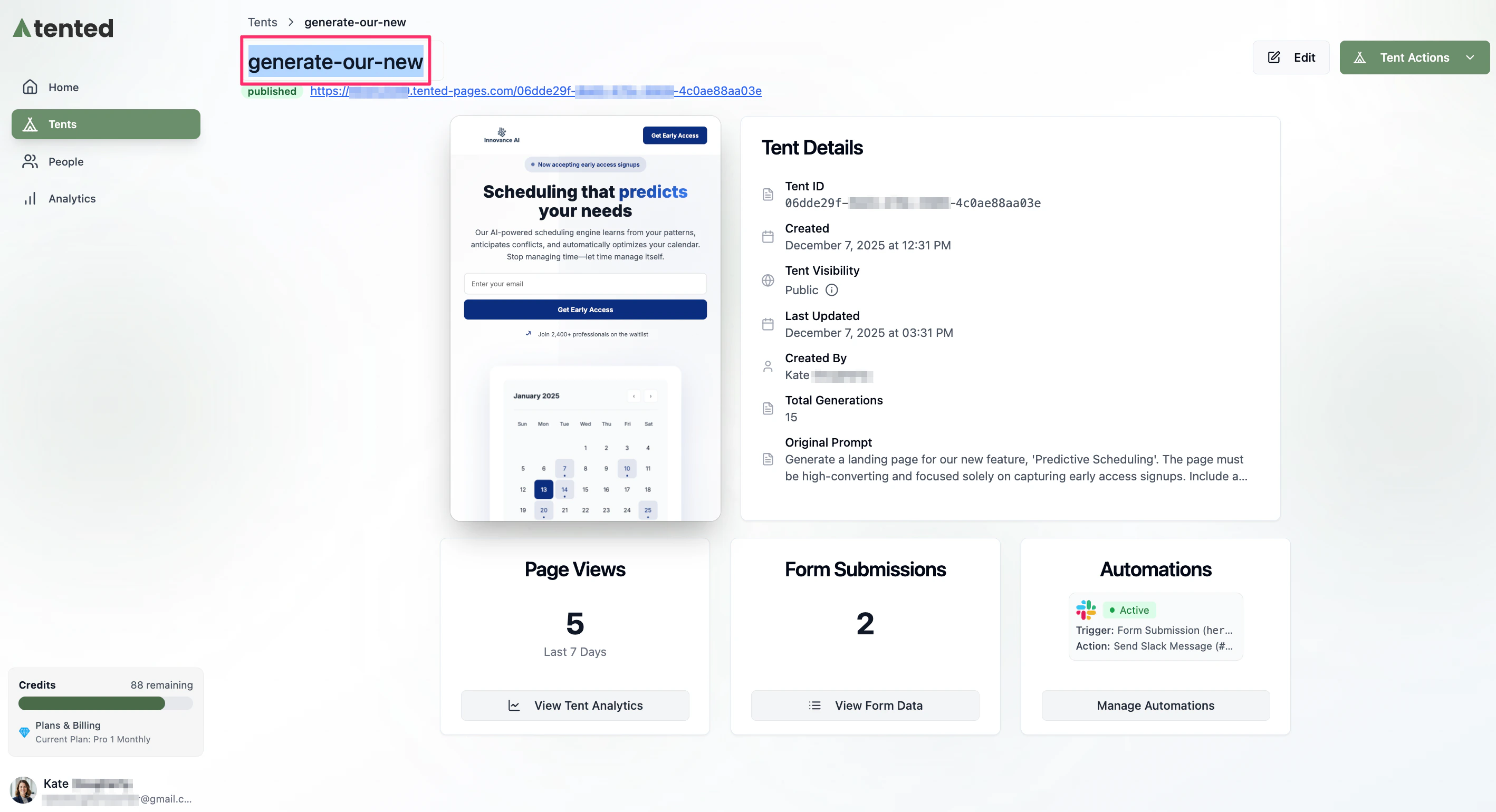
Renaming Tents

Quick Rename:
  1. Navigate to your tent details page
  2. Click on the tent name (it becomes editable)
  3. Type the new name
  4. Press Enter or click outside to save
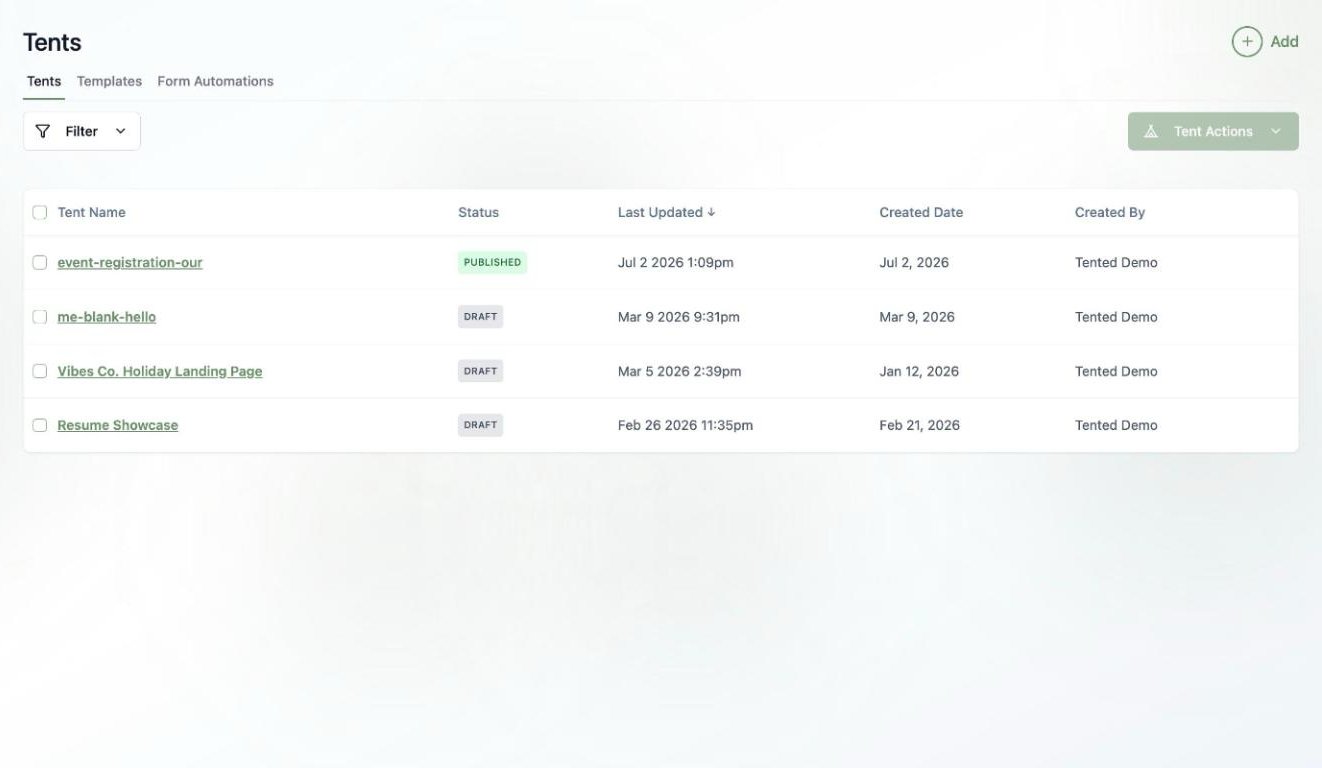
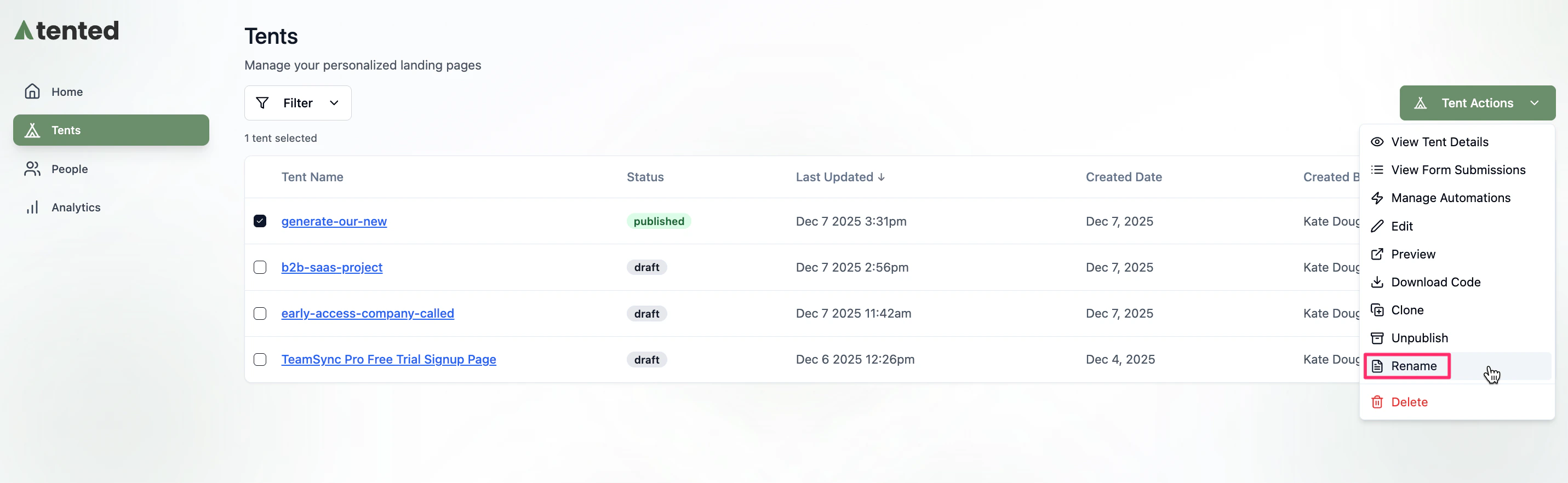
From Tent List:
  1. Find your tent in the dashboard
  2. Click the three-dot menu
  3. Select “Rename”
  4. Enter the new name and confirm
Best Practices for Naming:
  • Use descriptive names that indicate purpose
  • Include campaign or audience information
  • Add dates for time-sensitive campaigns
  • Use consistent naming conventions
Examples:
  • “Q4 Product Launch - SaaS Tool”
  • “Holiday Sale - E-commerce Store”
  • “Lead Gen - B2B Services”
  • “Event Landing - Conference 2024”

Deleting Tents

Deletion Process:
  1. Navigate to tent details or dashboard
  2. Click the three-dot menu
  3. Select “Delete”
  4. Confirm deletion in the dialog
  5. Tent is permanently removed
What Gets Deleted:
  • Tent code and content
  • Generation history
  • Form submission data
  • Analytics data
  • Published URL (becomes inactive)
Recovery Options:
  • Deleted tents cannot be recovered
  • Consider archiving instead of deleting
  • Export data before deletion
  • Use clone feature for backups
Deleting a tent is permanent and cannot be undone. All associated data, including form submissions and analytics, will be lost forever.

Cloning Tents

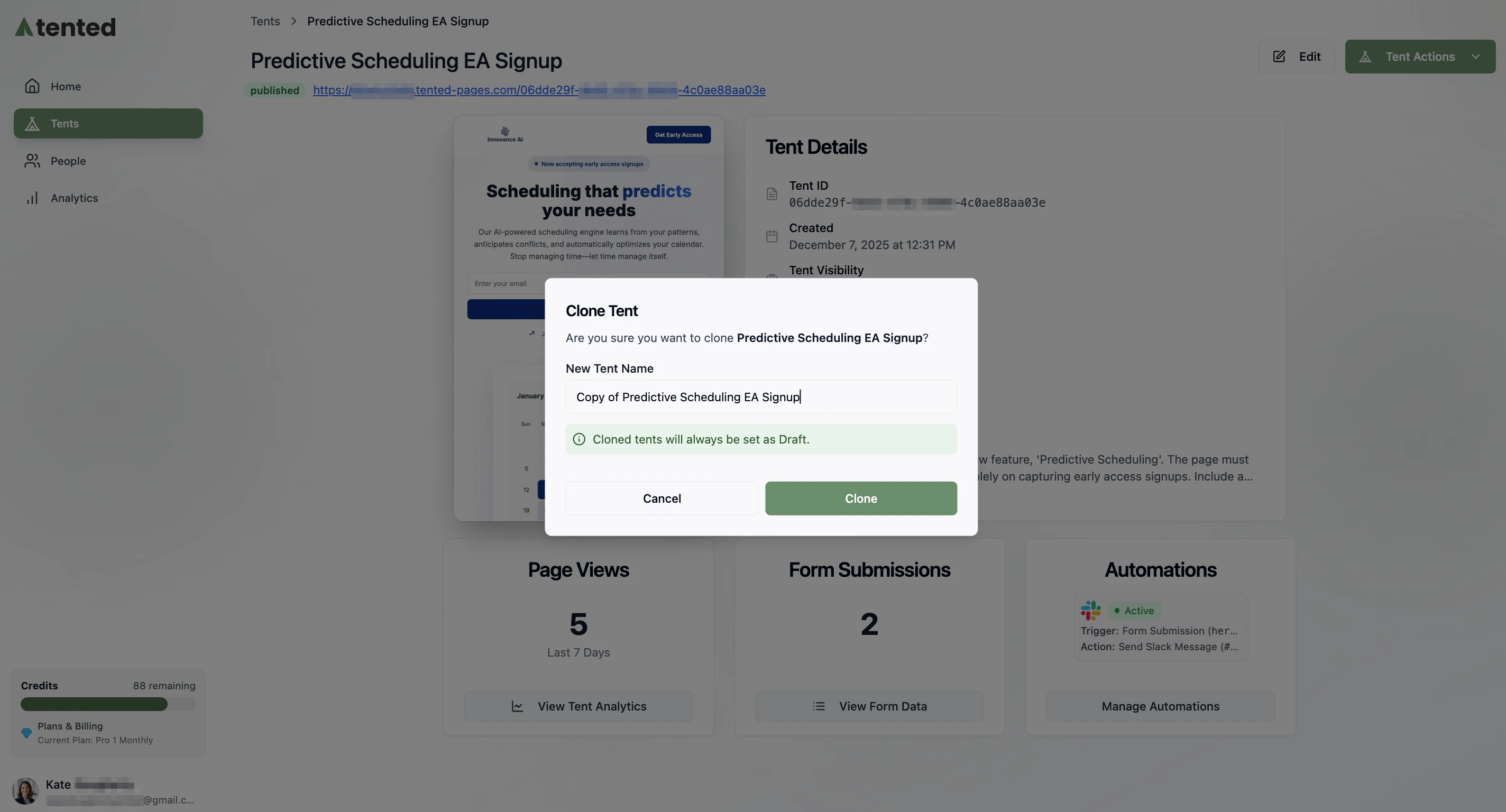
Clone Process:
  1. Navigate to your tent details page
  2. Click “Clone” button
  3. Enter name for the cloned tent
  4. Confirm cloning action
  5. New tent is created with identical content
What Gets Cloned:
  • Complete tent code and design
  • Brand settings and colors
  • Uploaded images and assets
  • Form structure and fields
What Doesn’t Get Cloned:
  • Form submission data
  • Analytics and performance data
  • Published URL
  • Generation history
Use Cases for Cloning:
  • A/B testing different versions
  • Creating variations for different audiences
  • Seasonal campaign updates
  • Regional or language variations

Publishing Management

Publishing and Unpublishing

Publishing a Tent:
  1. Ensure tent is ready for publication
  2. Click “Publish” button
  3. Confirm publishing action
  4. Receive live URL
  5. Tent becomes publicly accessible
Unpublishing a Tent:
  1. Navigate to tent details page
  2. Click “Unpublish” button
  3. Confirm unpublishing action
  4. Tent becomes private (URL inactive)
  5. Can be republished later
Publishing Updates:
  • Make changes to published tent
  • Click “Publish Update”
  • Changes go live immediately
  • URL remains the same

Publishing Status Management

Status Types:
  • Draft: Not published, private
  • Published: Live and publicly accessible
  • Unpublished: Was published, now private
  • Archived: Retired from active use
Status Changes:
  • Draft → Published (publishing)
  • Published → Unpublished (unpublishing)
  • Any status → Archived (archiving)
  • Archived → Draft (restoring)

Advanced Management Features

Bulk Operations

Selecting Multiple Tents:
  • Check boxes next to tent names
  • Select all tents on current page
  • Use filters to select specific groups
  • Bulk selection tools
Bulk Actions Available:
  • Bulk Delete: Remove multiple tents
  • Bulk Archive: Archive multiple tents
  • Bulk Publish: Publish multiple tents
  • Bulk Export: Export multiple tent codes
Bulk Management Best Practices:
  • Review selections before bulk actions
  • Use filters to target specific tents
  • Consider impact of bulk operations
  • Keep backups of important tents

Archiving Tents

When to Archive:
  • Campaigns that have ended
  • Outdated or obsolete tents
  • Tents no longer needed but want to keep
  • Seasonal campaigns between seasons
Archive Process:
  1. Navigate to tent details
  2. Click three-dot menu
  3. Select “Archive”
  4. Confirm archiving action
  5. Tent moves to archived status
Archived Tent Features:
  • Preserved for future reference
  • Can be restored to draft status
  • Form data and analytics preserved
  • Can be cloned for new campaigns

Tent Organization

Folder Structure:
  • Create folders for different campaigns
  • Organize by client or project
  • Group by campaign type
  • Use tags for cross-category organization
Tagging System:
  • Add multiple tags to tents
  • Filter tents by tags
  • Search tents using tags
  • Create tag-based reports
Sorting and Filtering:
  • Sort by creation date
  • Sort by last modified
  • Sort by publication status
  • Filter by tags or folders

Data Management

Exporting Tent Data

Export Options:
  • Tent Code: Complete HTML/CSS/JS files
  • Tent Settings: Brand settings and configuration
  • Form Data: All submission data
  • Analytics: Performance metrics and reports
Export Formats:
  • ZIP file with all tent files
  • Individual file downloads
  • CSV for form data
  • JSON for structured data

Backup Strategies

Regular Backups:
  • Export important tents regularly
  • Keep copies of successful campaigns
  • Backup form submission data
  • Store analytics reports
Version Control:
  • Use generation history for versioning
  • Clone tents before major changes
  • Keep stable versions as backups
  • Document changes and iterations

Performance Management

Monitoring Tent Performance

Key Metrics:
  • Page views and unique visitors
  • Form submission rates
  • Conversion rates
  • Traffic sources
Performance Tracking:
  • Daily performance monitoring
  • Weekly trend analysis
  • Monthly performance reports
  • Campaign comparison analysis

Optimization Strategies

A/B Testing:
  • Clone tents for testing
  • Test different headlines
  • Test different call-to-actions
  • Test different layouts
Performance Optimization:
  • Optimize images and assets
  • Improve loading speeds
  • Enhance mobile experience
  • Refine conversion funnels

Collaboration Features

Team Management

User Roles:
  • Admin: Full access to all tents
  • Editor: Can edit and publish tents
  • Viewer: Can view tents and data
  • Custom: Specific permission sets
Permission Management:
  • Assign roles to team members
  • Control access to specific tents
  • Manage publishing permissions
  • Monitor team activity

Sharing and Collaboration

Tent Sharing:
  • Share preview links with stakeholders
  • Collaborate on tent development
  • Gather feedback from team members
  • Present tents to clients
Comment System:
  • Add comments to tents
  • Tag team members in comments
  • Track feedback and changes
  • Maintain communication history

Troubleshooting Management Issues

Common Problems

Permission Issues:
  • Verify user roles and permissions
  • Check tent-specific access settings
  • Contact admin for permission changes
  • Review team member assignments
Data Loss Concerns:
  • Regular backup procedures
  • Export important data
  • Use version control features
  • Keep copies of successful tents
Performance Issues:
  • Monitor tent loading times
  • Optimize images and assets
  • Check for code errors
  • Use performance monitoring tools

Getting Help

Support Resources:
  • Documentation and guides
  • Community forums
  • Support ticket system
  • Live chat support
Best Practices:
  • Follow naming conventions
  • Regular cleanup and organization
  • Backup important data
  • Monitor performance metrics

Next: Tent Settings

Learn how to configure tent-specific settings and preferences.